Find your trim from one photo of its cut end
Trim Scan outlines the profile of a piece of trim from a photo of its cut end and suggests matching catalogue profiles. The photo is processed on your phone and isn't uploaded.
Guide revision: 2026-09-23
How do I start?
Open Trim Ottawa and tap Trim Scan. You need a piece of the trim (an offcut is ideal) and your phone's camera. The printed calibration sheet is optional but gives the most accurate size.
What do I do next?
- 1
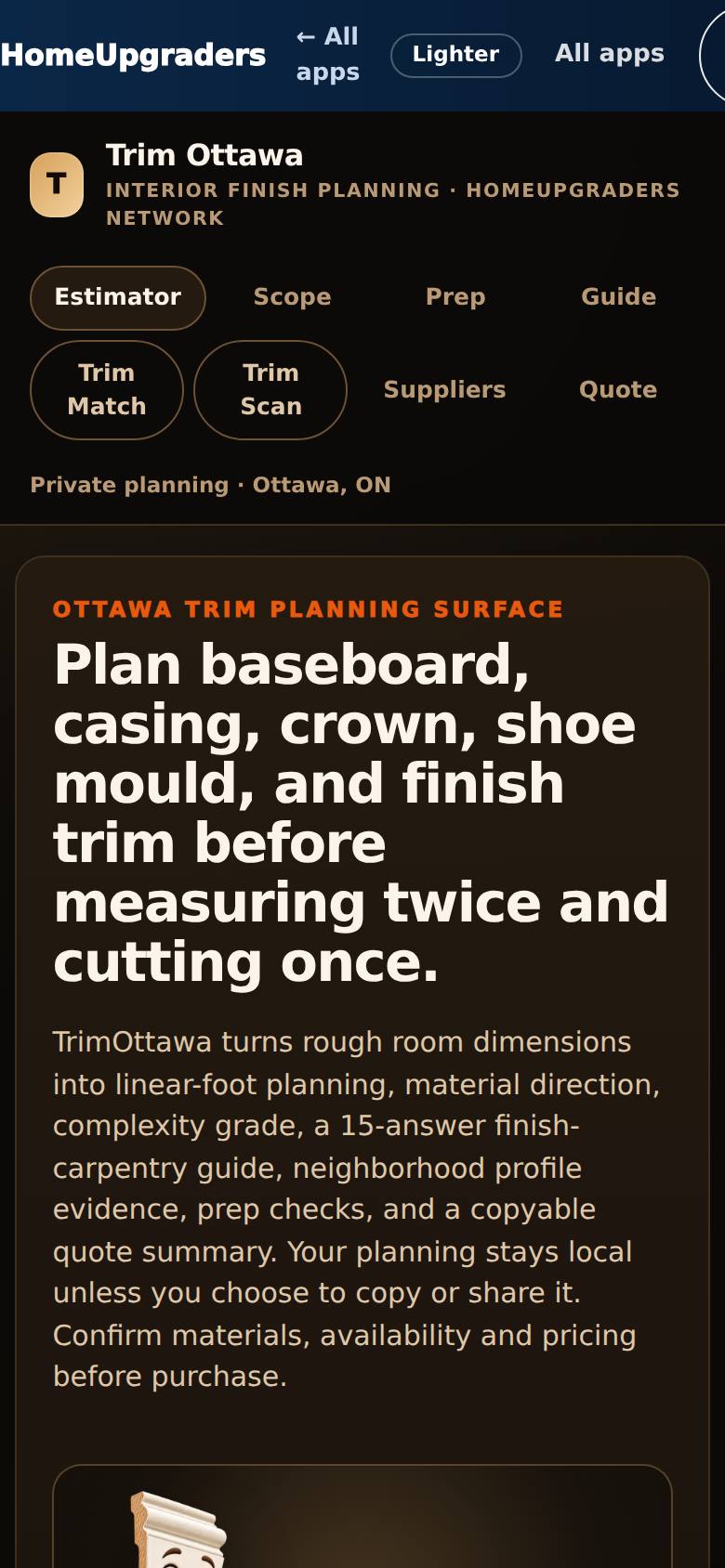
Open Trim Ottawa
Open Trim Ottawa from the Apps Hub.
The Trim Ottawa planning studio, with Trim Scan in the menu.
- 2
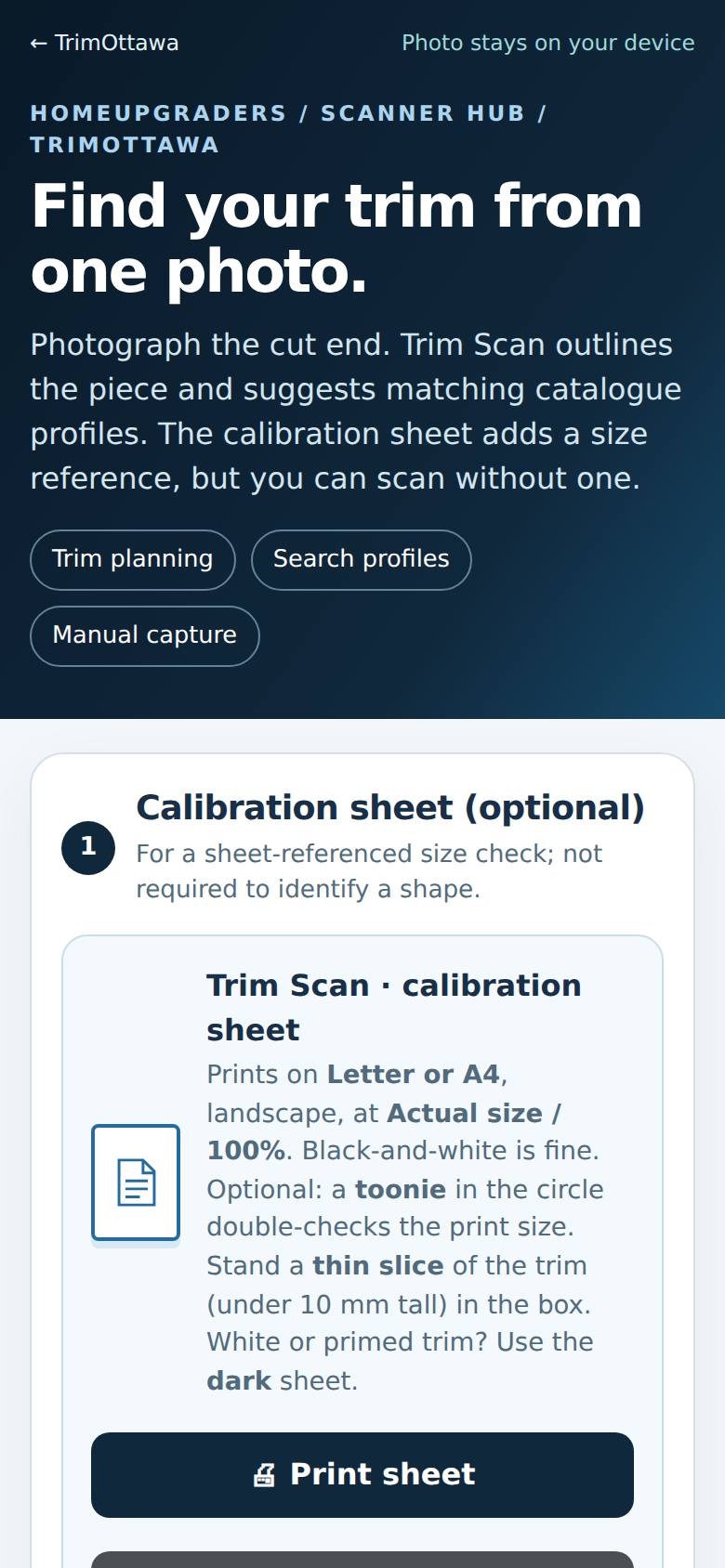
Open Trim Scan
Tap Trim Scan.
Three ways in: guided camera, take a photo, or choose a photo you already have.
- 3
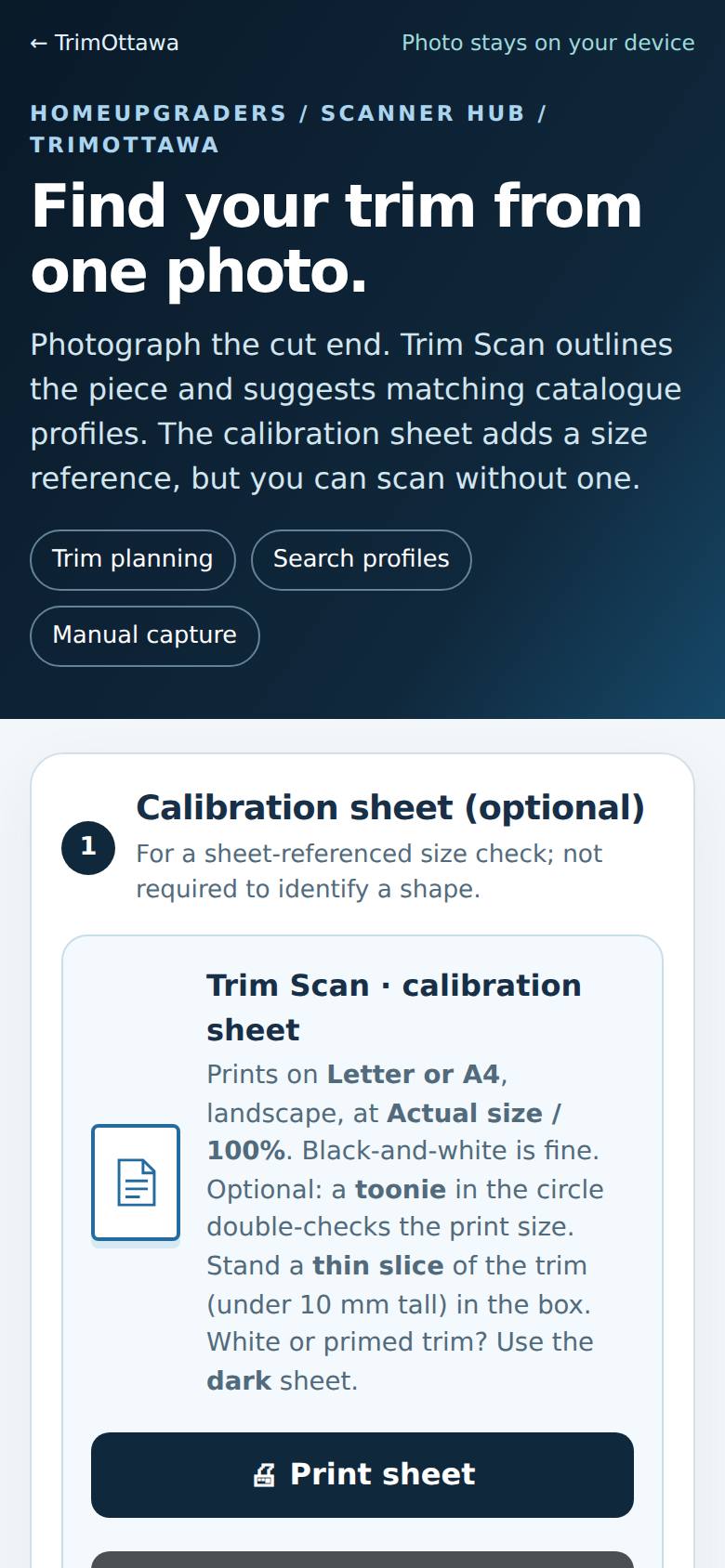
The calibration sheet (optional)
For the most accurate size, print the calibration sheet and hold the trim on it.
A link to the printable sheet.
- 4
Photograph the cut end
Tap Take a photo (or Choose existing photo) and photograph the CUT END of the trim, straight on.
Not tested here: this step needs a real photo of a trim cut end, taken on your phone. The result has not been checked in this guide yet.
Blocked when checked — see the note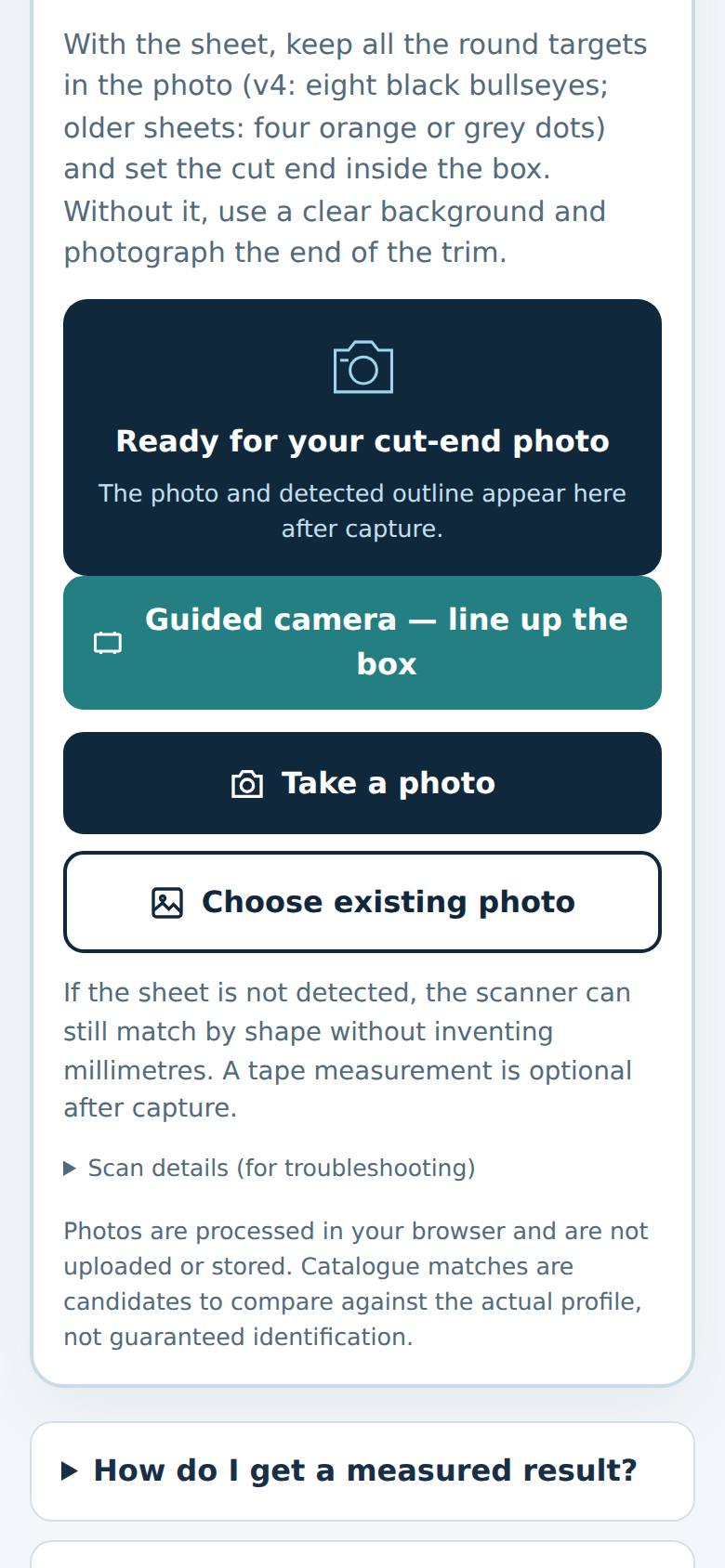
What result should I expect?
Not checked in this guide yet — the scan result needs a real photo of a trim's cut end. The app says its matches are candidates to compare against the actual profile, not guaranteed identification.
How do I save, share or get help?
The photo stays on your phone. From the result you can search the profile catalogue or go back to Trim planning.
If something goes wrong
- The outline is messy. Photograph the cut end straight on, filling the box, against a plain background (or on the calibration sheet).
Every screenshot here was taken while doing these exact steps on the app's current build (6b6e54f), on a phone-sized screen, signed out, on 2026-09-23. Steps that need an account are marked. Nothing was submitted or bought.
All How-To guides Return to Trim Scan