Find Canadian-made materials for each stage of your renovation
Material Picker searches over 2,000 Canadian construction products by renovation phase — site prep, framing, insulation, finishes and more — showing the product, what it is, the Canadian brand and where it is available in Ottawa.
Guide revision: 2026-09-23
3-step walkthrough with voiceover, recorded from the same checked steps.
Voiceover: Kokoro text-to-speech (Apache 2.0).
What do I do next?
- 1
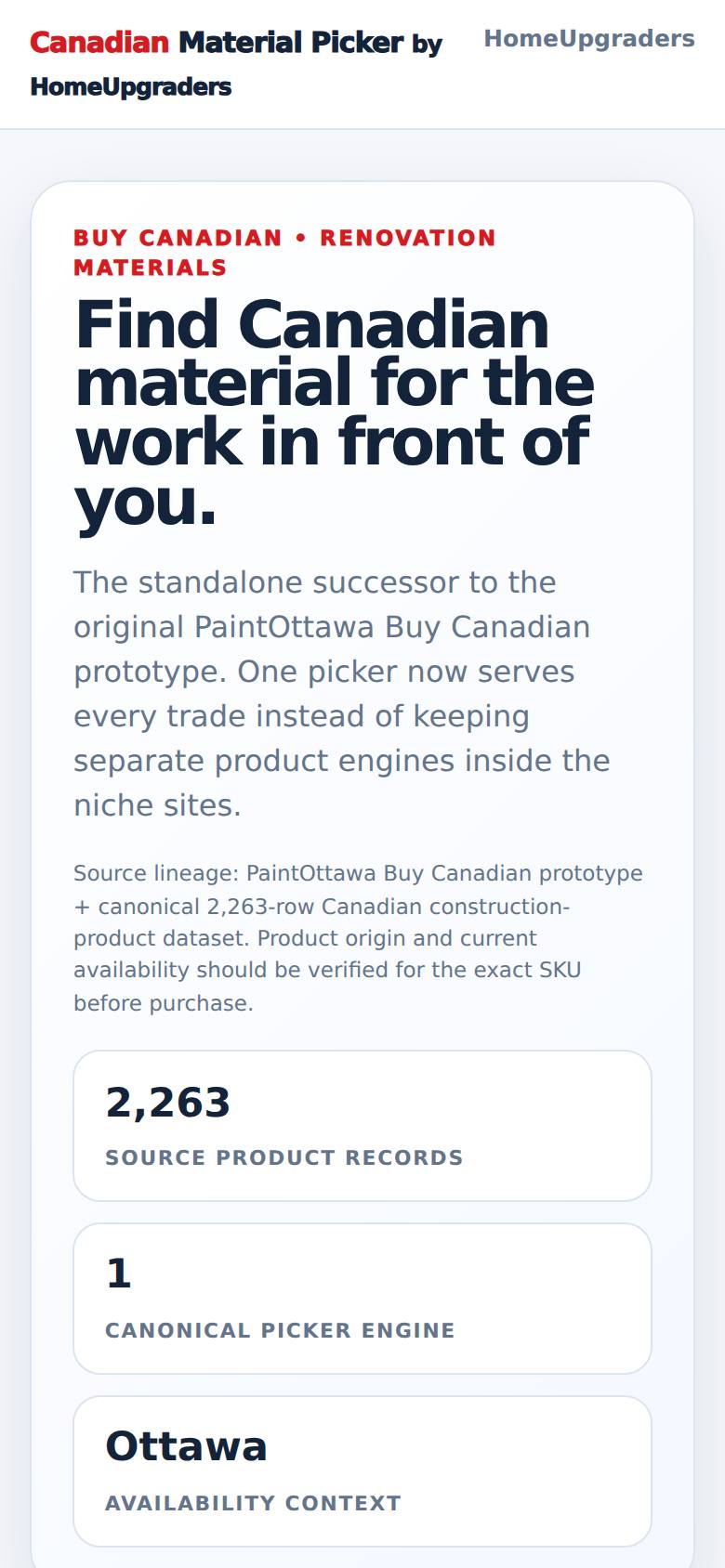
Open Material Picker
Open Material Picker from the Apps Hub.
Find Canadian material for the work — pick the renovation phase to start.
- 2
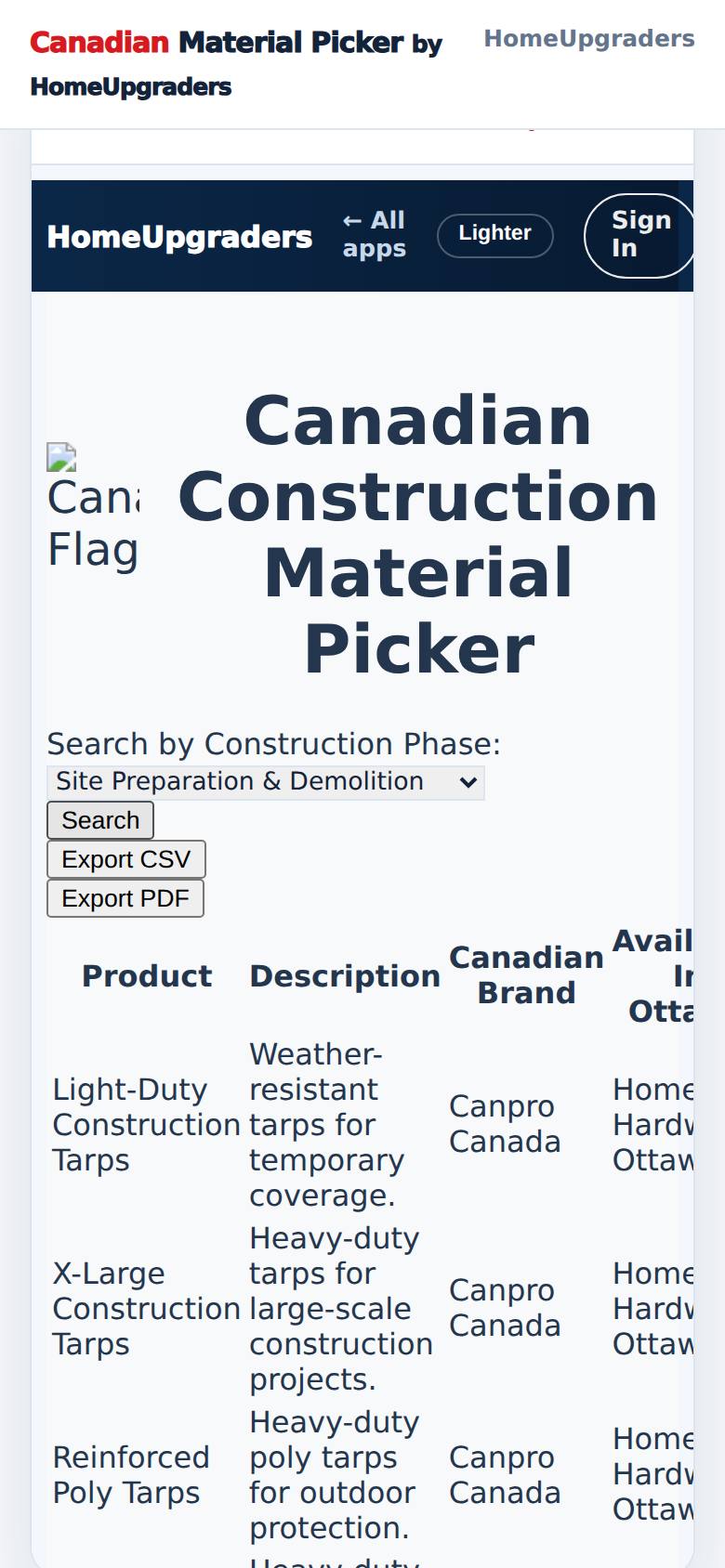
Pick the phase and search
Choose the renovation phase (for example framing, insulation or finishes), then tap Search.
Canadian materials for that phase, with their makers and where they come from.
- 3
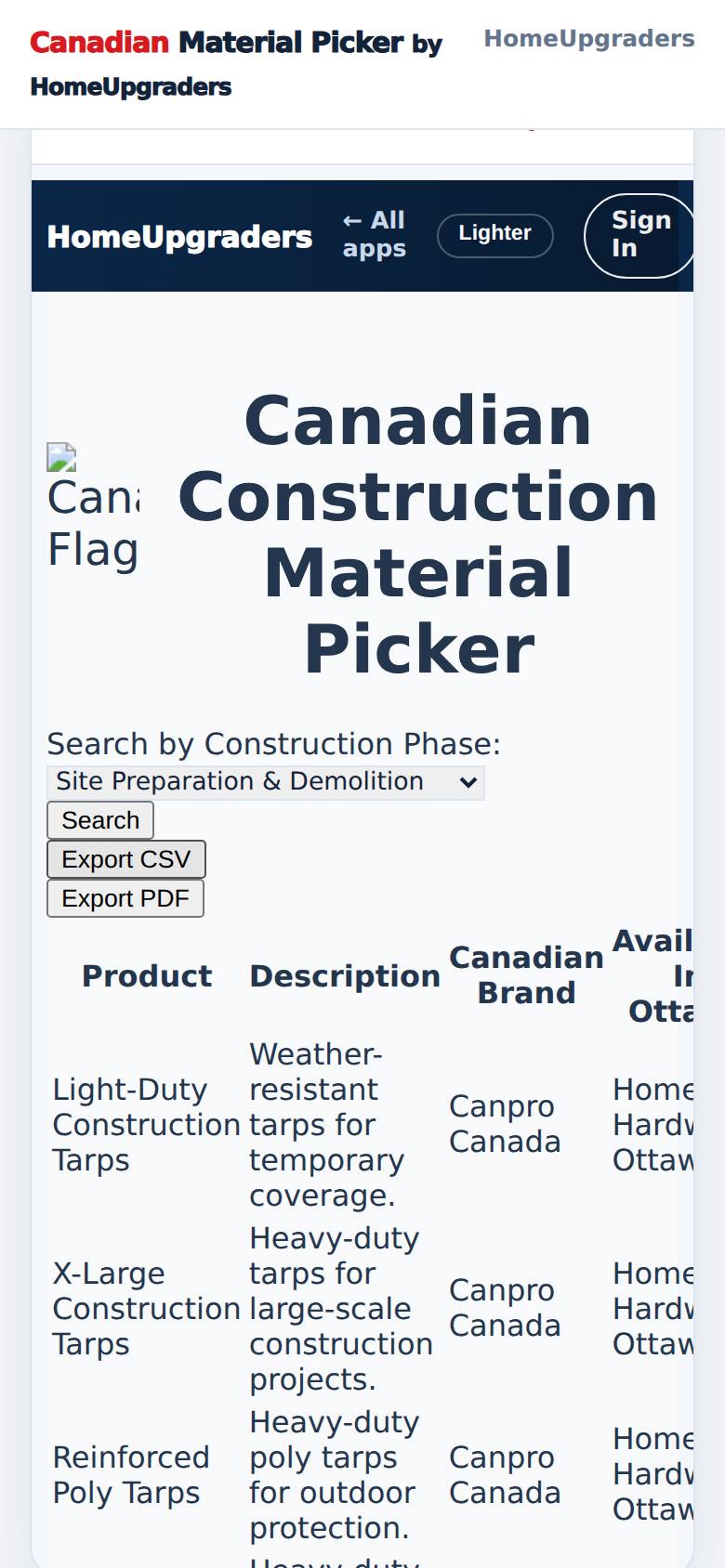
Keep the list
Tap Export CSV (for a spreadsheet) or Export PDF.
The list downloads to your phone (Canadian_Construction_Materials.csv).
What result should I expect?
A table of Canadian products for the phase you picked, with the brand and Ottawa availability. Availability and specs should be confirmed for the exact product before you buy.
How do I save, share or get help?
Export CSV (for a spreadsheet) or Export PDF keeps the list on your phone to take to the store or your contractor.
In these screenshots the small Canada flag image at the top of the picker did not load in the capture; you will see it on your phone.
Every screenshot here was taken while doing these exact steps on the app's current build (411f452), on a phone-sized screen, signed out, on 2026-09-23. Steps that need an account are marked. Nothing was submitted or bought.
All How-To guides Return to Material Picker