Find every HomeUpgraders app — and install it on your phone
The Toolbox is where every HomeUpgraders app lives: the toolbox (planning and measuring tools), the briefcase (running a job) and the toybox. The install page puts HomeUpgraders on your home screen.
Guide revision: 2026-09-23
3-step walkthrough with voiceover, recorded from the same checked steps.
Voiceover: Kokoro text-to-speech (Apache 2.0).
How do I start?
Tap Toolbox from any app, or open the Apps Hub. Tap a compartment in the picture or a name in the list underneath.
Open ToolboxWhat do I do next?
- 1
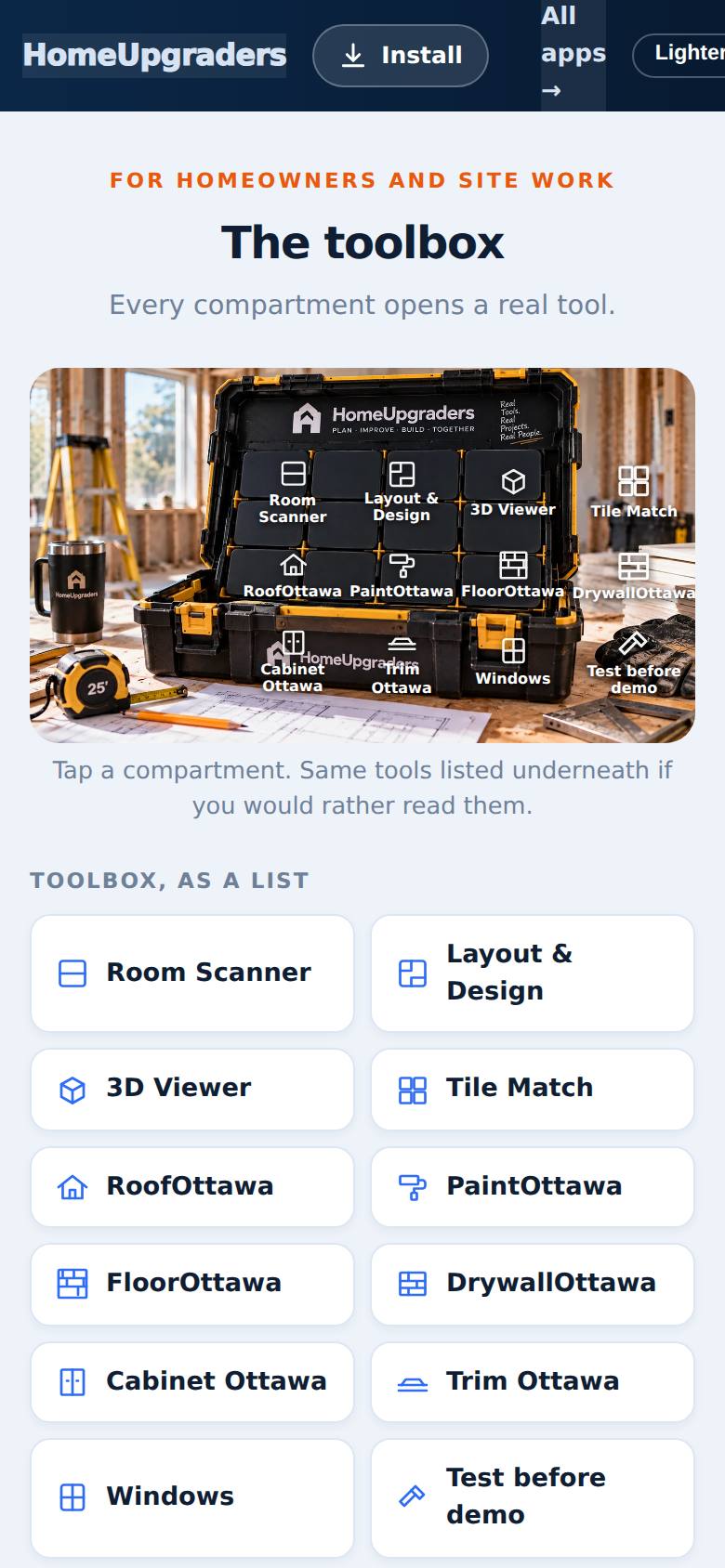
Open the Toolbox
Open the Toolbox from the Apps Hub (or the Toolbox button in any app).
Every HomeUpgraders app in one place: the toolbox, the briefcase and the toybox.
- 2
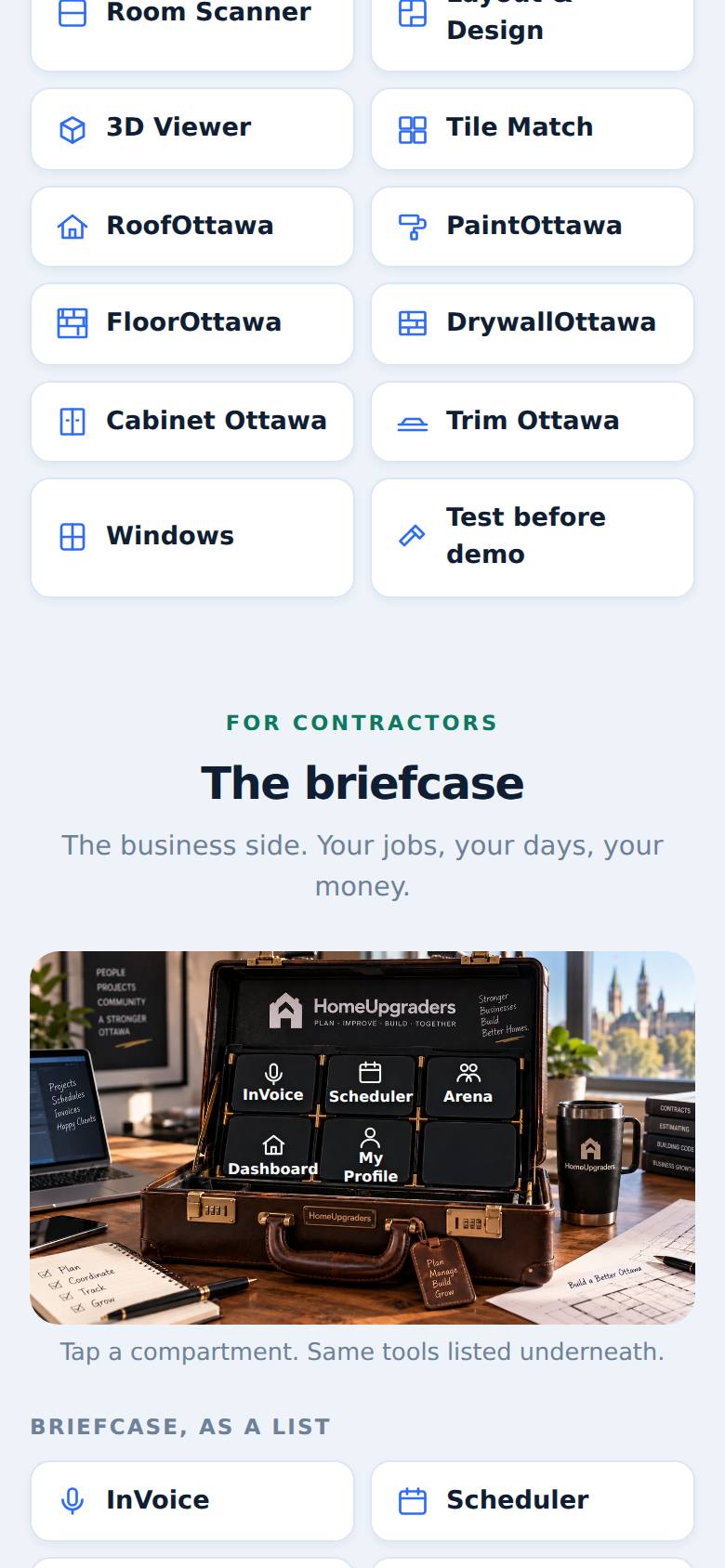
The briefcase
Scroll to The briefcase.
The apps for running a job — scheduling, invoicing and the like.
- 3
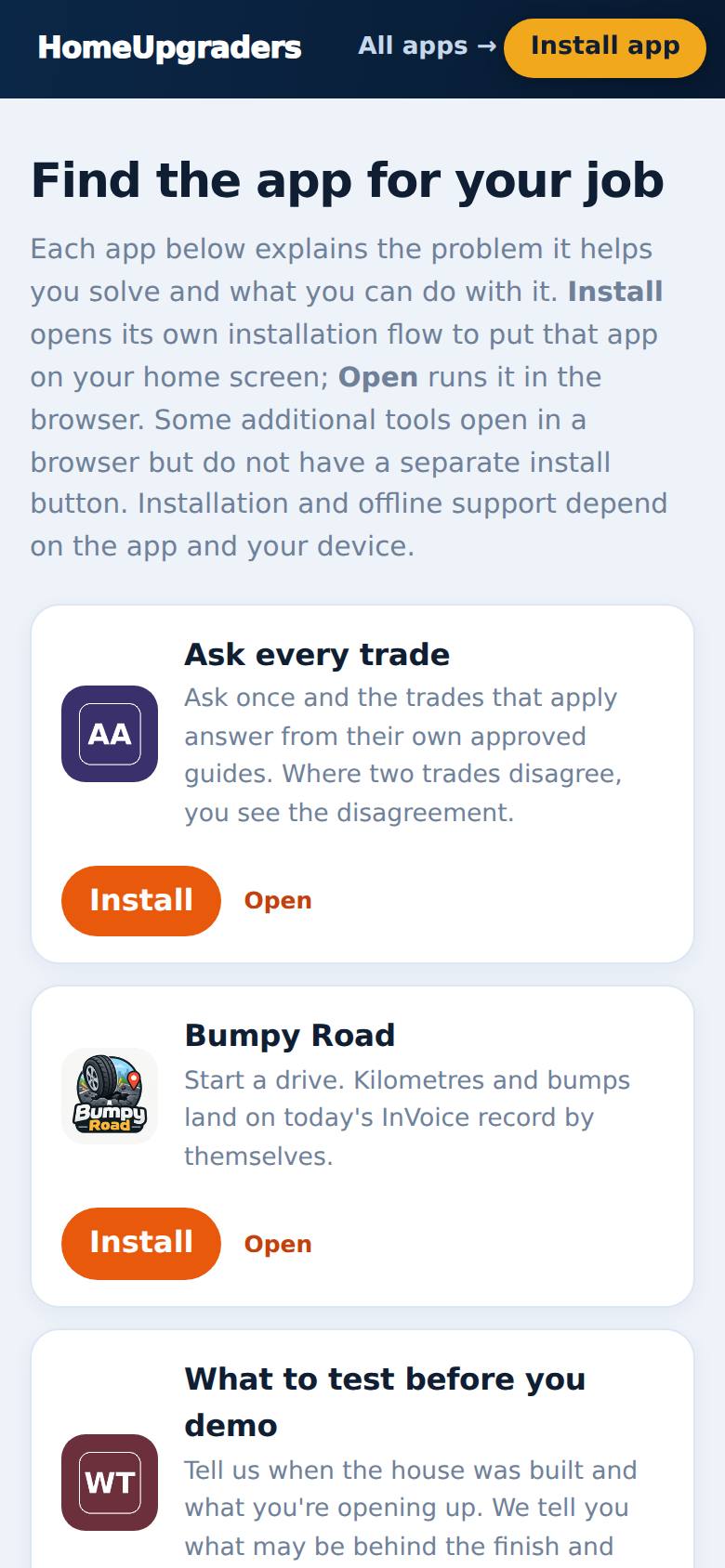
Install the app
Open the install page and tap "Install app" to put HomeUpgraders on your home screen.
Find the app for your job — plan a renovation, measure your home, run the job — with Install app at the top.
What result should I expect?
Each app opens straight away. From the install page, Install app adds HomeUpgraders to your home screen so it opens like an app.
How do I save, share or get help?
Most apps keep your work on the phone and offer a Project File; signing in (the account button at the top) keeps it in your HomeUpgraders account.
Every screenshot here was taken while doing these exact steps on the app's current build (411f452), on a phone-sized screen, signed out, on 2026-09-23. Steps that need an account are marked. Nothing was submitted or bought.
All How-To guides Return to Toolbox