Photograph the tiles, number them, plan the wall
TileMatchMaker: upload a photo of your tiles, cut it into cells, accept them into an inventory with a label for each tile, then plan the wall: a grid for its size, place tiles by column and row, score the flow and get a cut list. Every number carries an evidence grade; when it is unsure it says so.
Guide revision: 2026-10-13
6-step walkthrough with voiceover, recorded from the same checked steps.
Voiceover: Kokoro text-to-speech (Apache 2.0).
How do I start?
Open TileMatchMaker from the app hub. Start with Sources.
What do I do next?
- 1
Home: the workflow
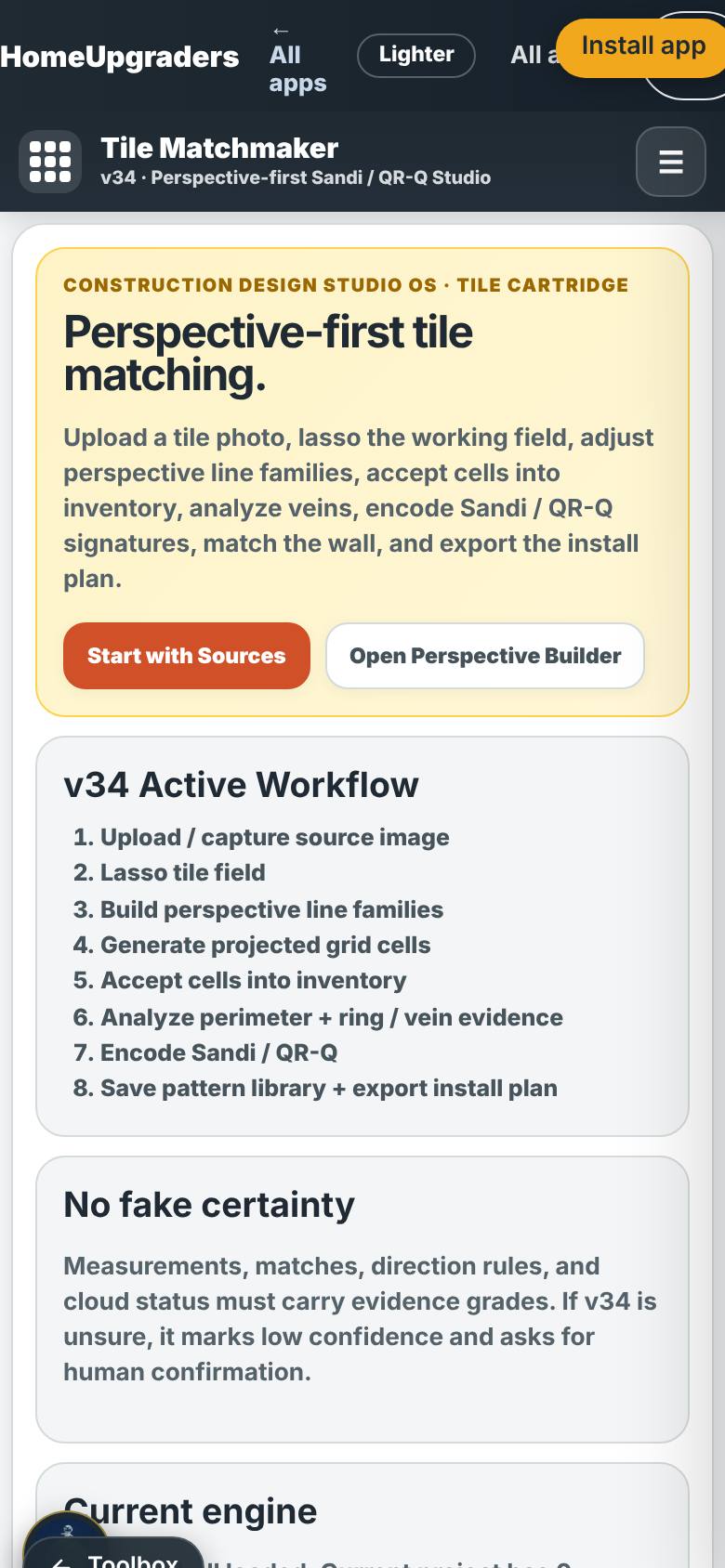
Open TileMatchMaker. Read the workflow, then tap Sources.
The workflow and the pages along the top.
- 2
Upload the photo
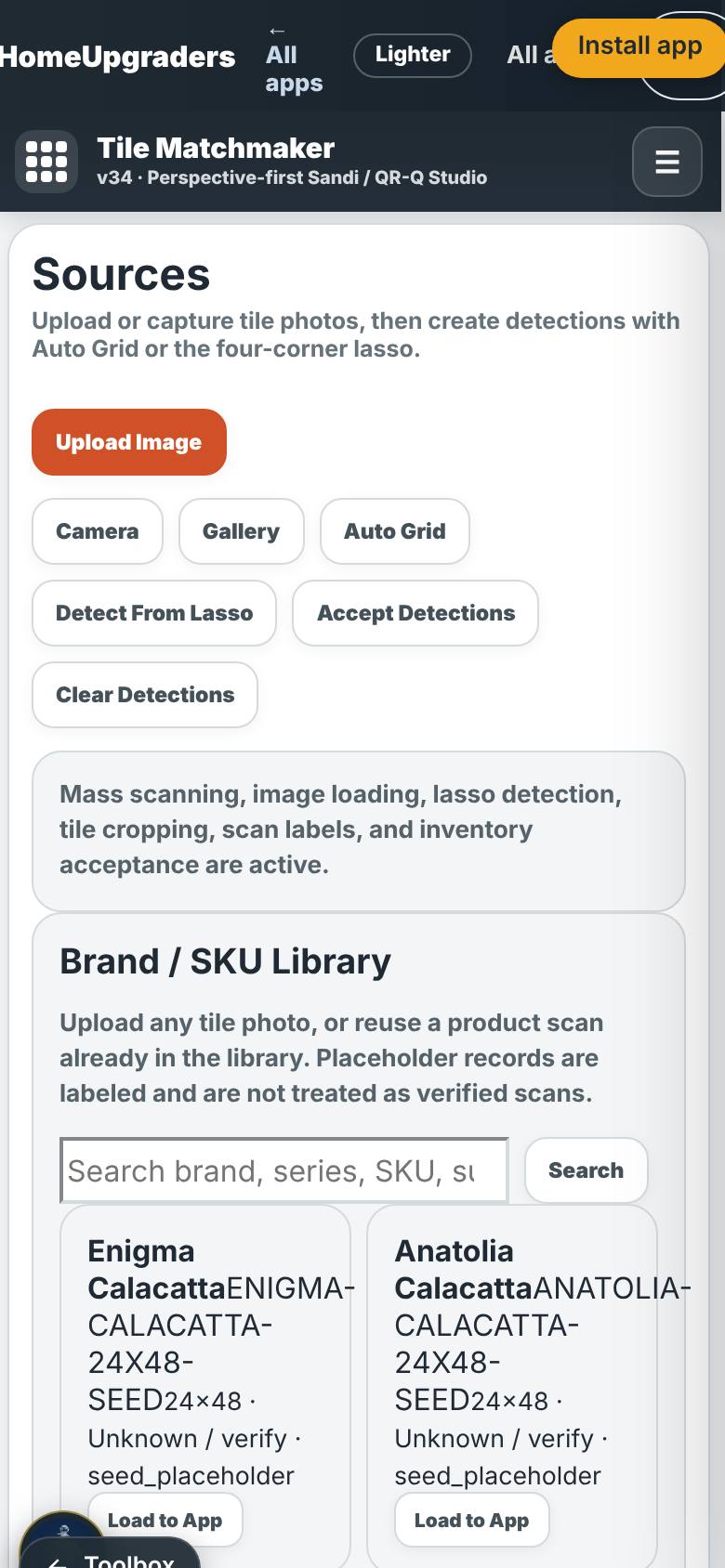
Tap Upload Image and choose the tile photo, then Auto Grid: 3 columns, 4 rows.
Sources counts 1, Cells 12.
- 3
Accept into inventory
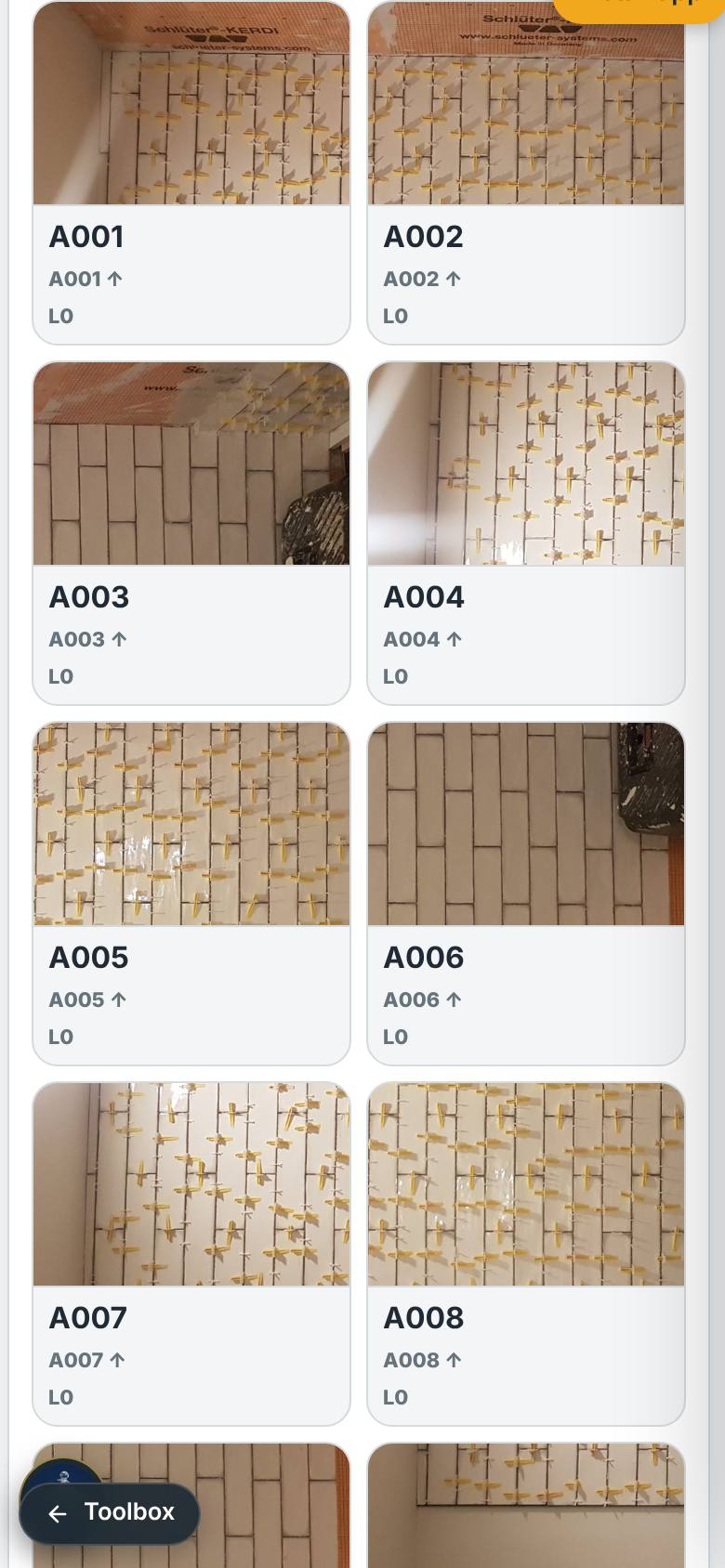
Tap Accept Detections, then Inventory.
Twelve labelled tiles.
- 4
Plan the wall
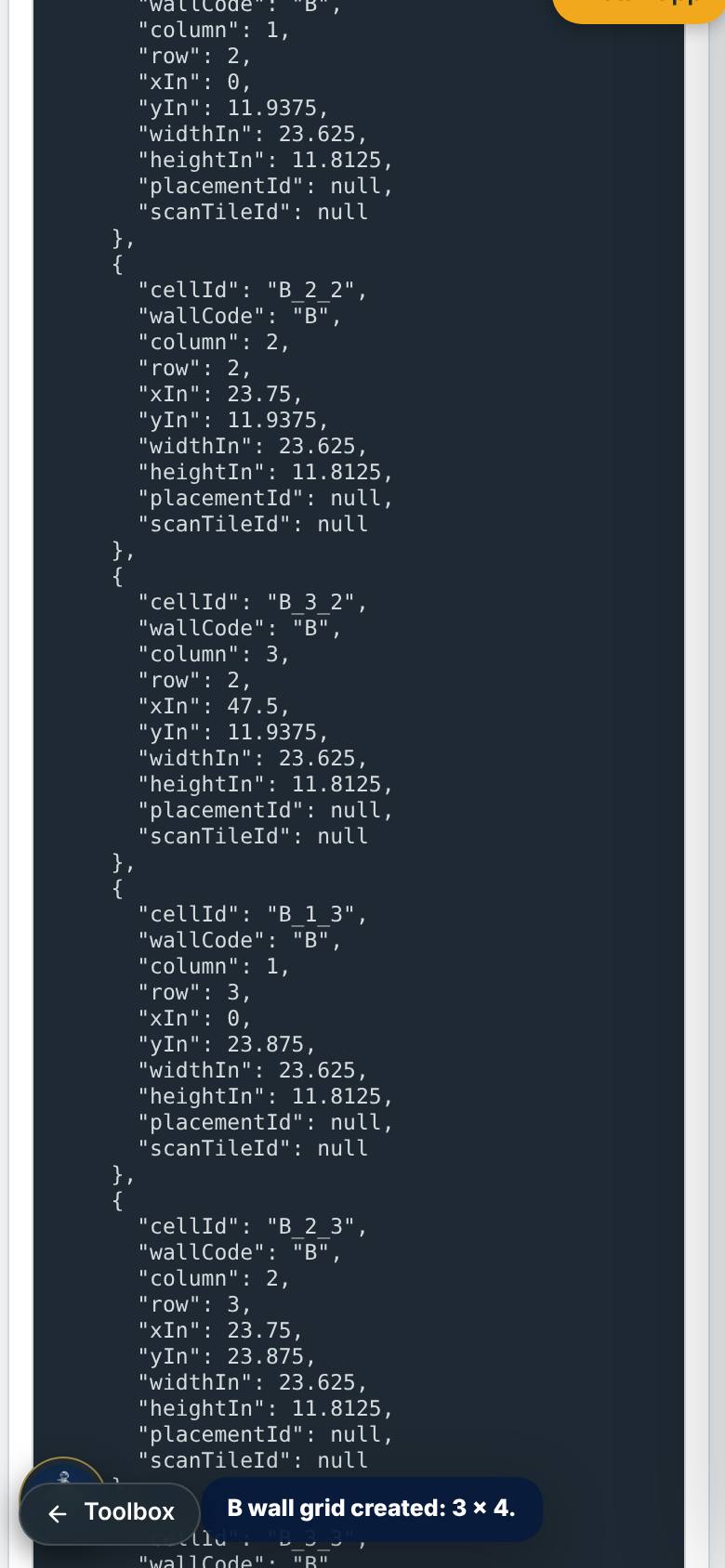
On Layout, type the wall size and tap Create Wall Grid.
The wall grid, columns by rows.
- 5
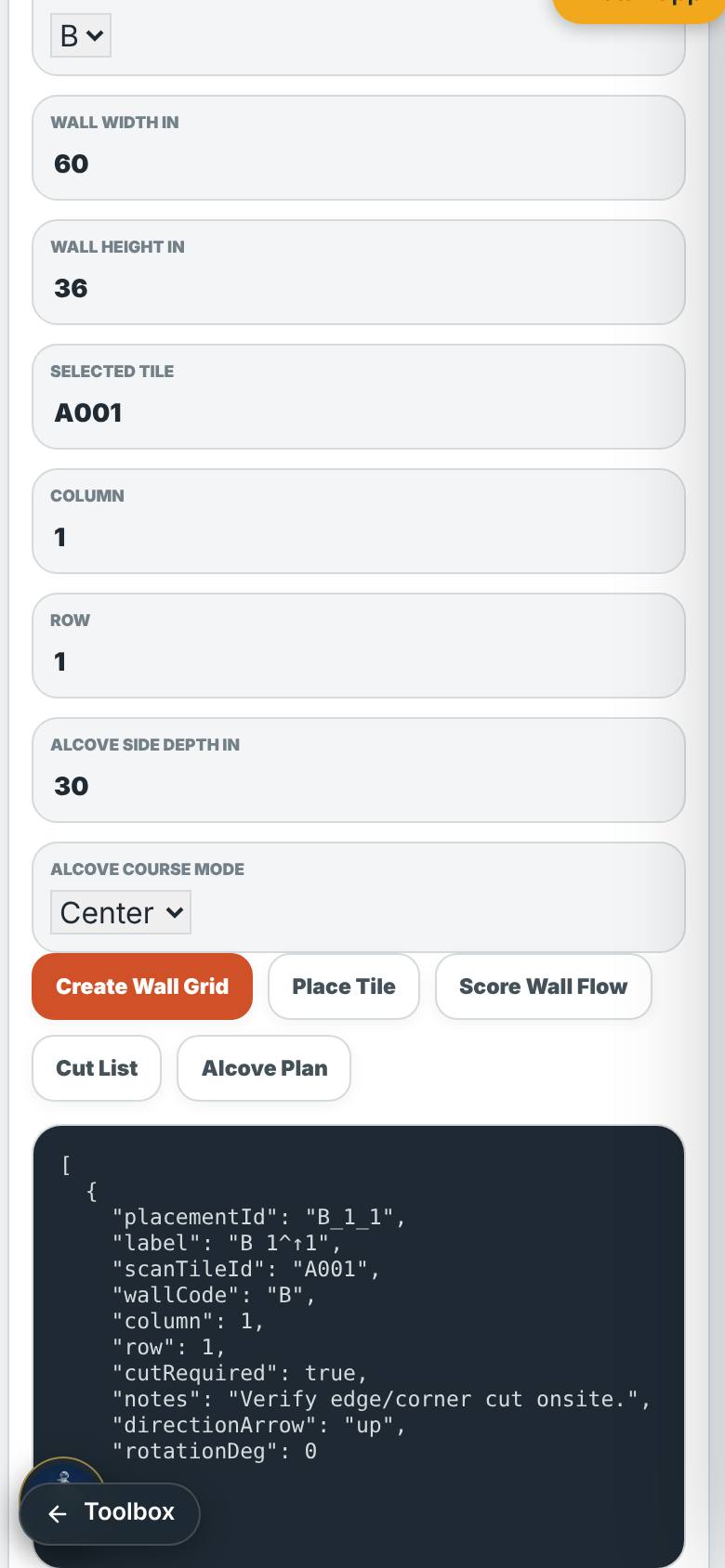
Place a tile, cut list
Type a tile label, column and row; tap Place Tile, then Cut List.
A placement and the cut list.
- 6
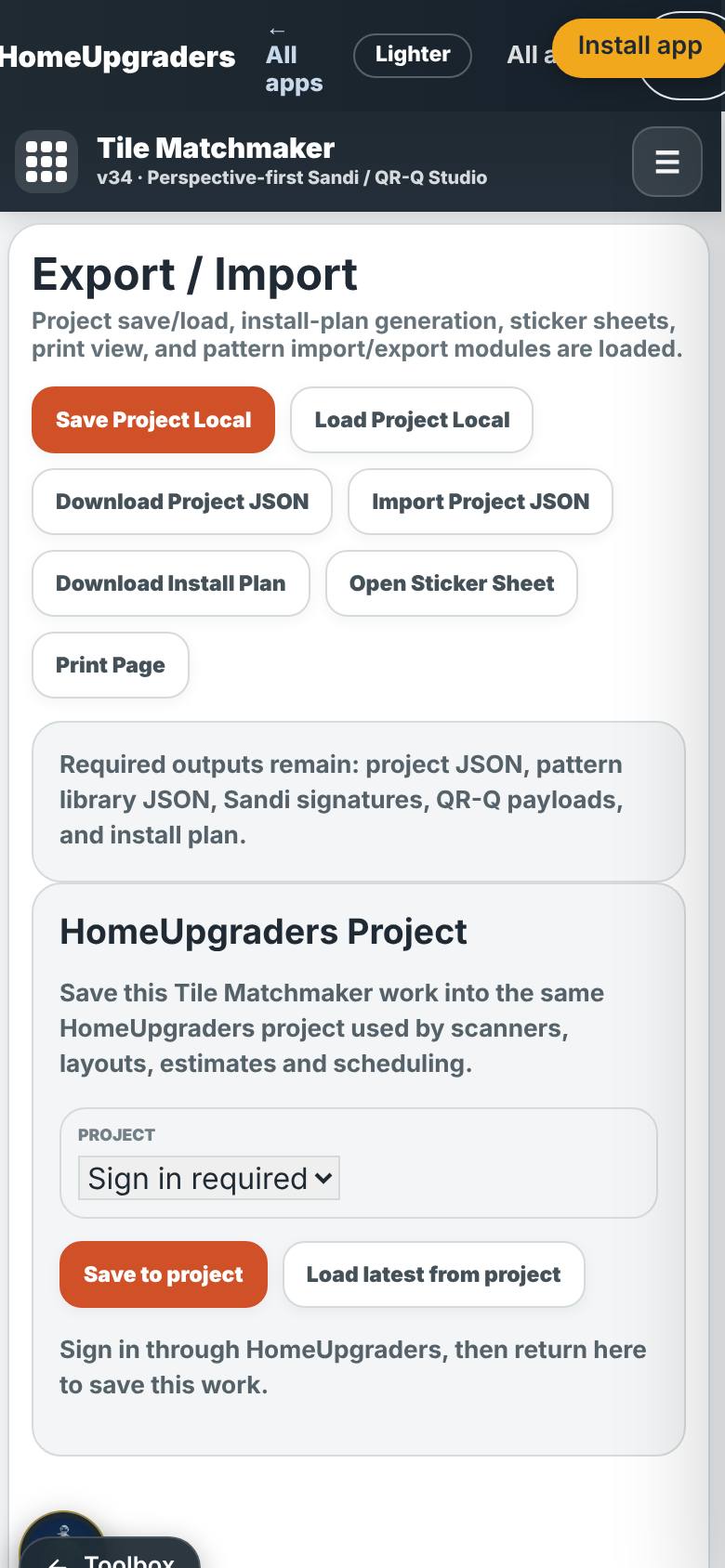
Export
Tap Export.
Save, install plan, sticker sheet, print.
What result should I expect?
A numbered tile inventory and a wall plan with placements and a cut list, saved on this device and exportable.
How do I save, share or get help?
Export saves the project as a file, an install plan, a sticker sheet for the tile backs, or a print view.
If something goes wrong
- Auto Grid cut the photo wrong. Use the lasso on the Perspective page to mark the tile field first, then Detect From Lasso.
Every screenshot here was taken while doing these exact steps on the app's current build (87872e3), on a phone-sized screen, signed out, on 2026-10-13. Steps that need an account are marked. Nothing was submitted or bought.
All How-To guides Return to TileMatchMaker