Which scanner for which job, and where each one lives
The scan hub: the browser Room Measurement with the Scan Card, the Android Room Scanner, the iPhone LiDAR scanner (coming once it has been tested on an iPhone), the Tile Matchmaker material scanner and the Screen Analyzer. All of them feed the same room-evidence model, and each one says how its measurement was produced.
Guide revision: 2026-10-13
5-step walkthrough with voiceover, recorded from the same checked steps.
Voiceover: Kokoro text-to-speech (Apache 2.0).
How do I start?
Open Scan from the app hub, or the Scanners compartment in the toolbox.
What do I do next?
- 1
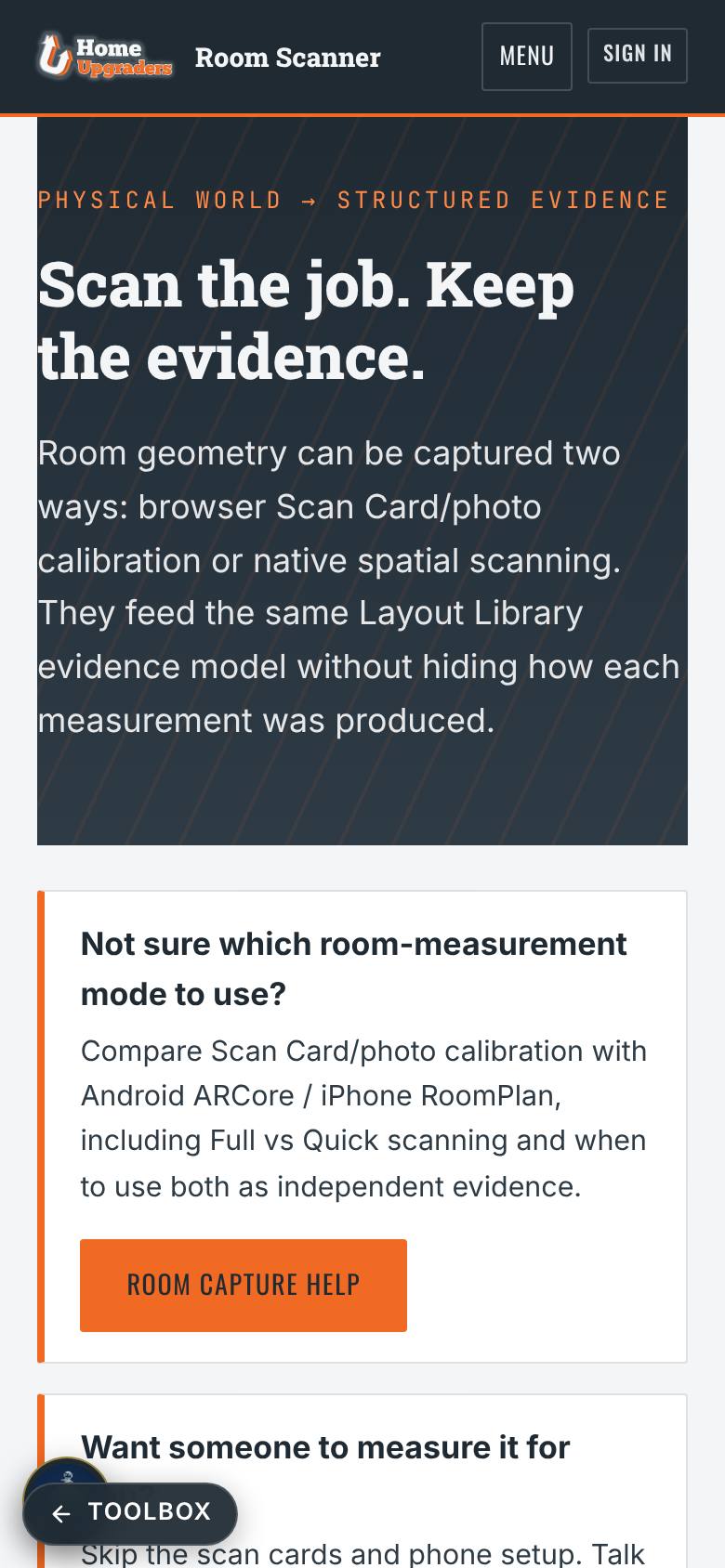
Scan the job, keep the evidence
Open Scan from the app hub.
Two ways to capture a room; Room Capture Help.
- 2
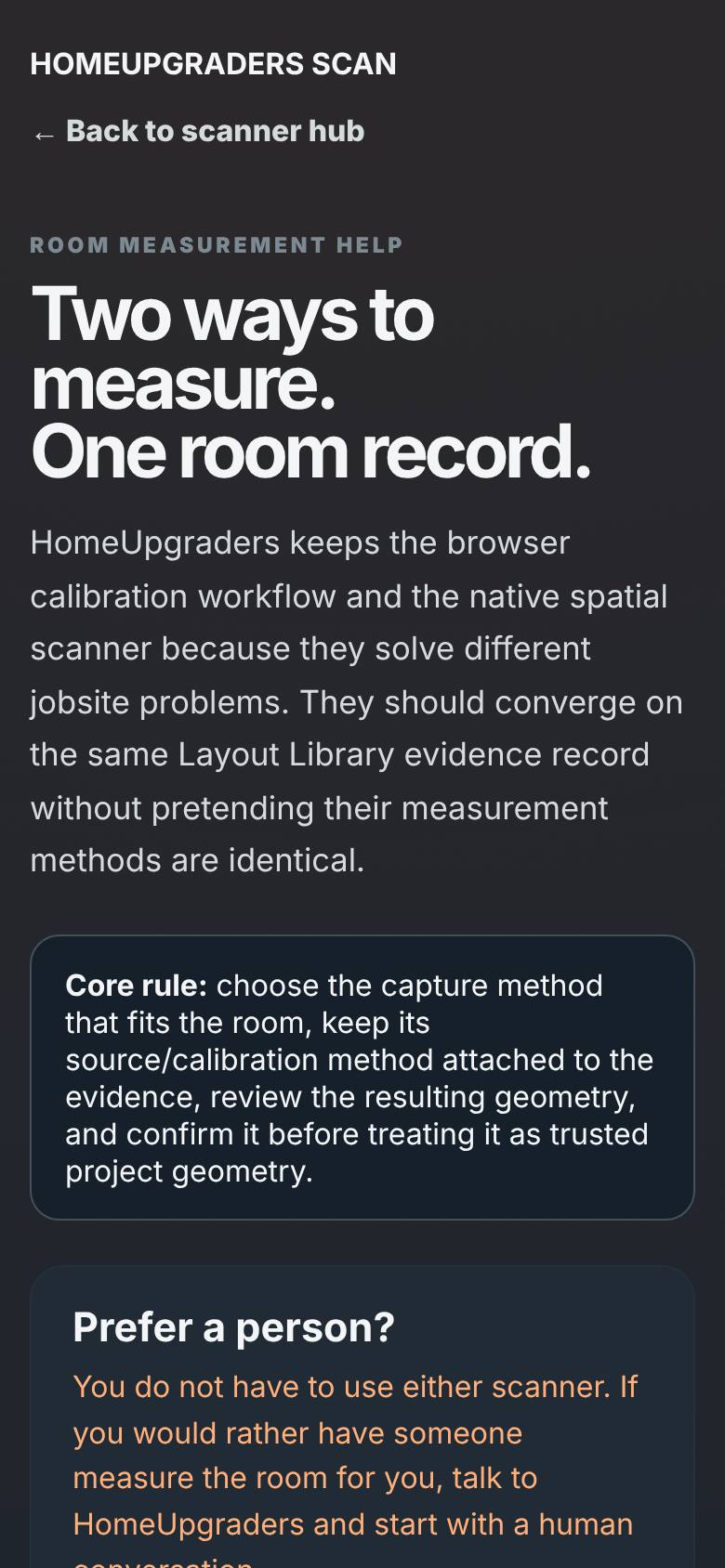
Room Capture Help
Tap Room Capture Help.
The modes compared.
- 3
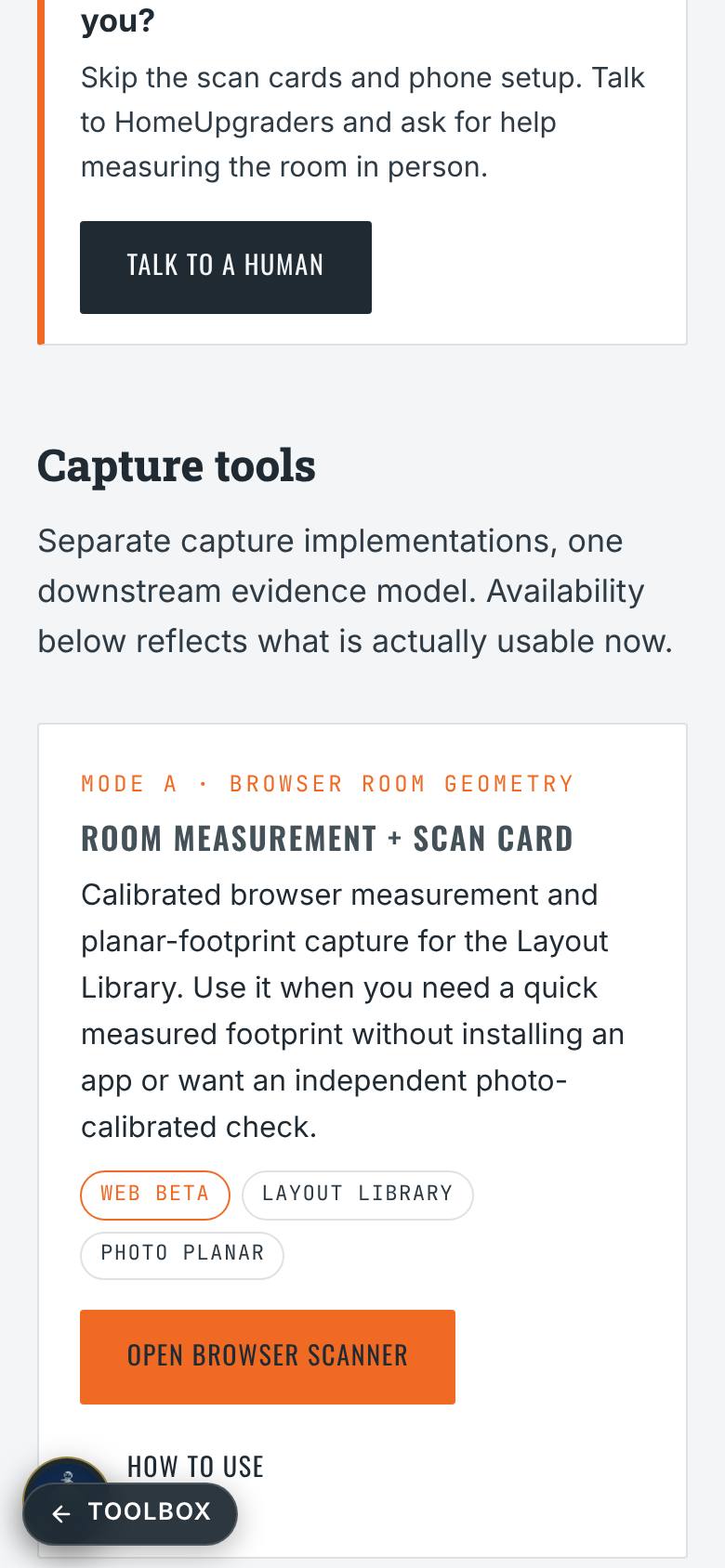
Mode A: the browser scanner
Back on the hub: Mode A.
Room Measurement + Scan Card.
- 4
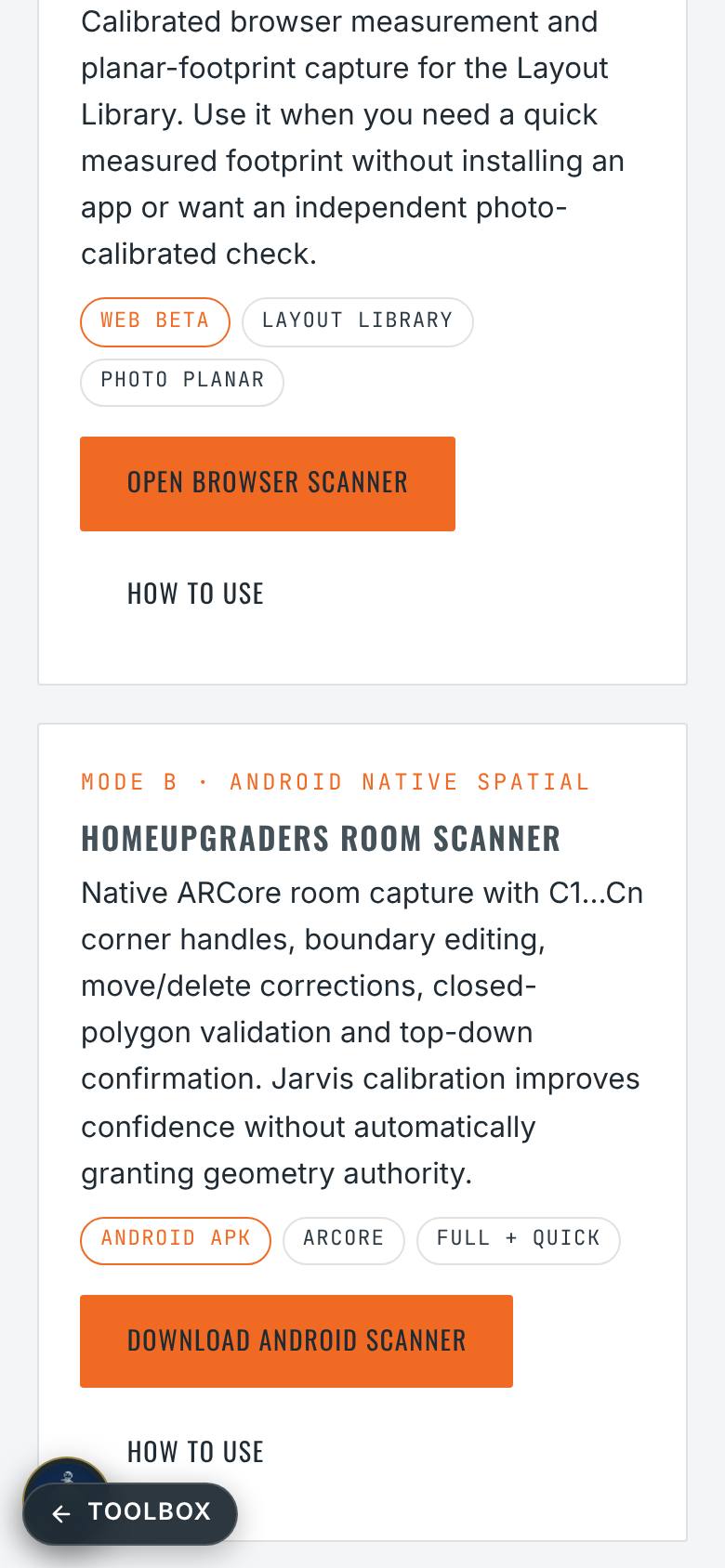
Mode B: the phone scanners
Scroll to Mode B.
Android Room Scanner and iPhone LiDAR.
- 5
Materials and screens
Scroll on.
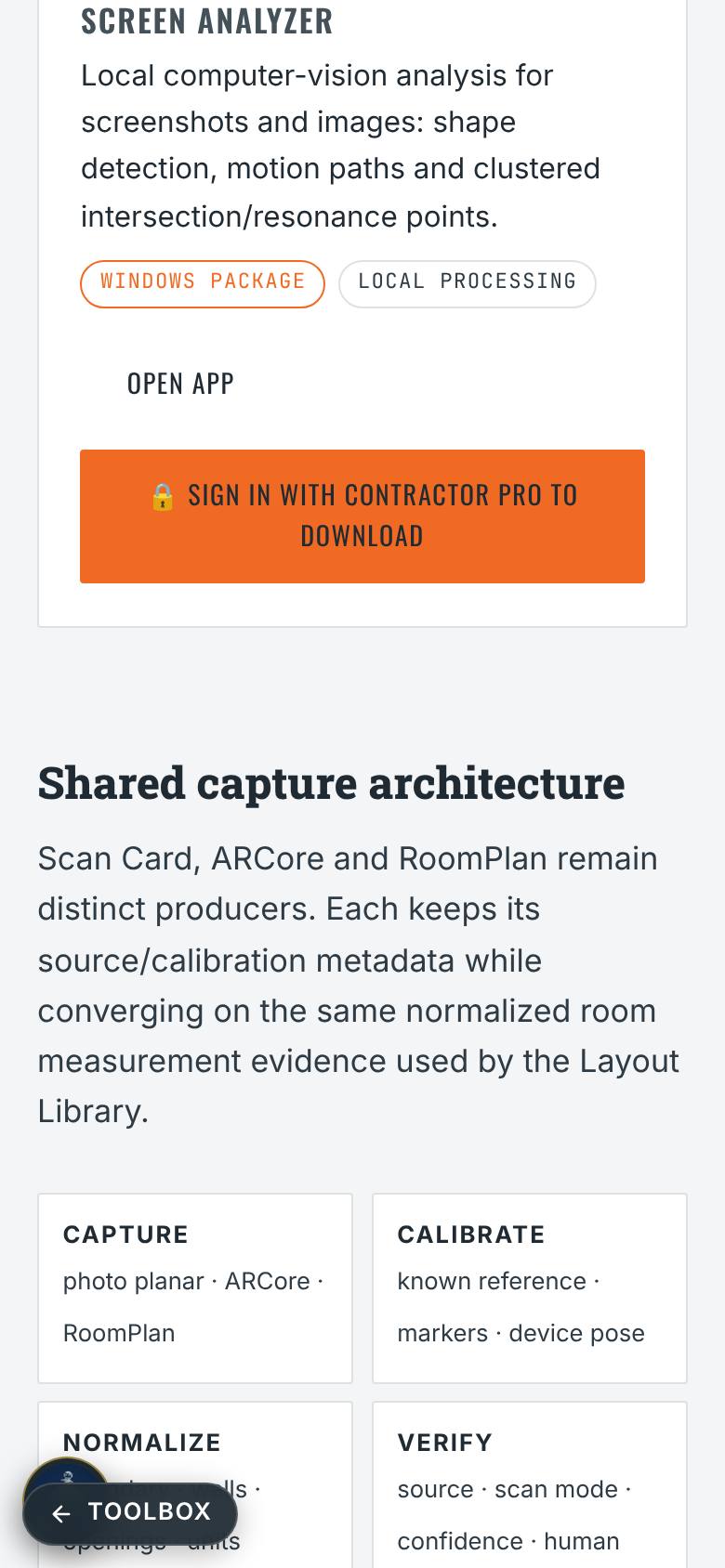
Tile Matchmaker scanner, Screen Analyzer, the capture flow.
What result should I expect?
The right capture tool open, with its how-to a tap away.
How do I save, share or get help?
Every scan lands in the Layout Library with its source and confidence attached.
If something goes wrong
- Which one should I use? Tap Room Capture Help. It compares the Scan Card with Android and iPhone scanning, full versus quick, and when to use two as independent evidence.
Every screenshot here was taken while doing these exact steps on the app's current build (932cff7), on a phone-sized screen, signed out, on 2026-10-13. Steps that need an account are marked. Nothing was submitted or bought.
All How-To guides Return to Scan: capture tools