Your renovation, phase by phase, on one board
The Plan Board: a bathroom renovation laid out in ten phases, from demolition to the final walkthrough. The contractor sets the scope and the takeoff, keeps each phase up to date, and the homeowner sees the same board read-only, with the phases on a wall.
Guide revision: 2026-10-13
5-step walkthrough with voiceover, recorded from the same checked steps.
Voiceover: Kokoro text-to-speech (Apache 2.0).
How do I start?
Open Plan Board from the app hub, signed in, with a project started from the home page.
What do I do next?
- 1
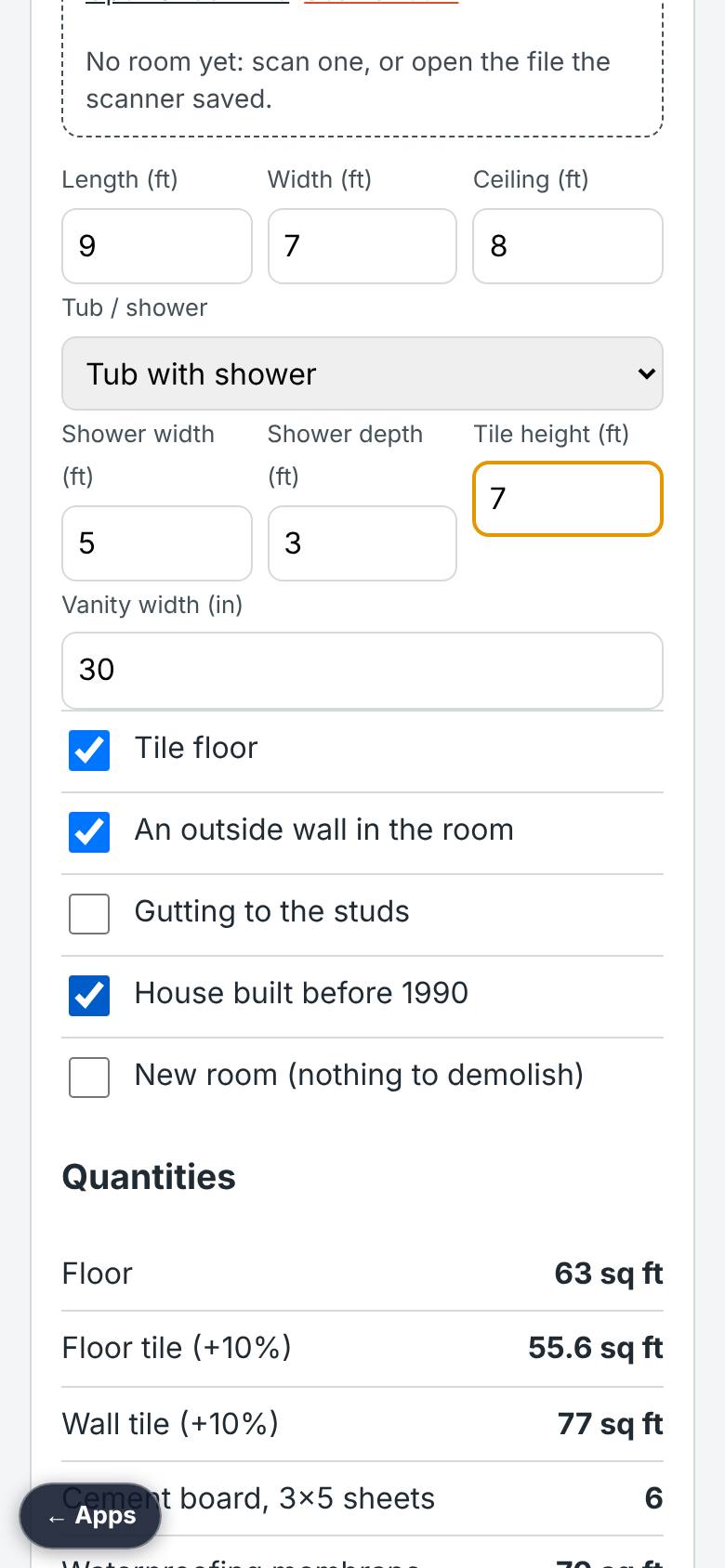
Scope and takeoff
Tick what the job includes; type the room size.
Scope ticks and the takeoff fields.
- 2
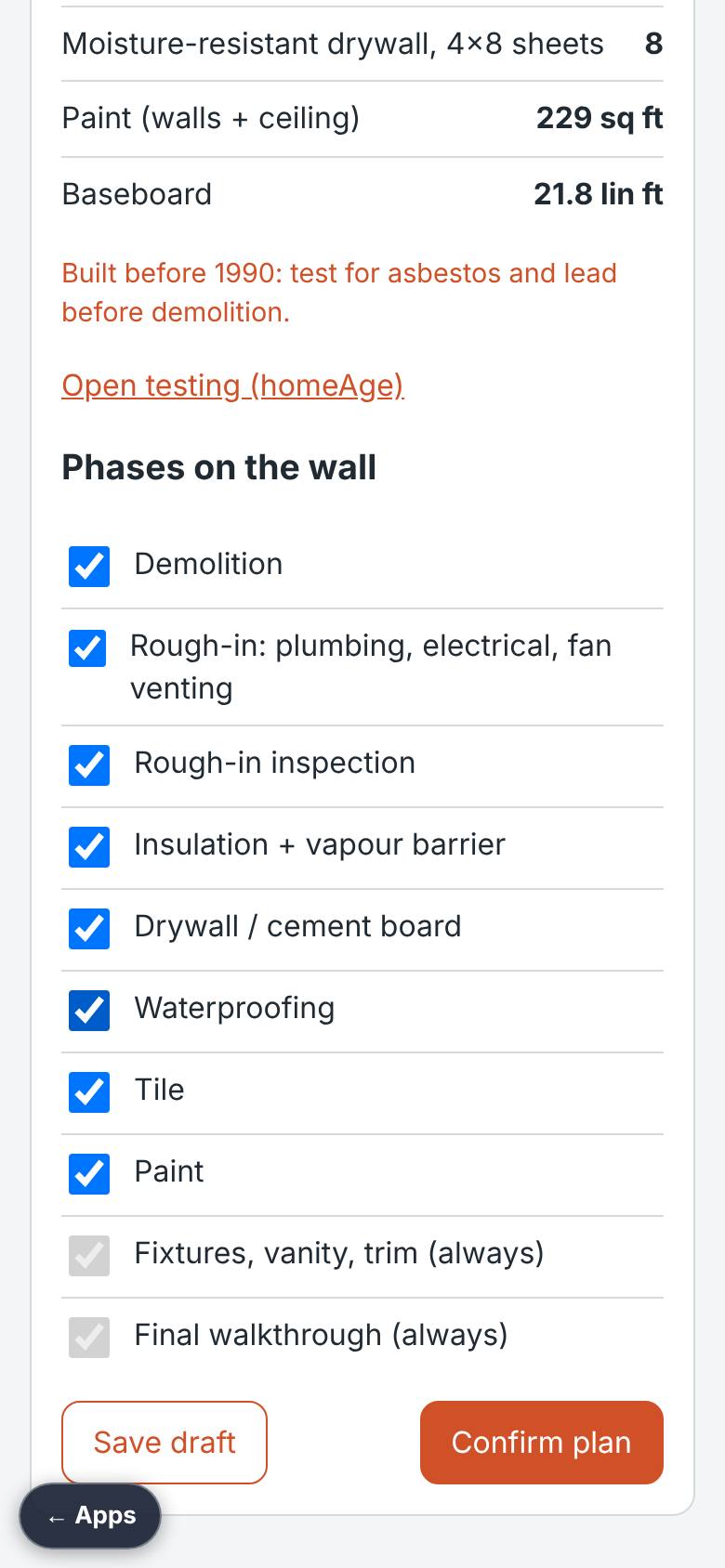
Quantities and phases
Scroll to the quantities and the phase list.
Quantities from the room; ten phases.
- 3
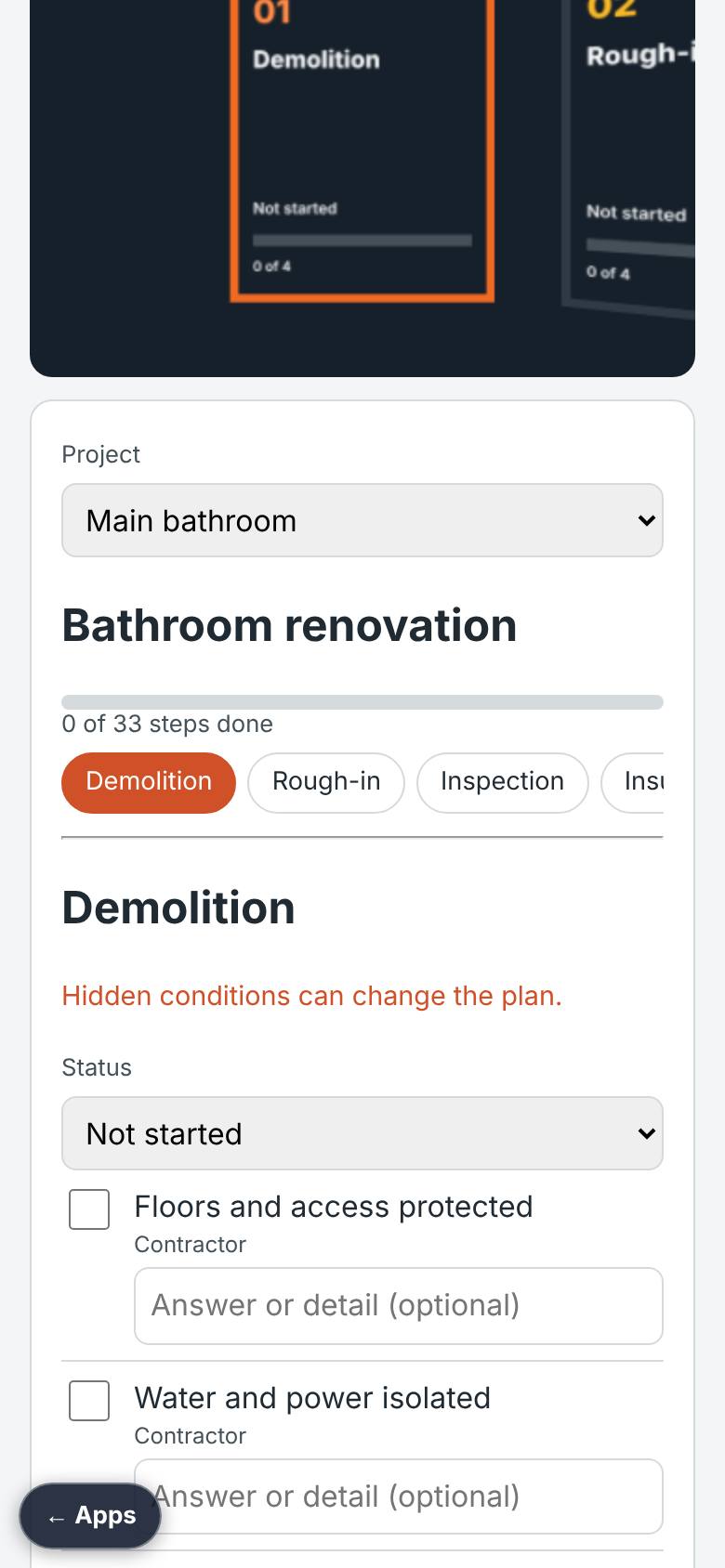
The board
Tap Confirm plan.
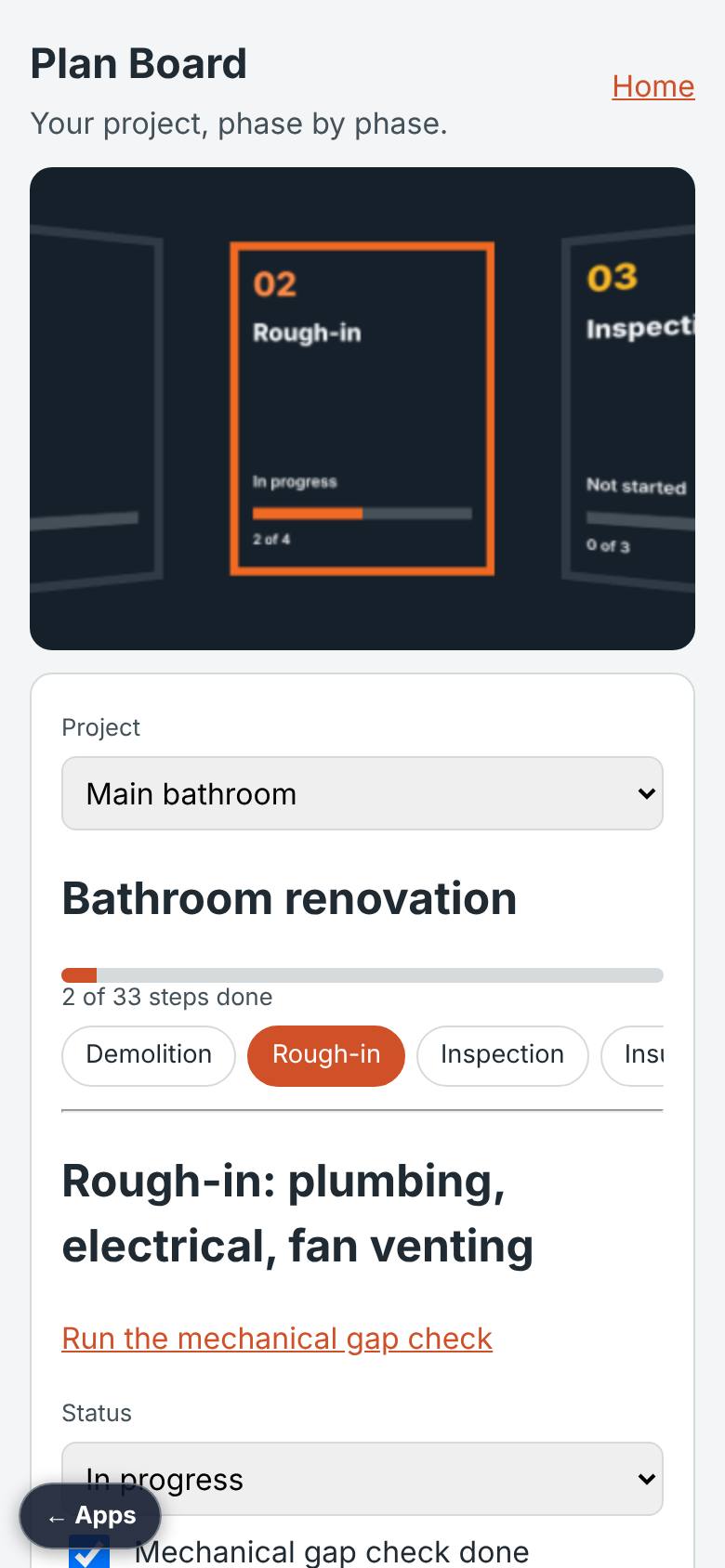
Progress bar, the phase strip, the first phase.
- 4
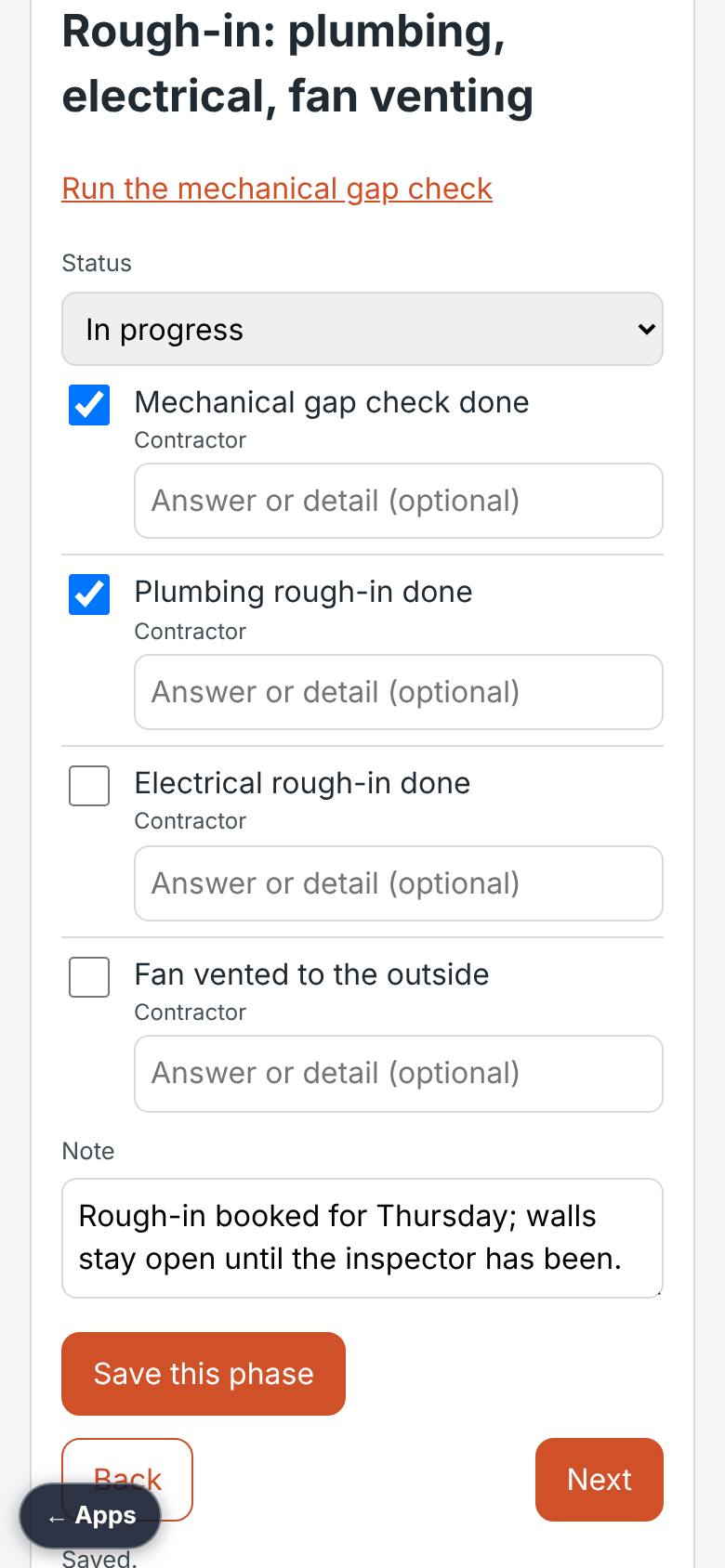
Update a phase
On a phase: status, tick the items, a note, Save this phase.
Saved.
- 5
Phases on the wall
Look along the wall; tap a phase to open it.
The phases on the wall.
What result should I expect?
One board both sides look at: which phase is on, what is done, what needs you.
How do I save, share or get help?
Every phase you save is kept with the project. Confirm plan locks the scope.
If something goes wrong
- No projects yet. Start one from the home page and it appears here.
Every screenshot here was taken while doing these exact steps on the app's current build (50cee04), on a phone-sized screen, signed out, on 2026-10-13. Steps that need an account are marked. Nothing was submitted or bought.
All How-To guides Return to Plan Board