See your room in a new colour before you paint
The Colour Studio is a private, on-device tool in our painting section: upload a photo of your room, select a wall, try colours on it, and send your choice to your Paint Project File.
Guide revision: 2026-10-11
12-step walkthrough with voiceover, recorded from the same checked steps.
Voiceover: Kokoro text-to-speech (Apache 2.0).
How do I start?
Open our painting section, tap Menu, then Colour Studio. No account is needed and your photo stays on your device.
Open PaintingWhat do I do next?
- 1
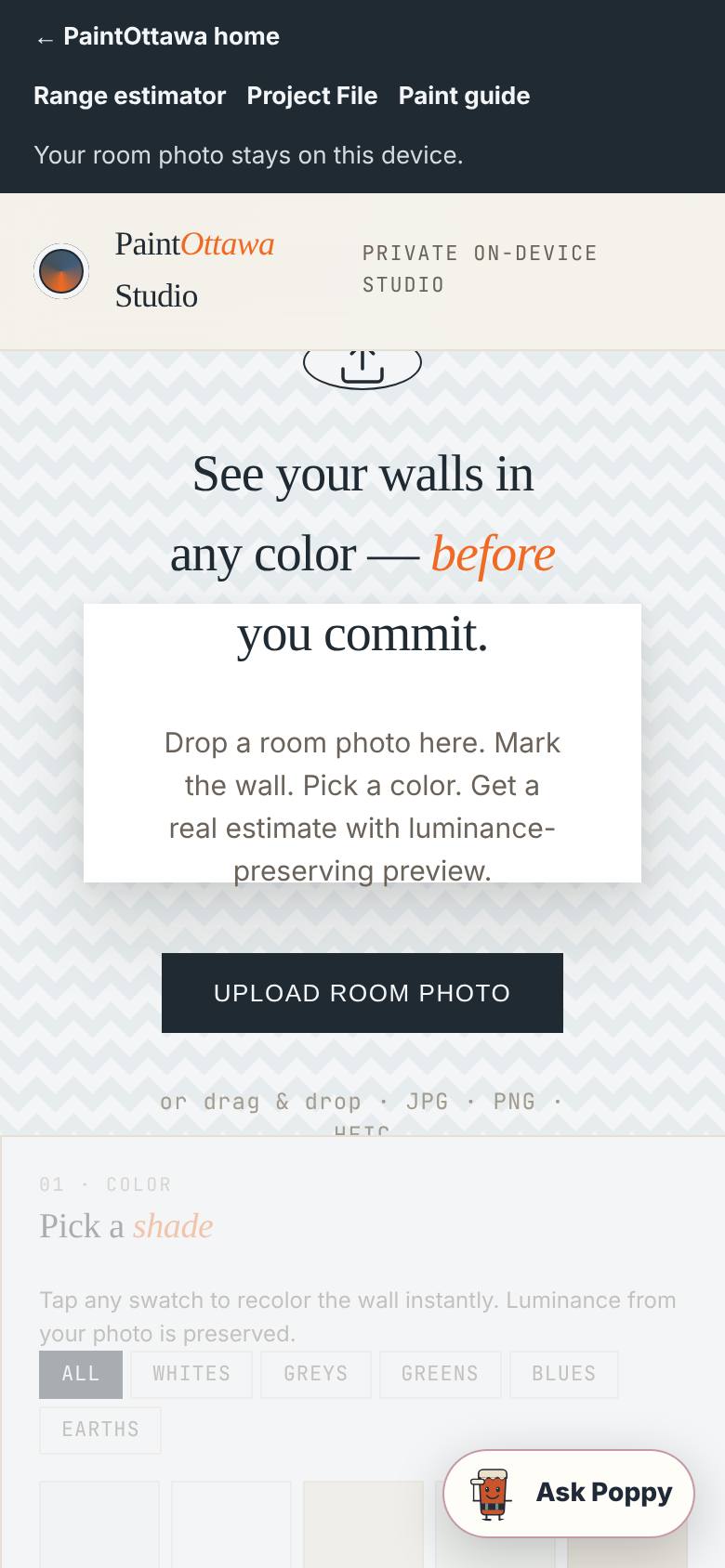
Open the Colour Studio
Tap Menu, then Colour Studio.
The private studio opens.
- 2
Upload a room photo
Tap Upload Room Photo and choose a photo of the room.
The photo loads with a quality score.
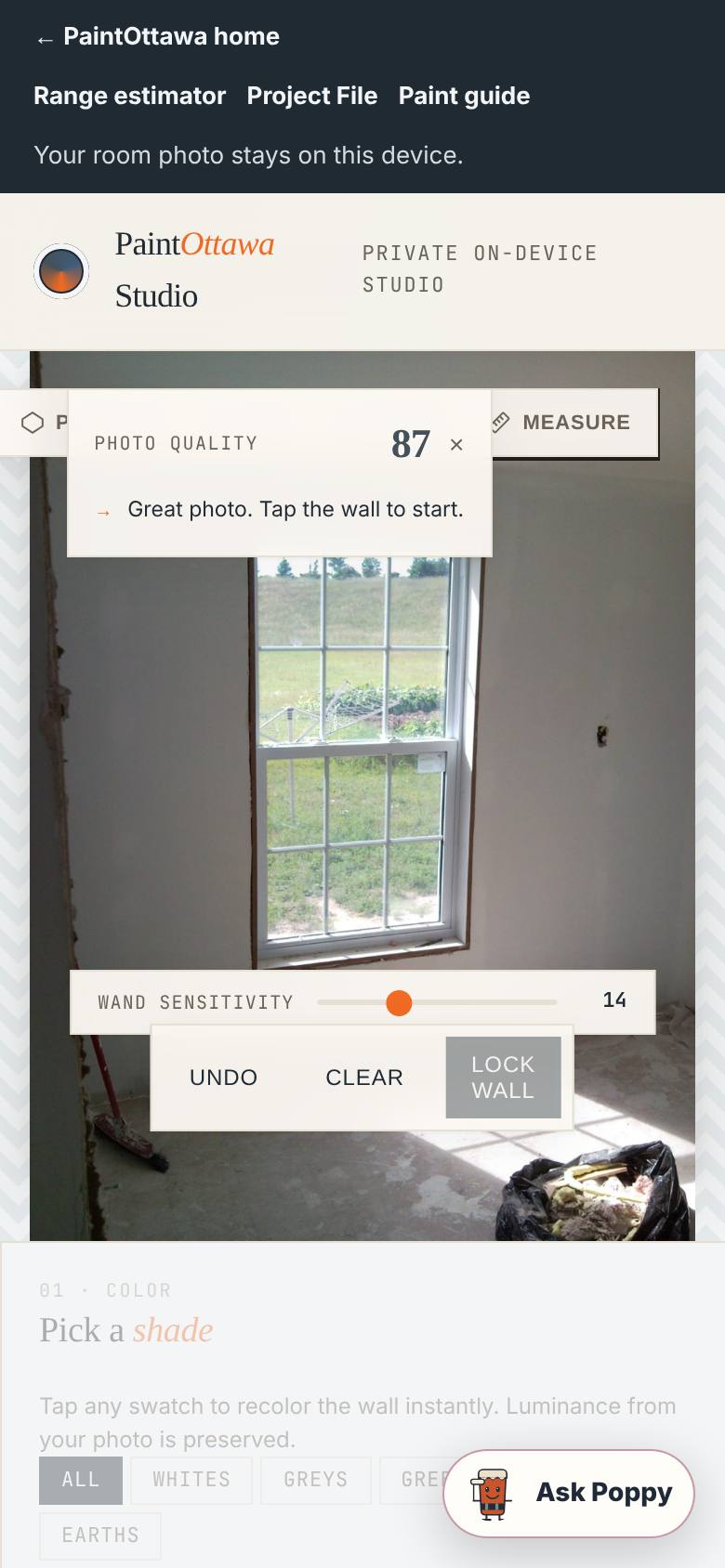
- 3
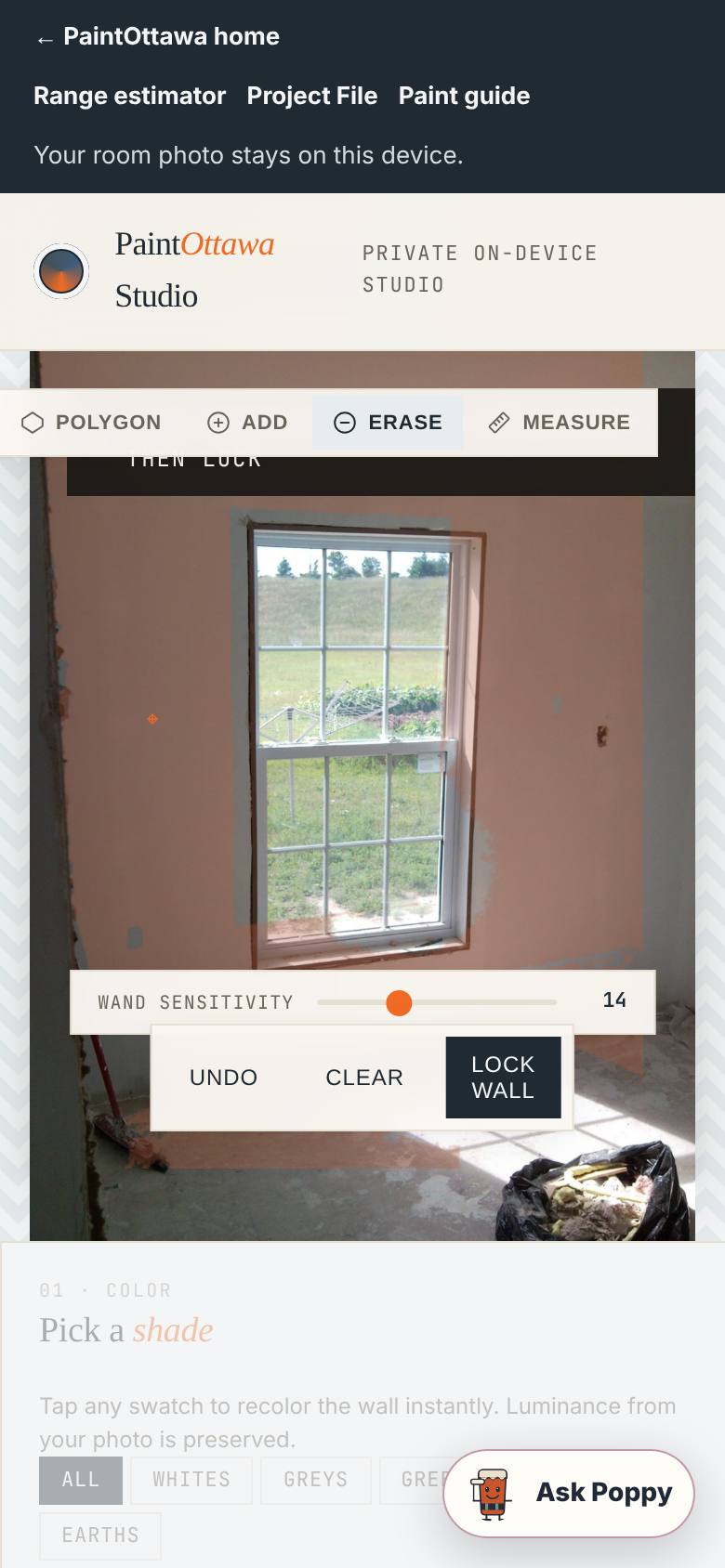
Select the wall
Close the quality card, then tap the wall with the wand.
The wall is highlighted.
- 4
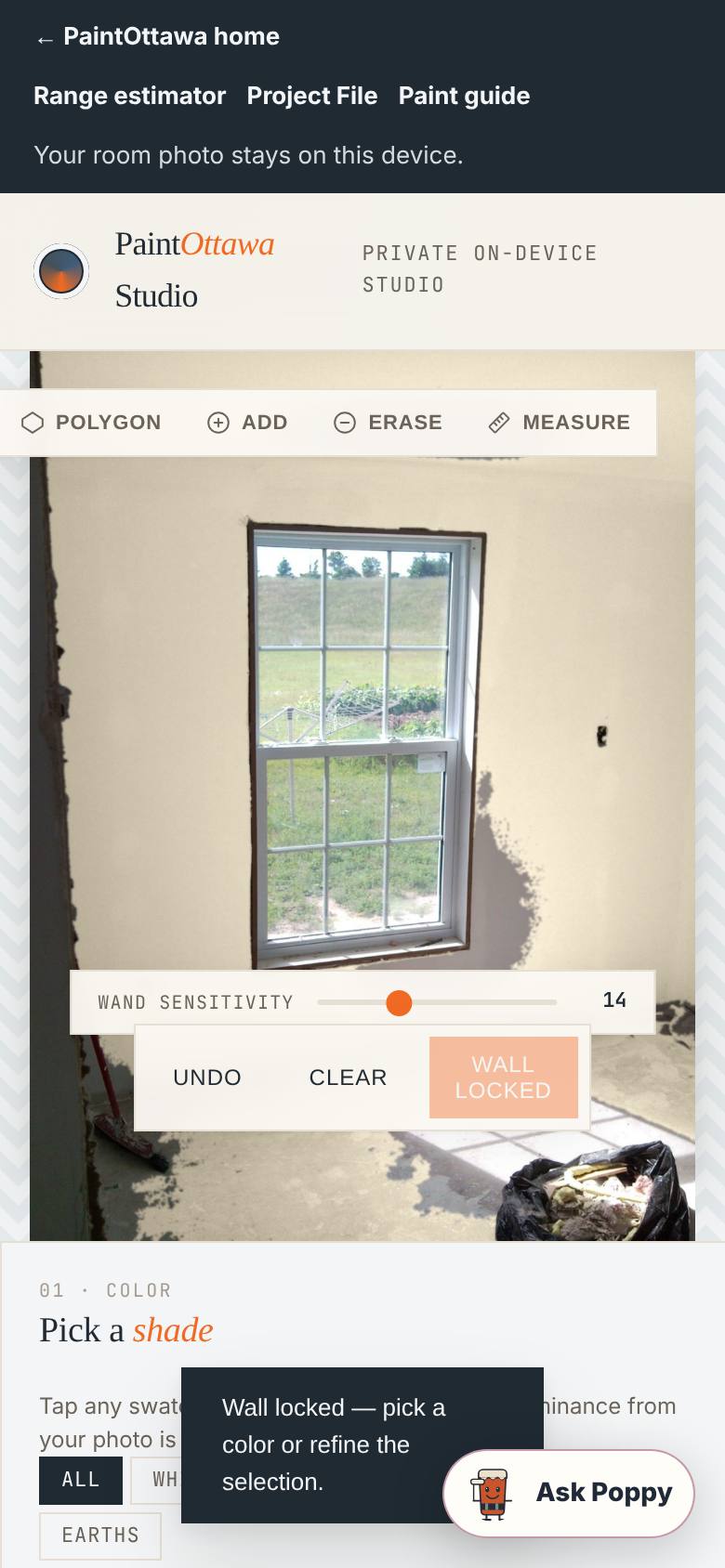
Lock the wall
Tap Lock Wall.
The wall is locked.
- 5
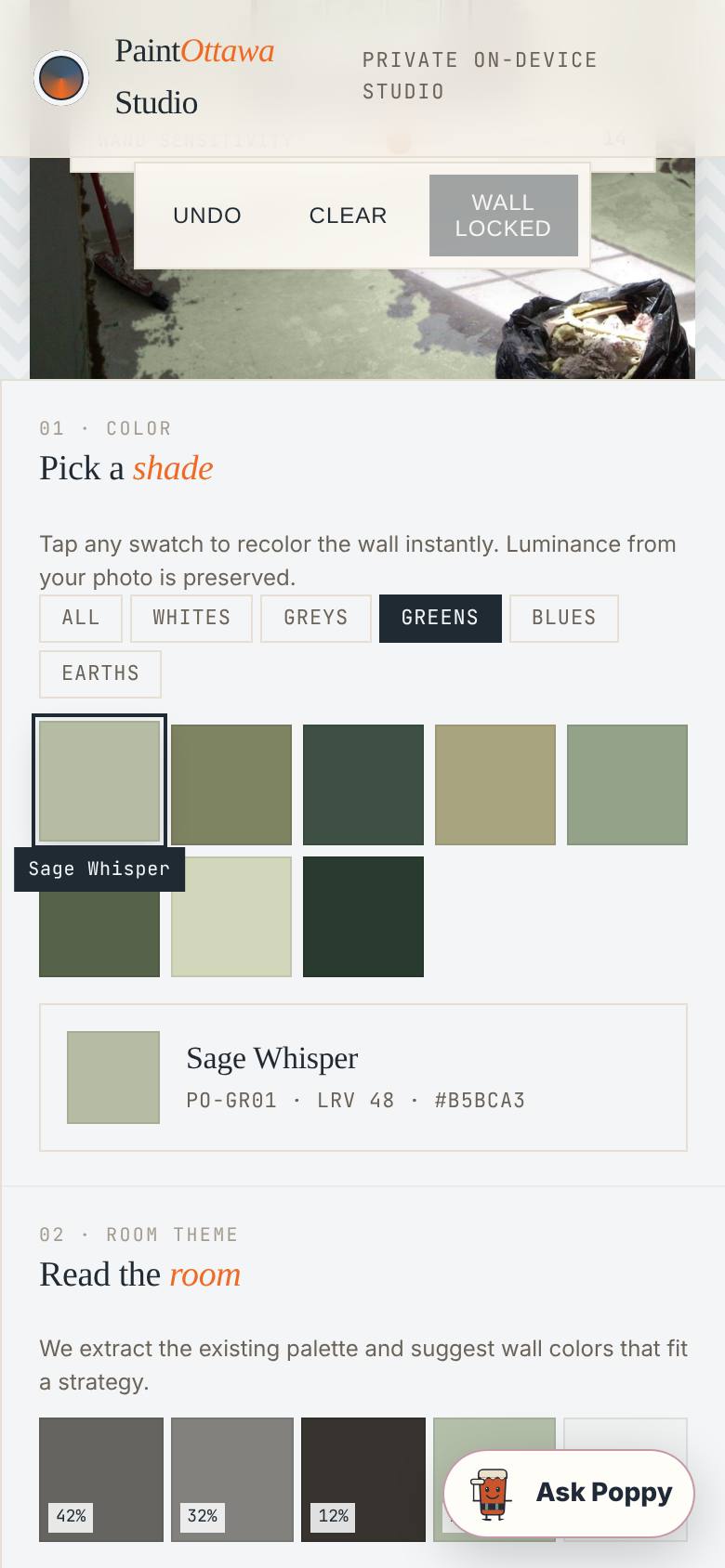
Pick a colour
Tap a category, then a swatch.
The wall changes colour.
- 6
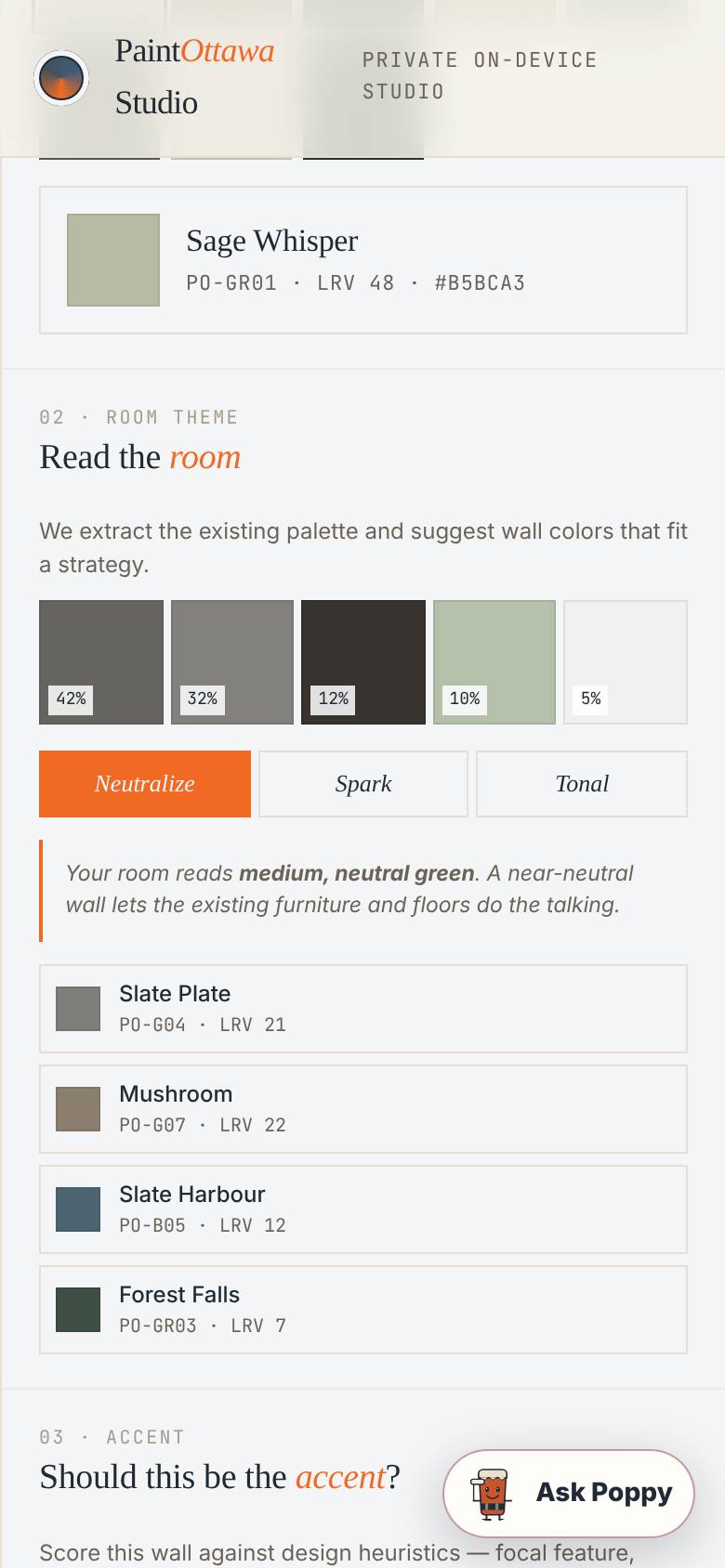
Ask for suggestions
Under the theme buttons, tap Neutralize, Spark or Tonal.
Suggested colours with a reason.
- 7
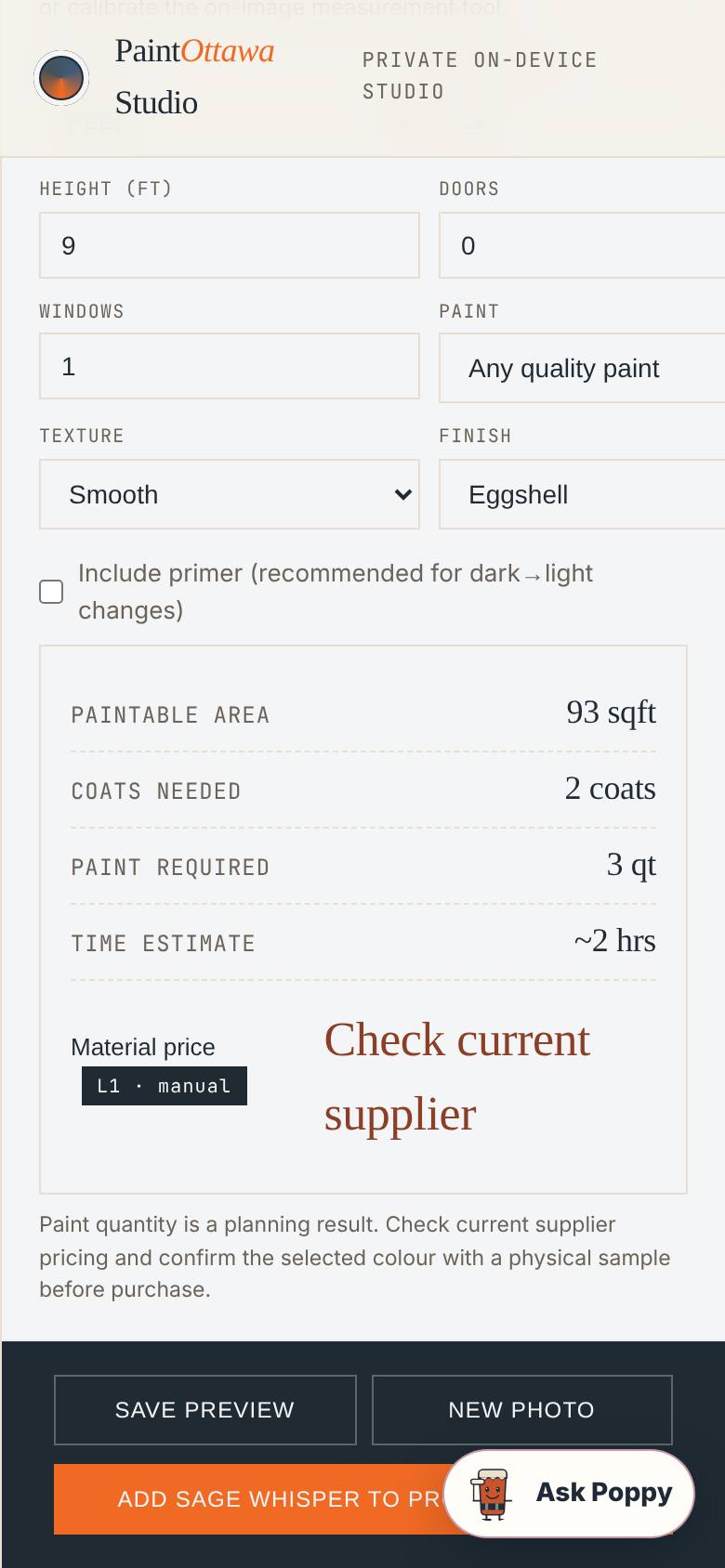
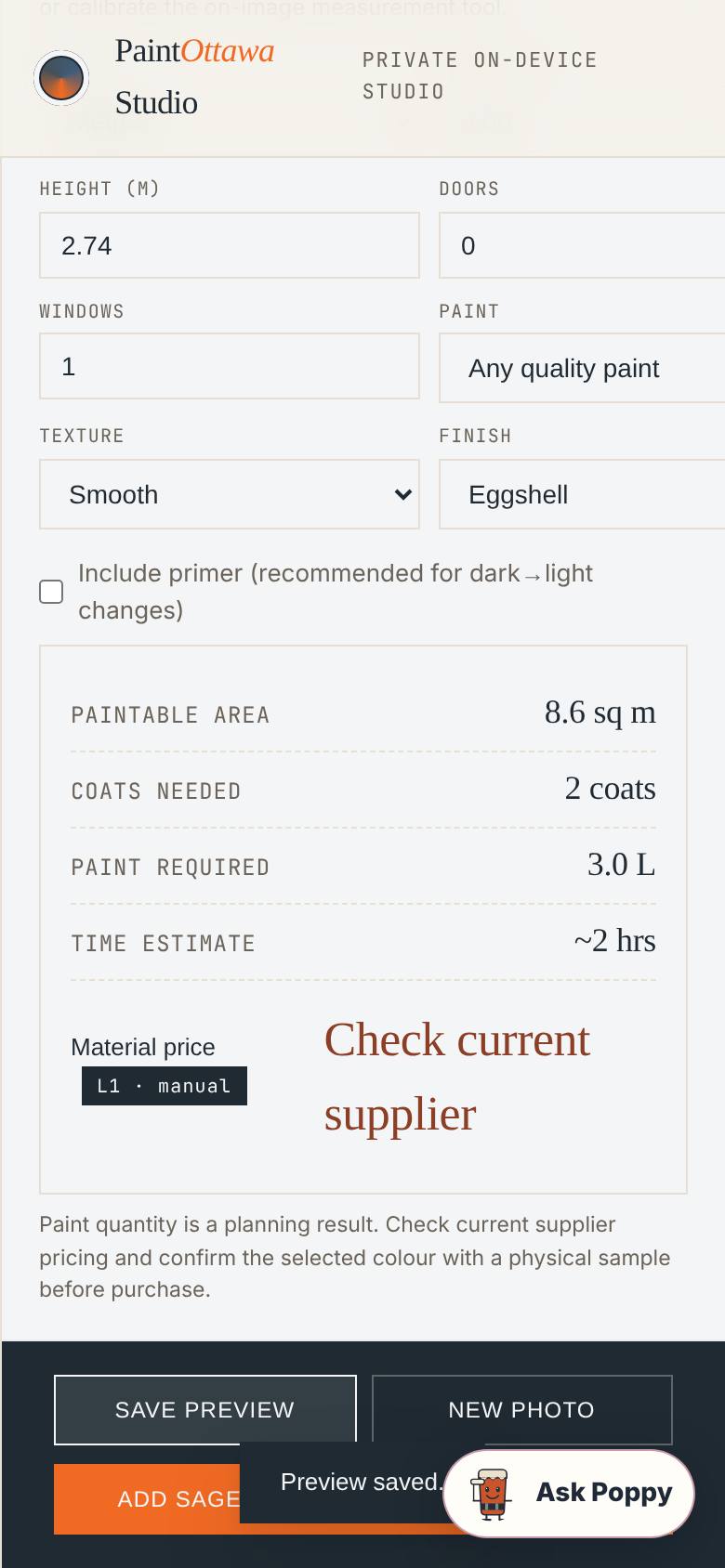
Read the paint estimate
Scroll to the estimate.
Paintable area, coats, paint and time.
- 8
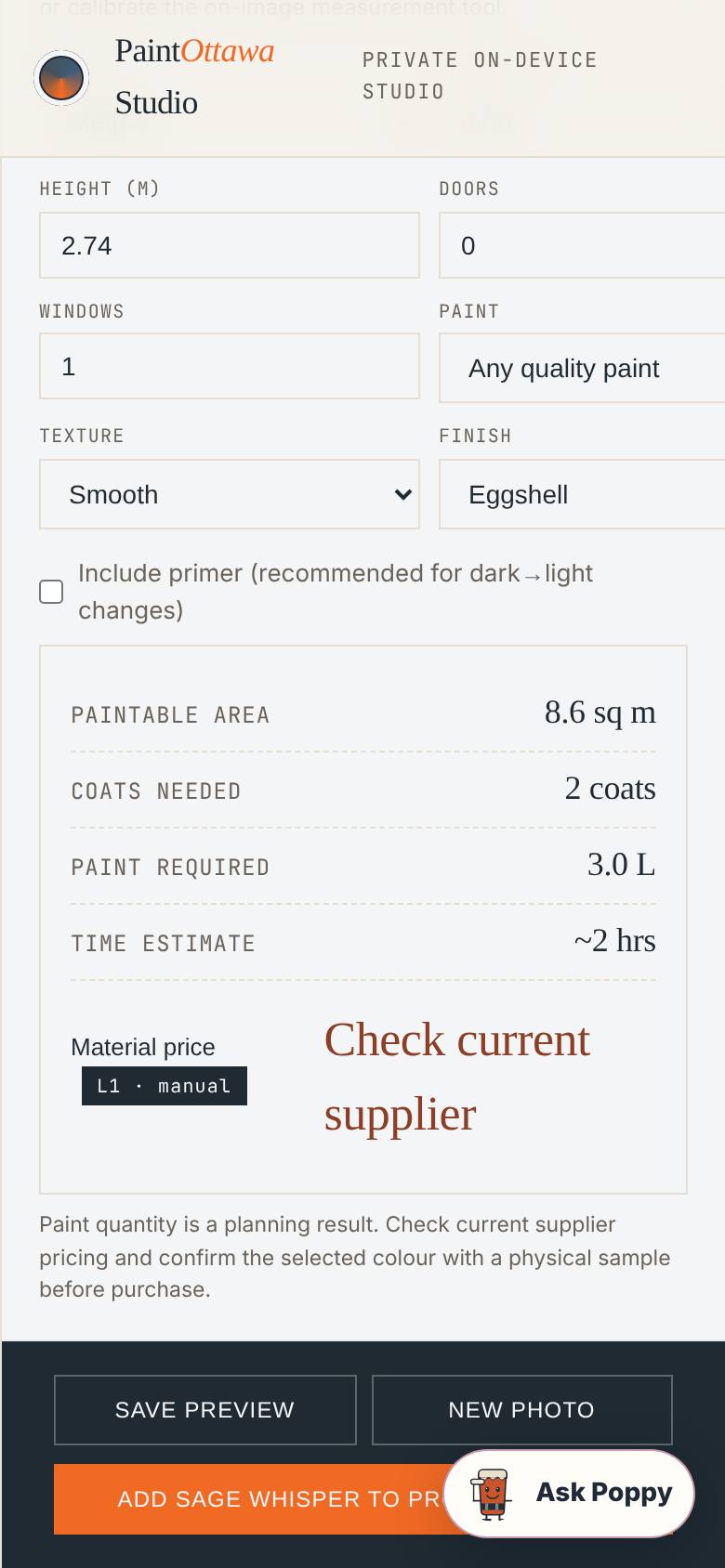
Switch to metres
Change Units to Metres.
Area in square metres and paint in litres.
- 9
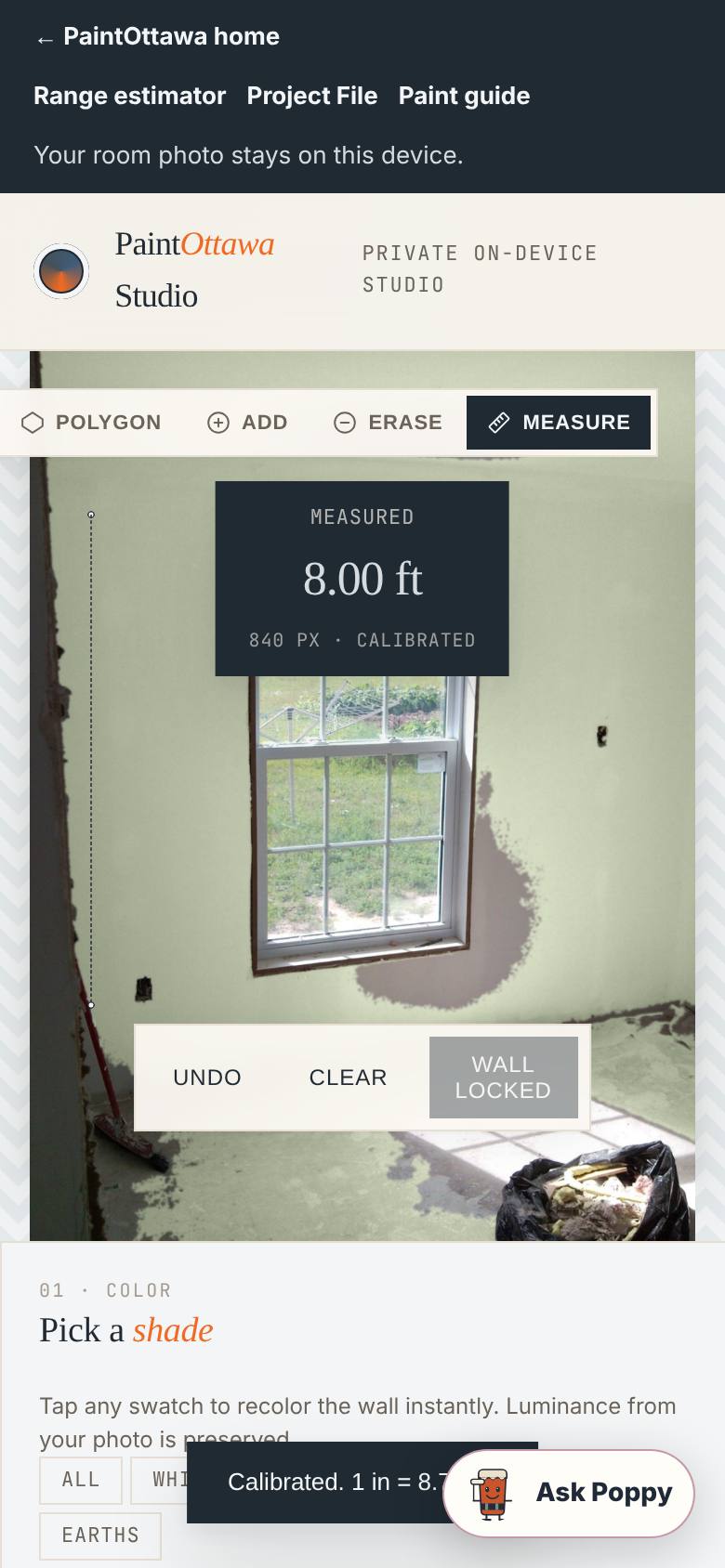
Calibrate a measurement
Choose Measure, tap two points on something you know, type its real length and tap Set.
The measurement shows in feet.
- 10
Save the preview
Tap Save Preview.
A picture of your room with the new colour downloads.
- 11
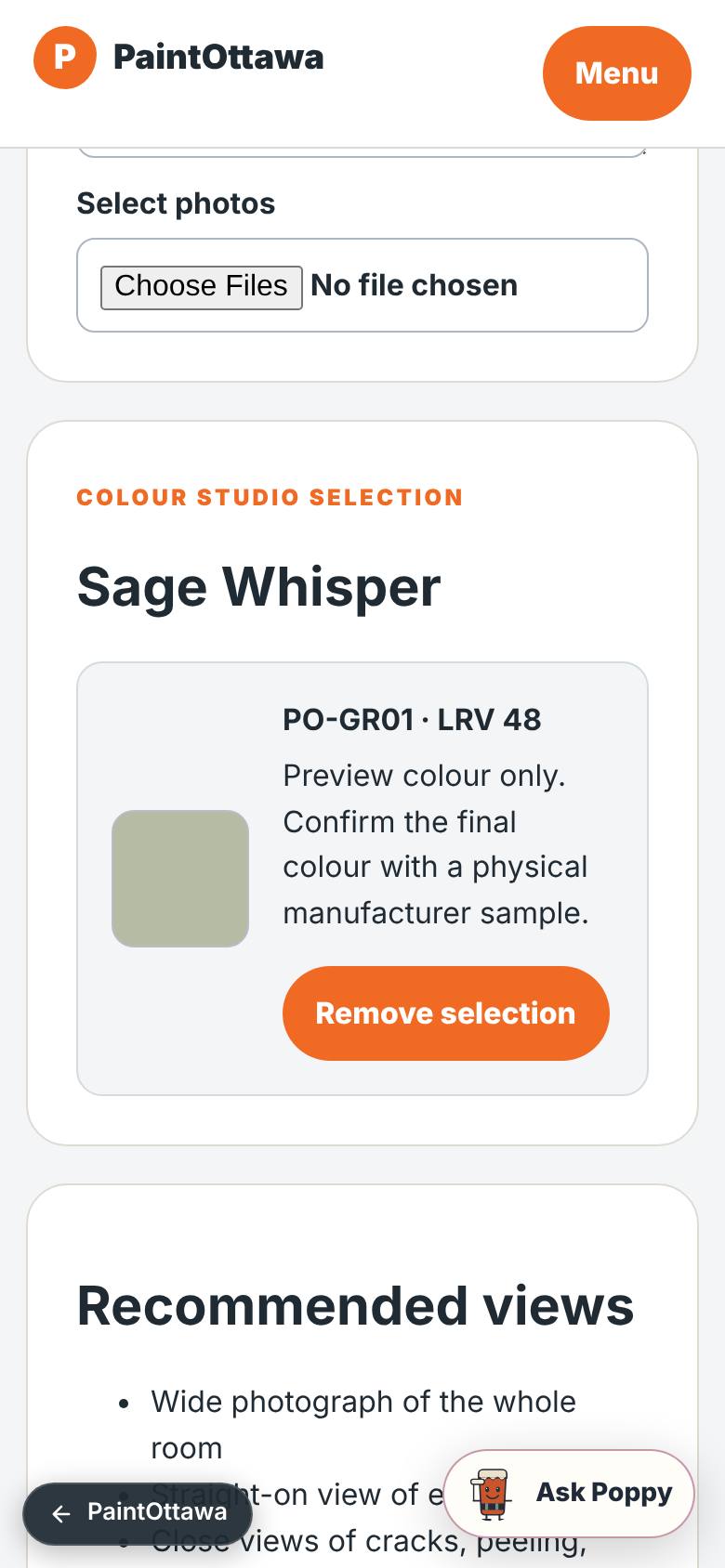
Add it to the Project File
Tap Add to Paint Project File.
The Photo Project File shows your Studio colour.
- 12
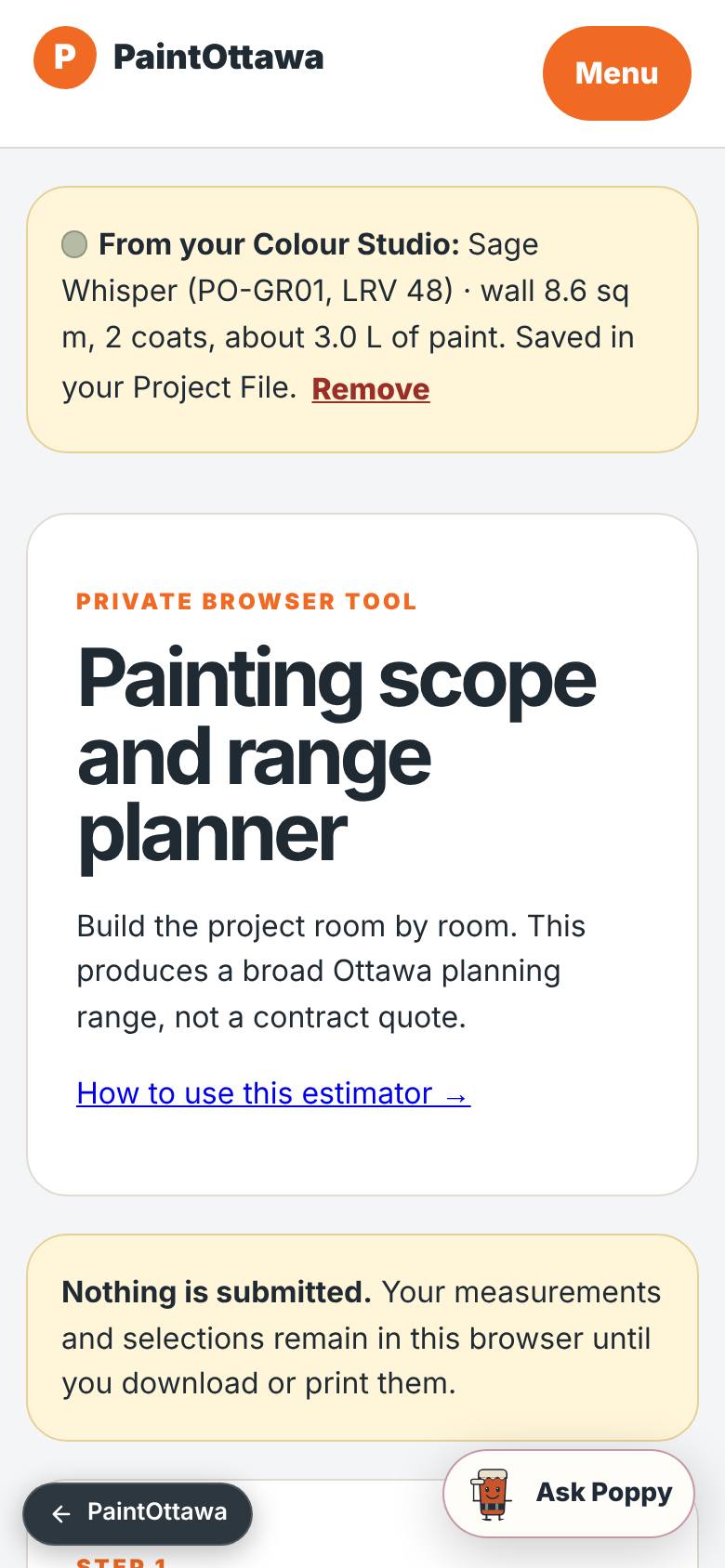
The same colour in the estimator
Tap Menu, then Estimator.
The estimator shows the Studio colour and wall.
What result should I expect?
A preview of your wall in the colour you chose, a paint quantity estimate, a saved preview picture, and the colour added to your Paint Project File and the estimator.
How do I save, share or get help?
Nothing is saved to an account or sent. Tap Download Paint Project File to keep your rooms on your phone (you can share that file), or Print for a paper copy. Ask Poppy (the chat button) answers painting questions.
If something goes wrong
- The range looks too wide. It's meant to — preparation and the condition of the walls change the price the most. Mark moisture or peeling paint honestly; that's what a painter will check.
- I lost my rooms. The planner doesn't save between visits. Download the Paint Project File before you leave the page.
Every screenshot here was taken while doing these exact steps on the app's current build (f0c9e51), on a phone-sized screen, signed out, on 2026-10-11. Steps that need an account are marked. Nothing was submitted or bought.
All How-To guides Return to Painting