Sketch a room from above and carry its outline on to the Room page
Quick Top-Down Room draws your room as seen from above, with every corner numbered and every wall measured in feet. Start from a rectangle, an L-shape or a bay, move any corner by typing where it should be, add more corners, and send the outline on to the Room page for windows and doors.
Guide revision: 2026-10-19
7-step walkthrough with voiceover, recorded from the same checked steps.
Voiceover: Kokoro text-to-speech (Apache 2.0).
How do I start?
Open Layout Library from the Apps Hub, then Quick top-down sketch. No account is needed.
Open Quick Top-Down RoomWhat do I do next?
- 1
Open Quick Top-Down Room
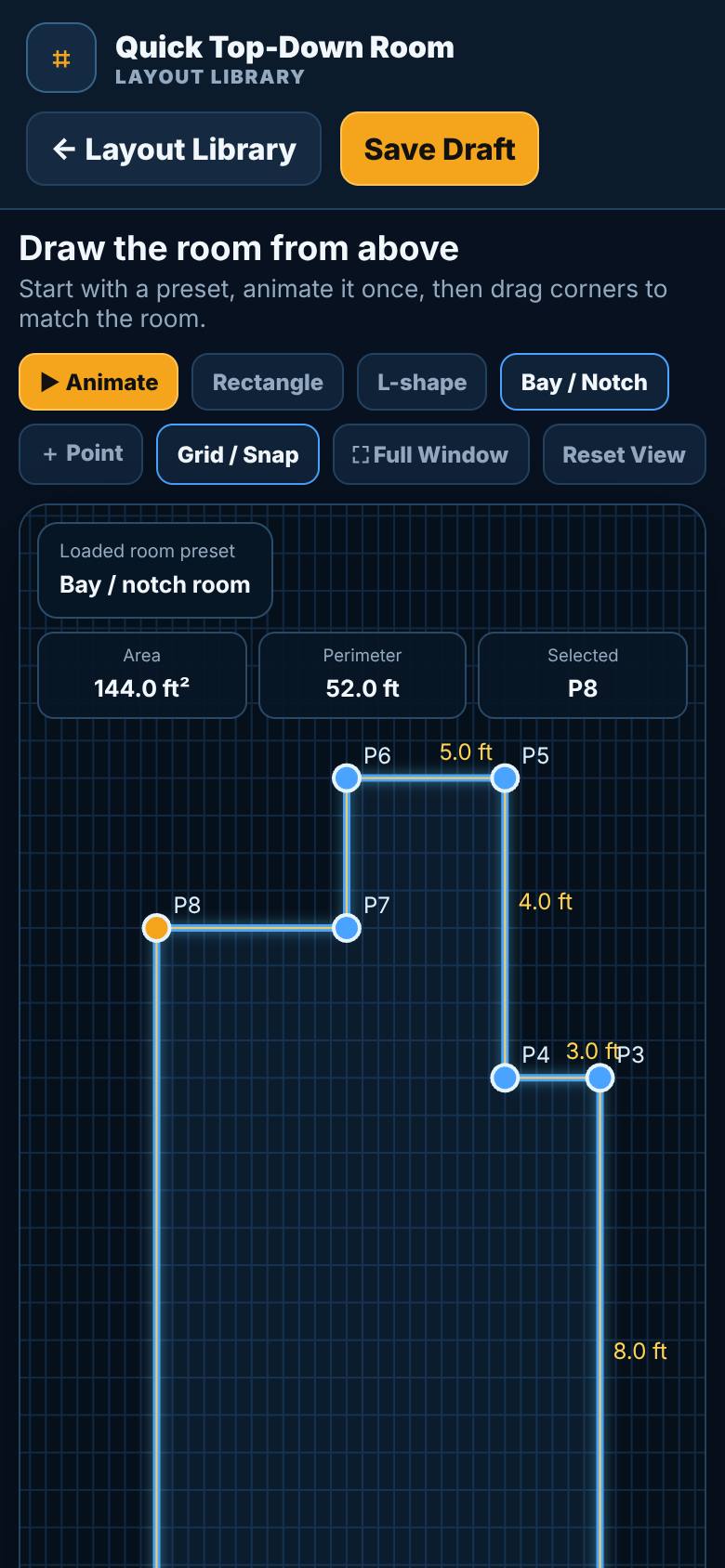
Open Layout Library, then Quick top-down sketch.
A room seen from above, with its corners numbered and every wall measured in feet. The area and perimeter are at the top.
- 2
Start from a rectangle
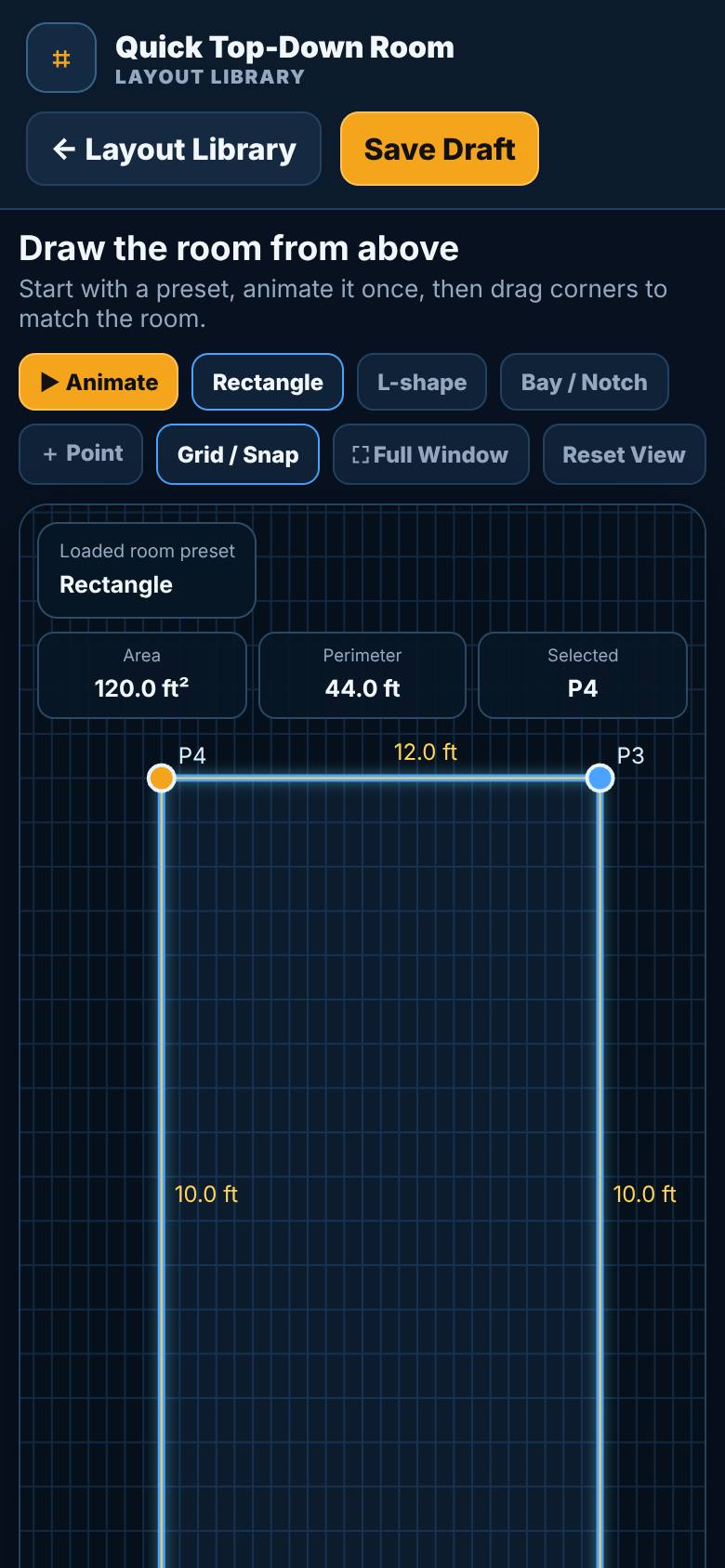
Tap Rectangle.
The room draws itself corner by corner as a plain rectangle, with its area and perimeter worked out.
- 3
Try the L-shape
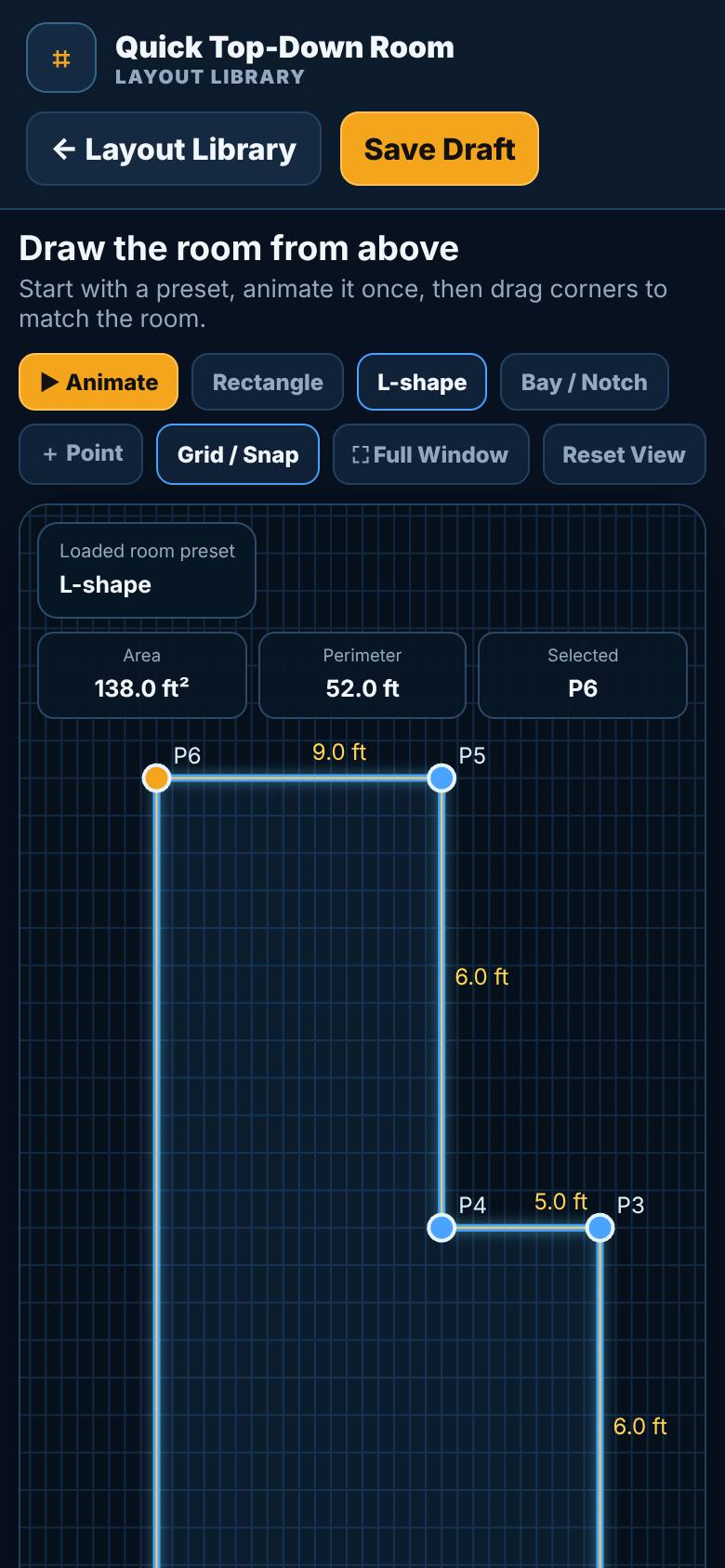
Tap L-shape.
A room with an inside corner, the way many kitchens and living rooms are shaped. The area updates.
- 4
Move a corner
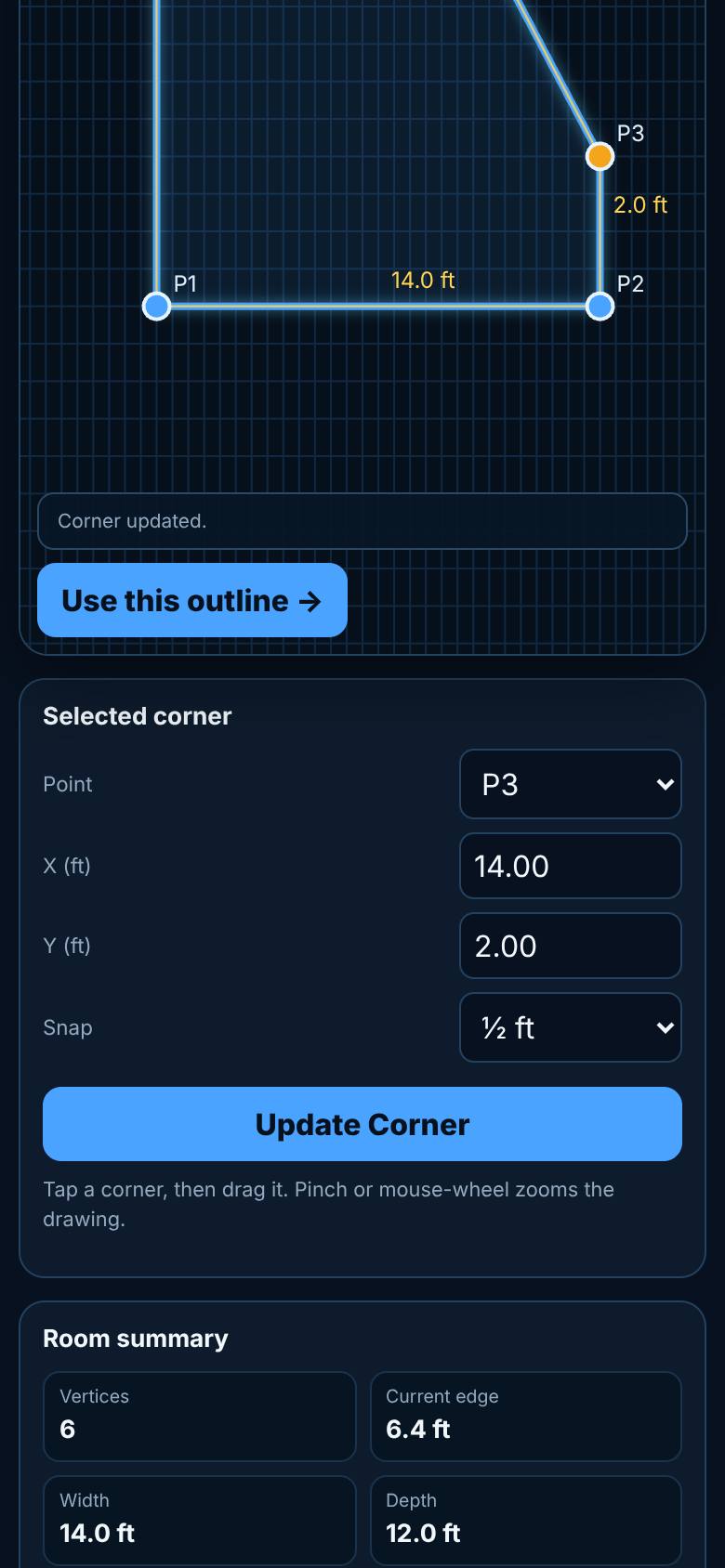
Pick a corner in the list, type where it should be (across and down, in feet), and tap Update Corner.
That corner moves, the walls re-measure and the area changes to match your room.
- 5
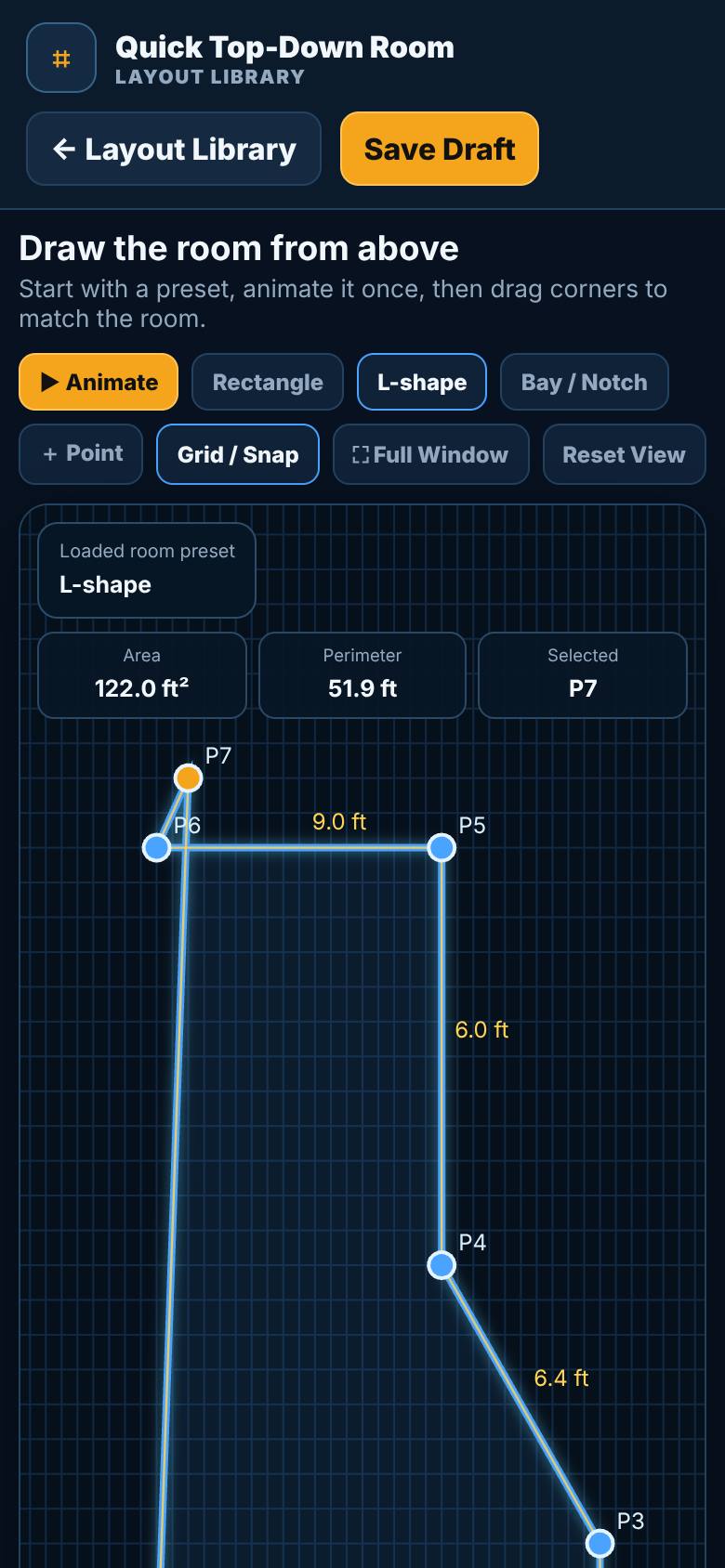
Add a corner
Tap Add point, then give the new corner its place the same way.
A new corner joins the outline, ready to be moved into place for a bay, a notch or a chimney breast.
- 6
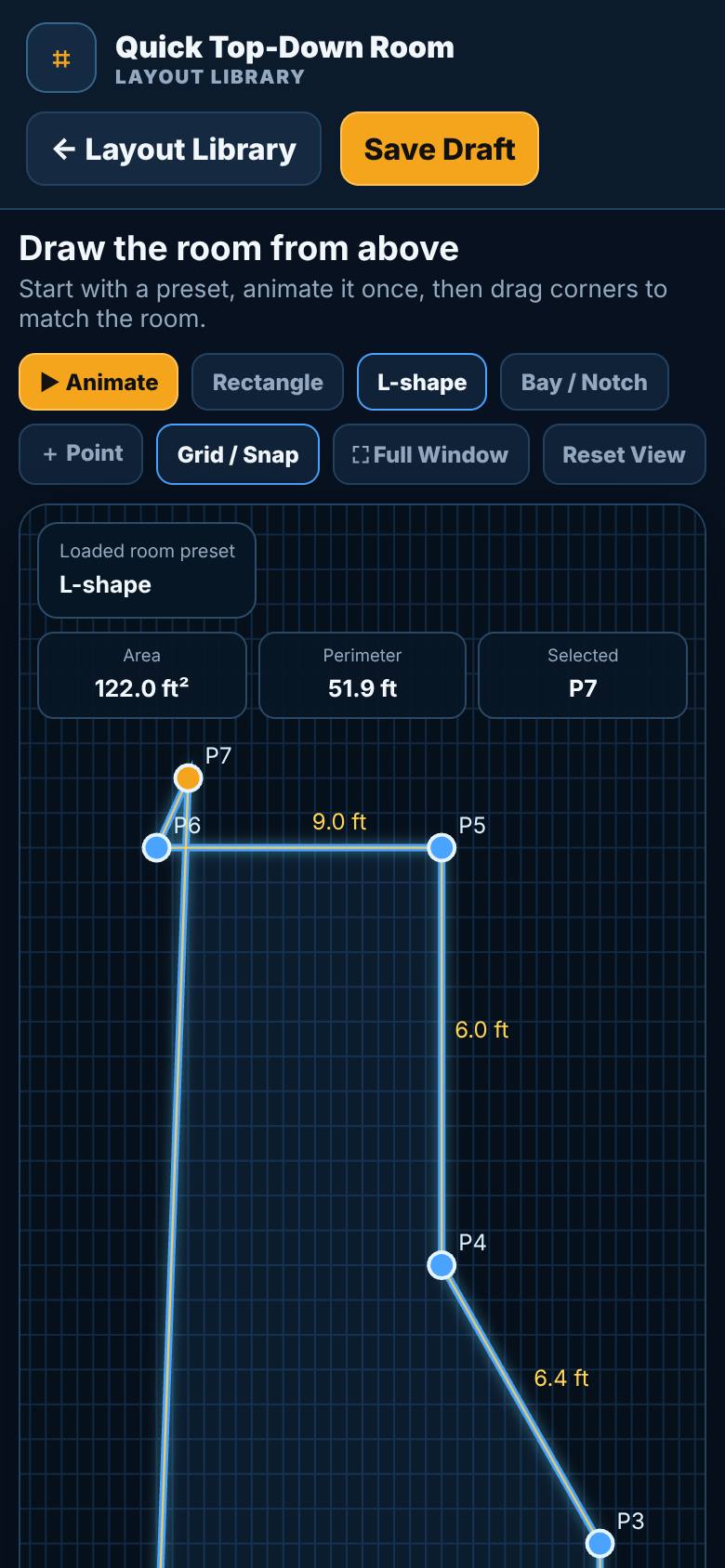
Save the draft
Tap Save Draft.
The outline is kept on this device so you can come back to it.
- 7
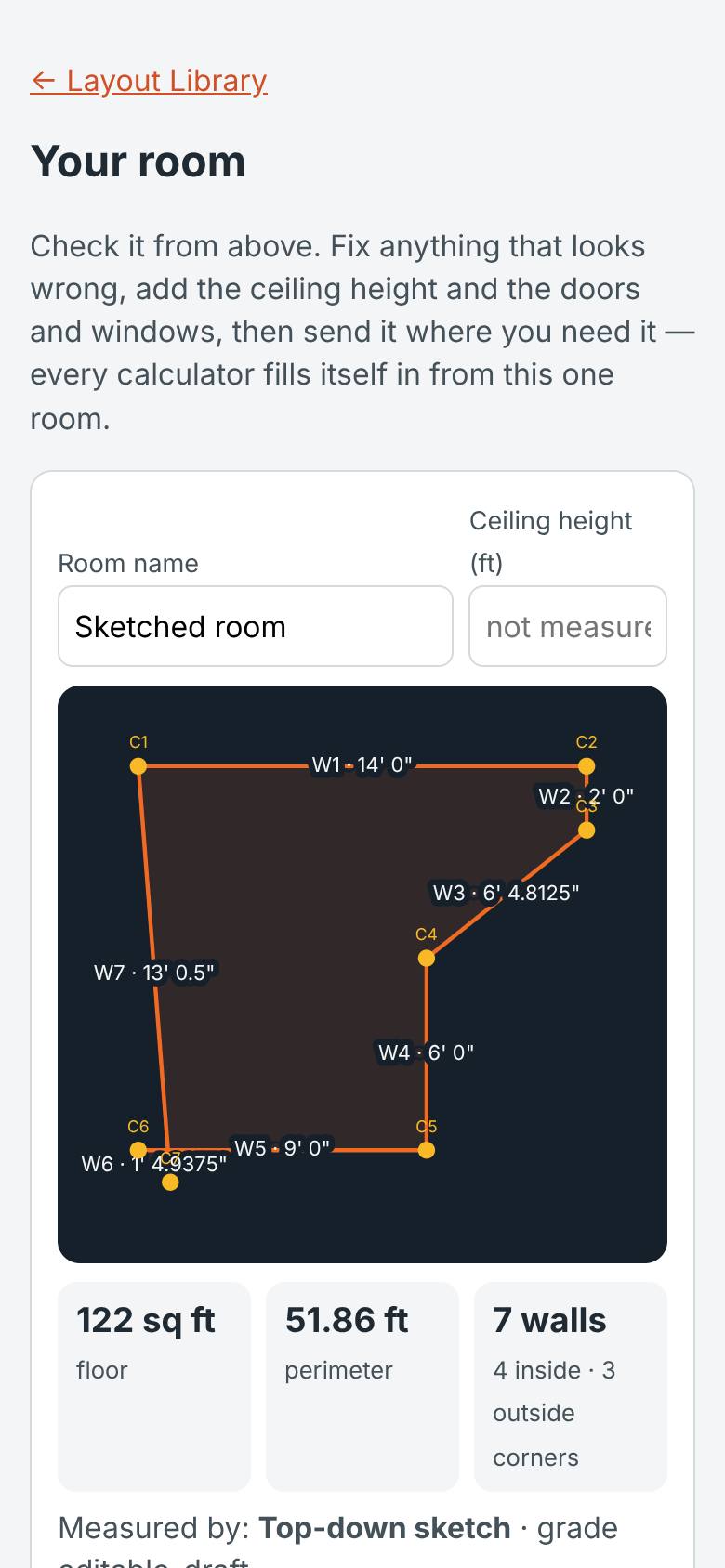
Use this outline
Tap Use this outline.
The outline carries on to the Room page, ready for windows and doors.
What result should I expect?
A room outline with its area, perimeter and wall lengths, saved on your device and ready to carry on to the Room page.
How do I save, share or get help?
Save Draft keeps the outline on this device. Use this outline saves it and carries it on to the Room page. Nothing is sent anywhere.
If something goes wrong
- The new corner is sitting right beside the last one. A new corner starts one foot over and one foot down from the last corner. Pick it in the Point list, type where it should be and tap Update Corner.
- My room has more than one inside corner. Keep tapping Add point and move each new corner into place the same way.
Every screenshot here was taken while doing these exact steps on the app's current build (0f5cacd), on a phone-sized screen, signed out, on 2026-10-19. Steps that need an account are marked. Nothing was submitted or bought.
All How-To guides Return to Quick Top-Down Room