Walk around a room you measured, in 3D
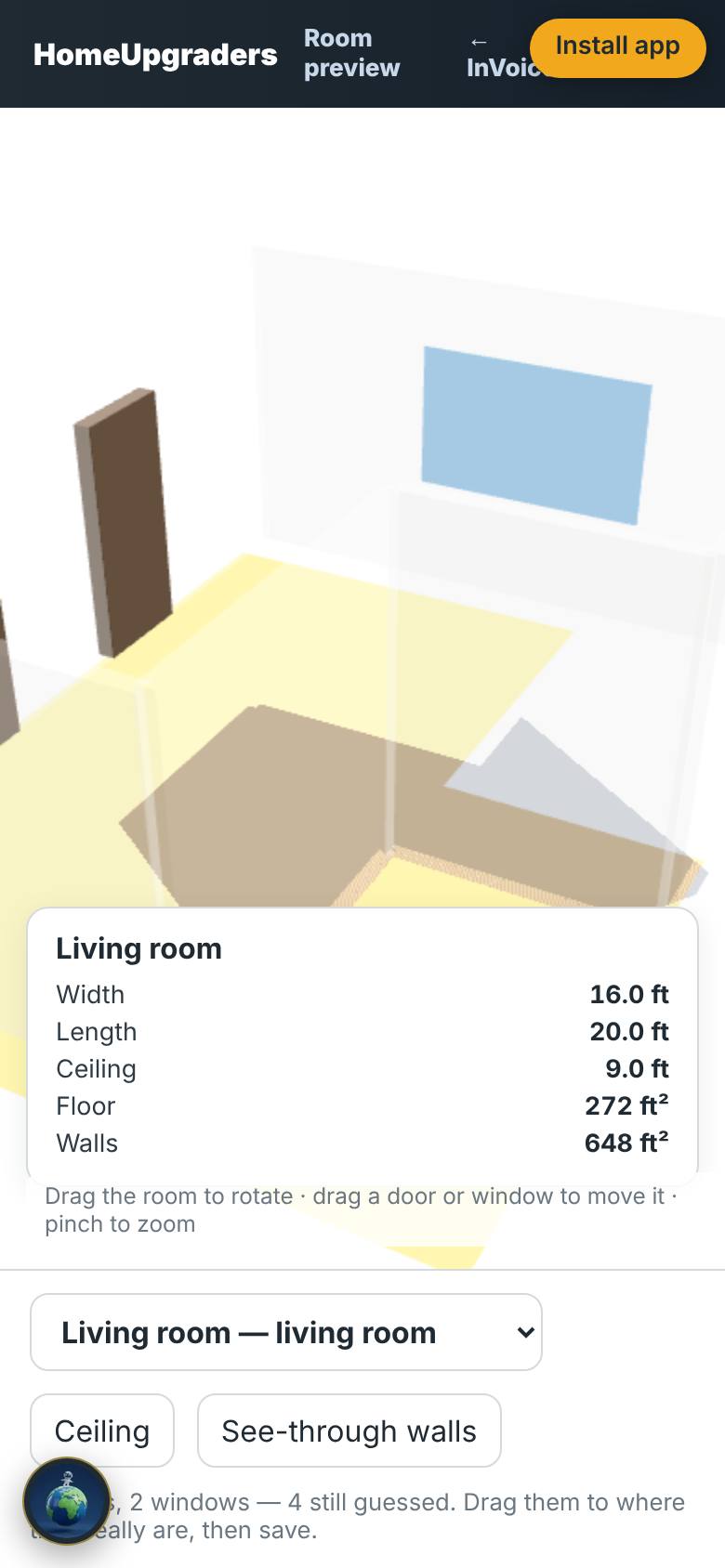
The 3D Room Viewer: every room you measured in InVoice or the Layout Library, as a room you can spin, look into and zoom. Doors and windows are placed from the counts you gave, and you can drag them to where they really are.
Guide revision: 2026-10-13
5-step walkthrough with voiceover, recorded from the same checked steps.
Voiceover: Kokoro text-to-speech (Apache 2.0).
How do I start?
Open 3D Room Viewer from the app hub. Sign in to see your rooms.
What do I do next?
- 1
Your rooms
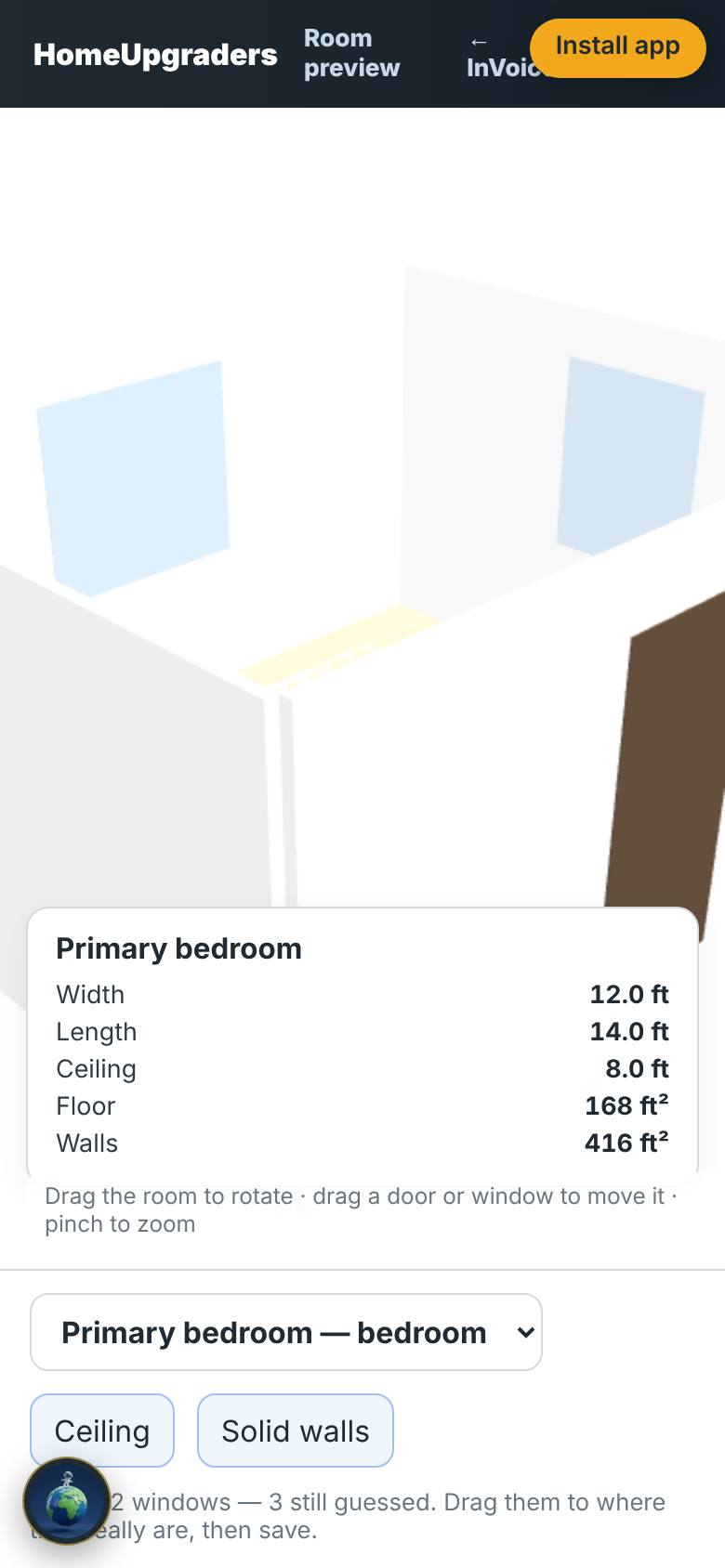
Open 3D Room Viewer from the app hub, signed in.
The first room in 3D, with its size and openings.
- 2
Pick a room
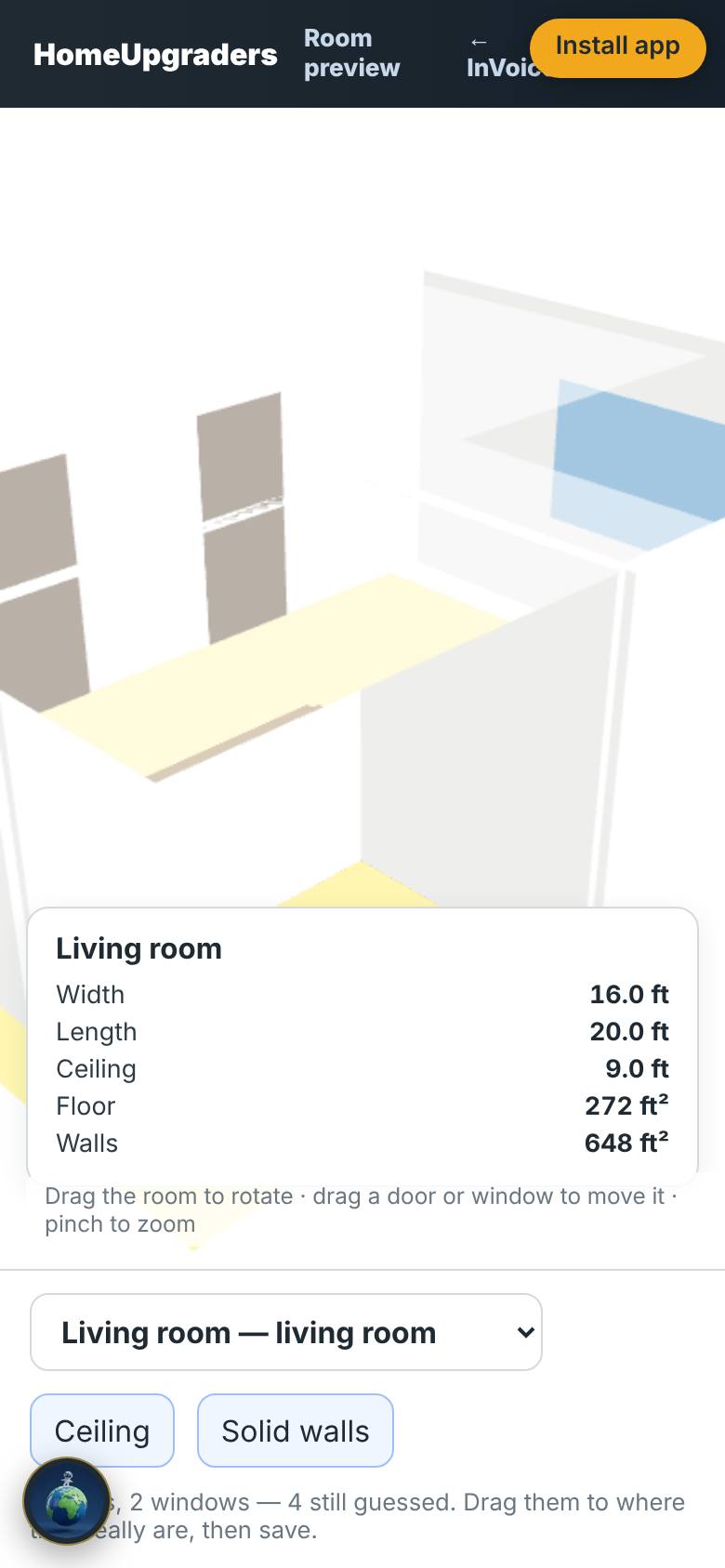
Choose a room from the list at the top.
An L-shaped living room.
- 3
See inside
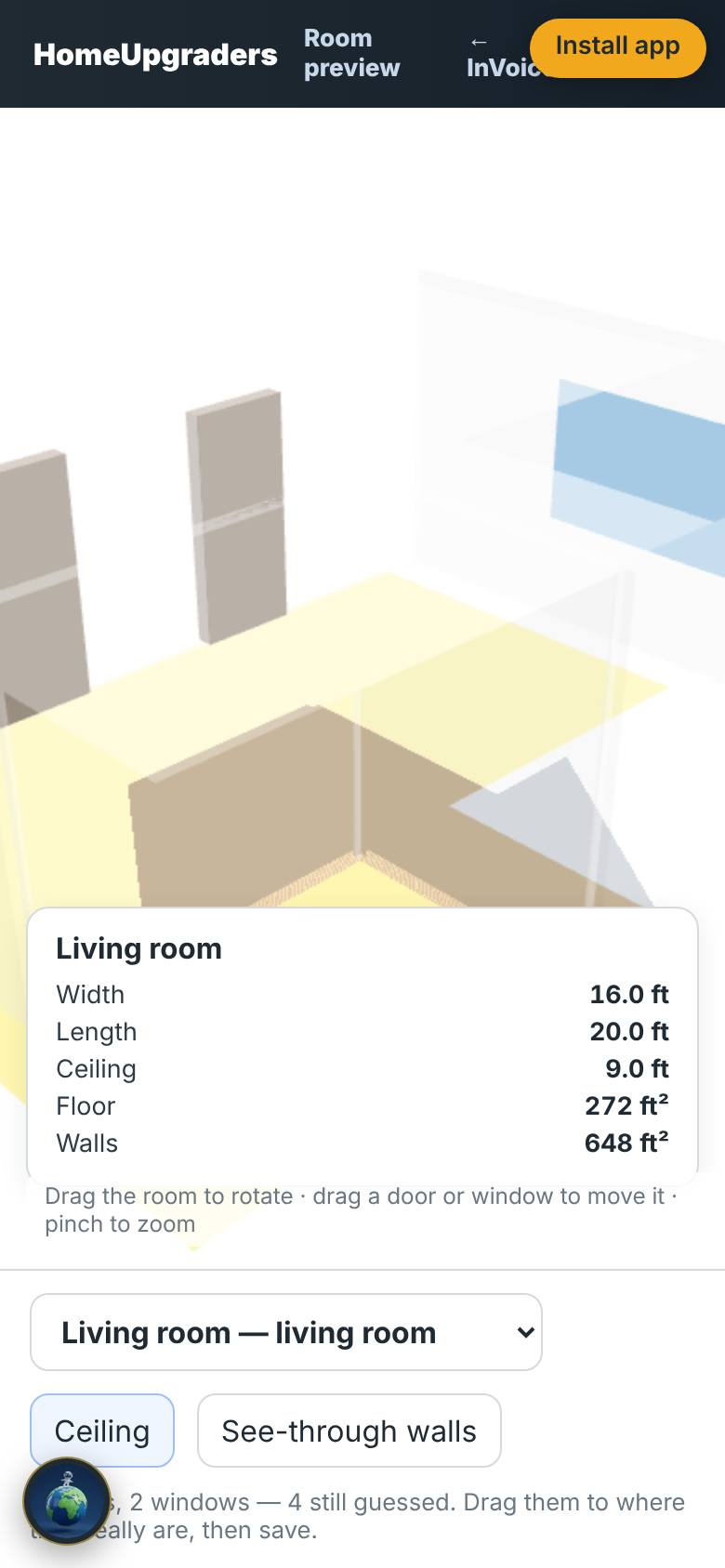
Tap Solid walls.
The walls turn see-through.
- 4
Ceiling on or off
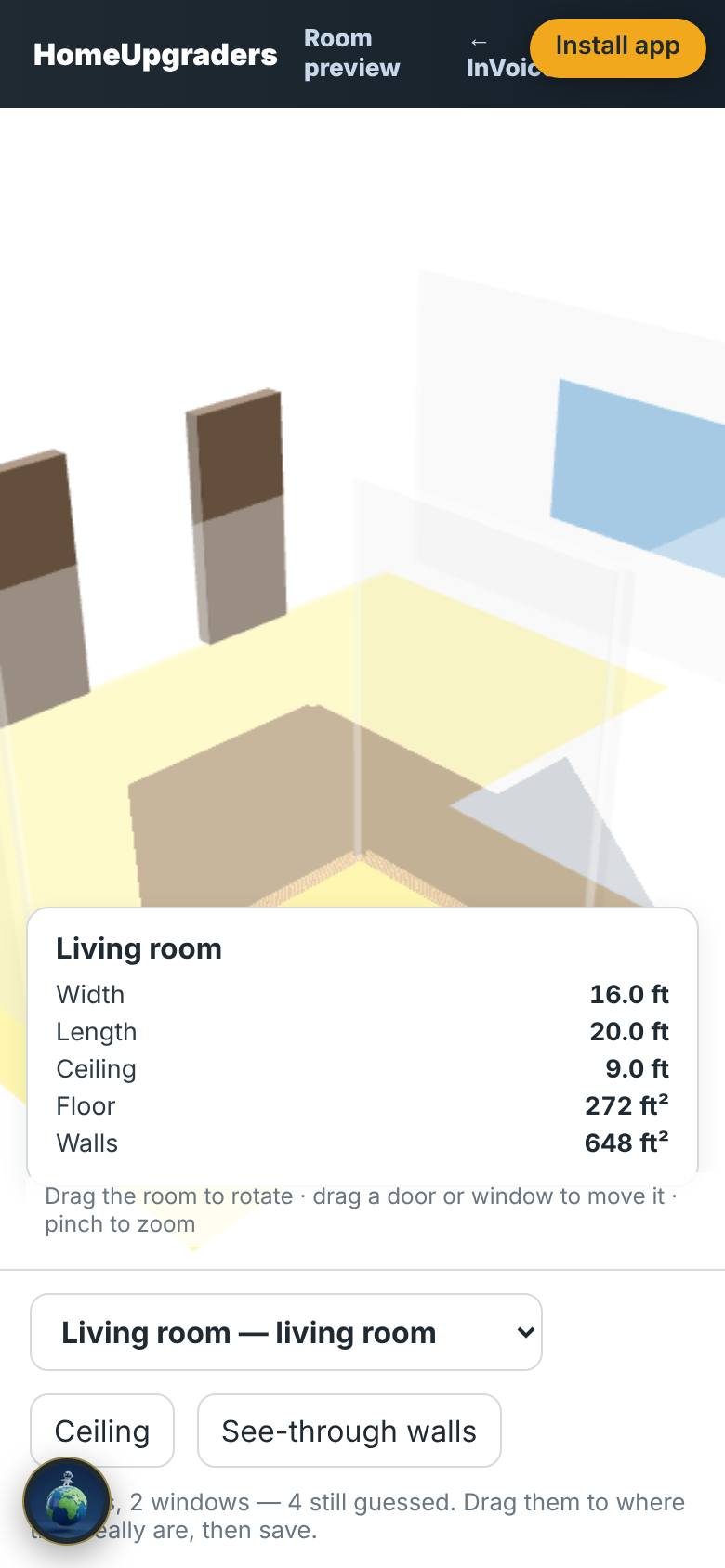
Tap Ceiling.
The ceiling is lifted off.
- 5
Move a door or window
Drag a door along its wall, then tap Save placement.
The door moves; Save placement appears when something changed.
What result should I expect?
Each room in 3D, with its doors and windows where you put them.
How do I save, share or get help?
Save placement keeps where you dragged the doors and windows with the room.
If something goes wrong
- No rooms measured yet. Add one in InVoice: a room's width, length and ceiling height are enough to see it here.
Every screenshot here was taken while doing these exact steps on the app's current build (78b9454), on a phone-sized screen, signed out, on 2026-10-13. Steps that need an account are marked. Nothing was submitted or bought.
All How-To guides Return to 3D Room Viewer