See every sheet before you buy one
The sheet plan in our drywall section places every sheet of drywall in a 3D room, in the order a hanger would hang them, reuses the offcuts, keeps the butt joints on the studs and off the door and window corners, and builds the order from the placed sheets — not from square feet. A sample room is boarded the moment the page opens; your own room needs its sizes and the ceiling height you measured.
Guide revision: 2026-10-23
12-step walkthrough with voiceover, recorded from the same checked steps.
Voiceover: Kokoro text-to-speech (Apache 2.0).
How do I start?
Open our drywall section and, under Next steps, tap Sheet plan. No account needed. For your own room, have the width, length and measured ceiling height ready, or scan the room first.
What do I do next?
- 1
Open the sheet plan
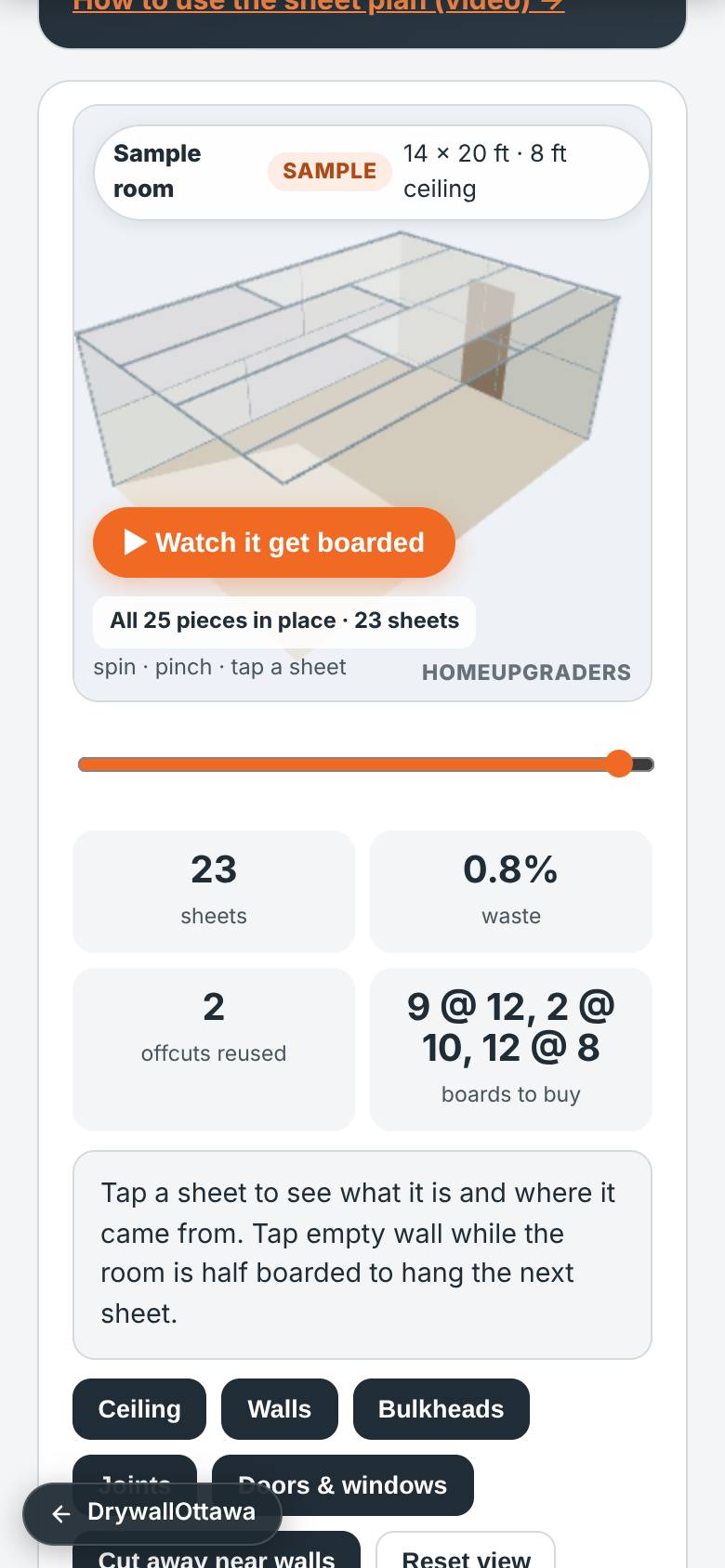
In our drywall section, under Next steps, tap Sheet plan.
The sample room is already boarded: sheets, waste, offcuts reused, boards to buy.
- 2
Watch it get boarded
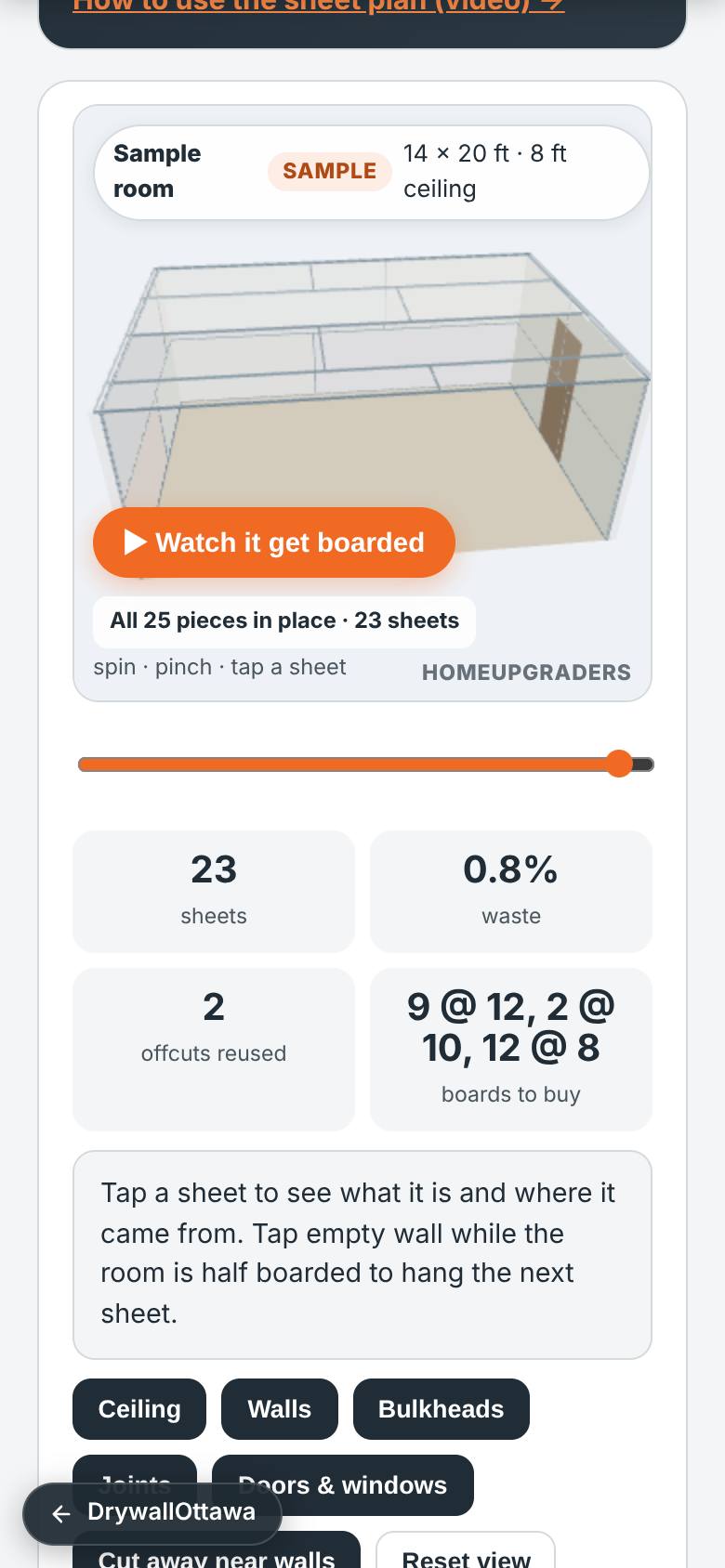
Tap Watch it get boarded.
Every sheet goes up in install order, ceiling first; the counters count up as they land.
- 3
Tap a sheet
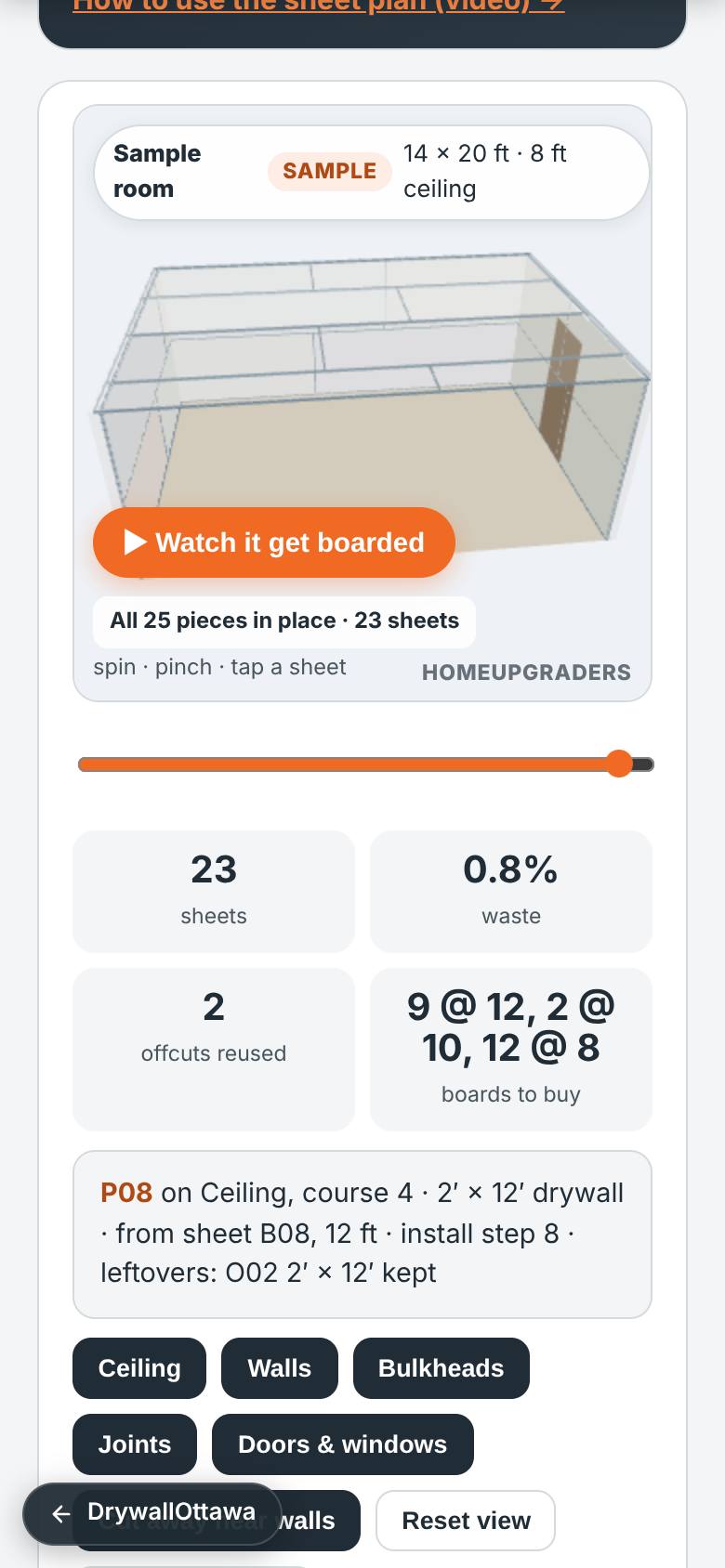
Tap any sheet in the room.
It says what it is, the size as a hanger says it, which sheet it came from and what was left over.
- 4
My room sizes
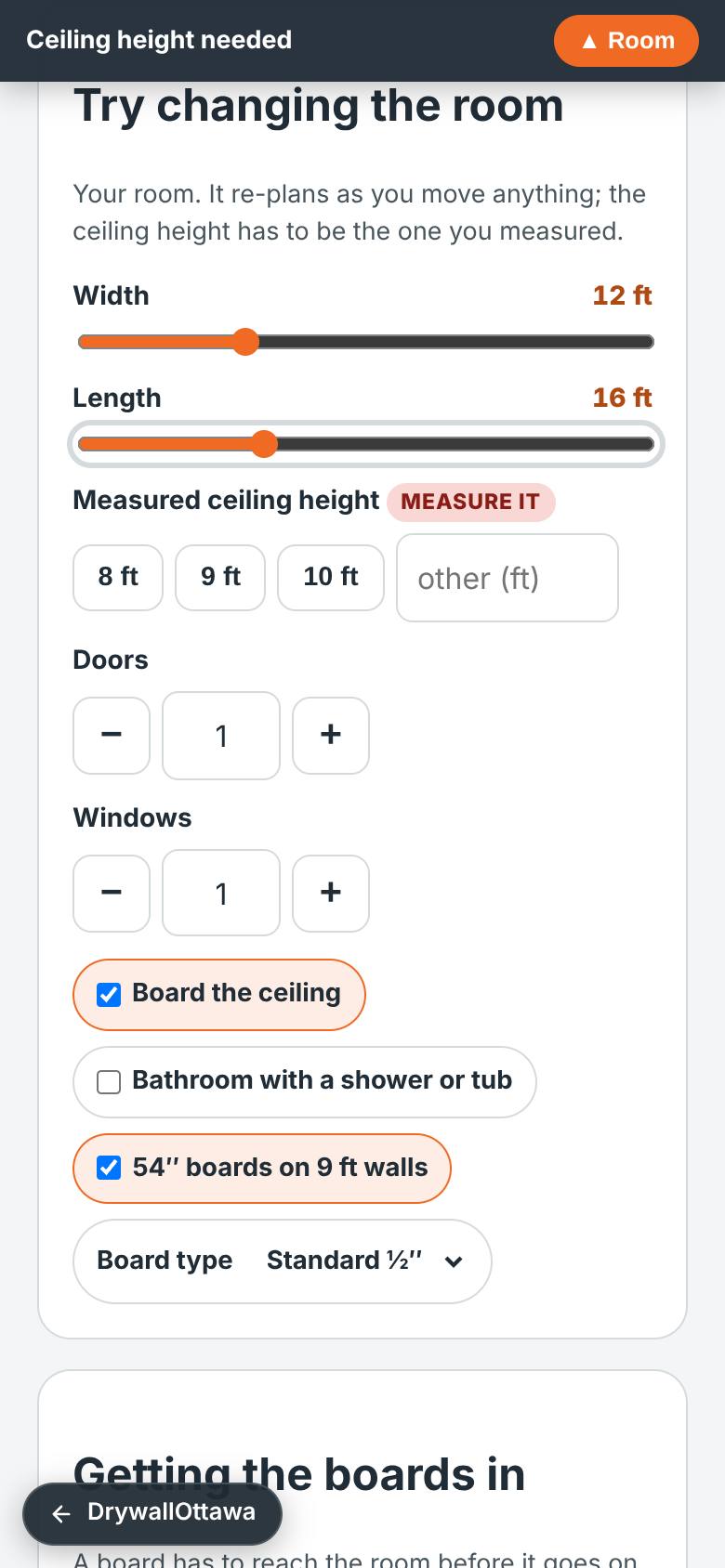
Tap My room sizes and slide width and length to yours: 12 by 16 ft here, one door, one window.
The room waits for the ceiling height you measured: nothing here assumes 8 ft.
- 5
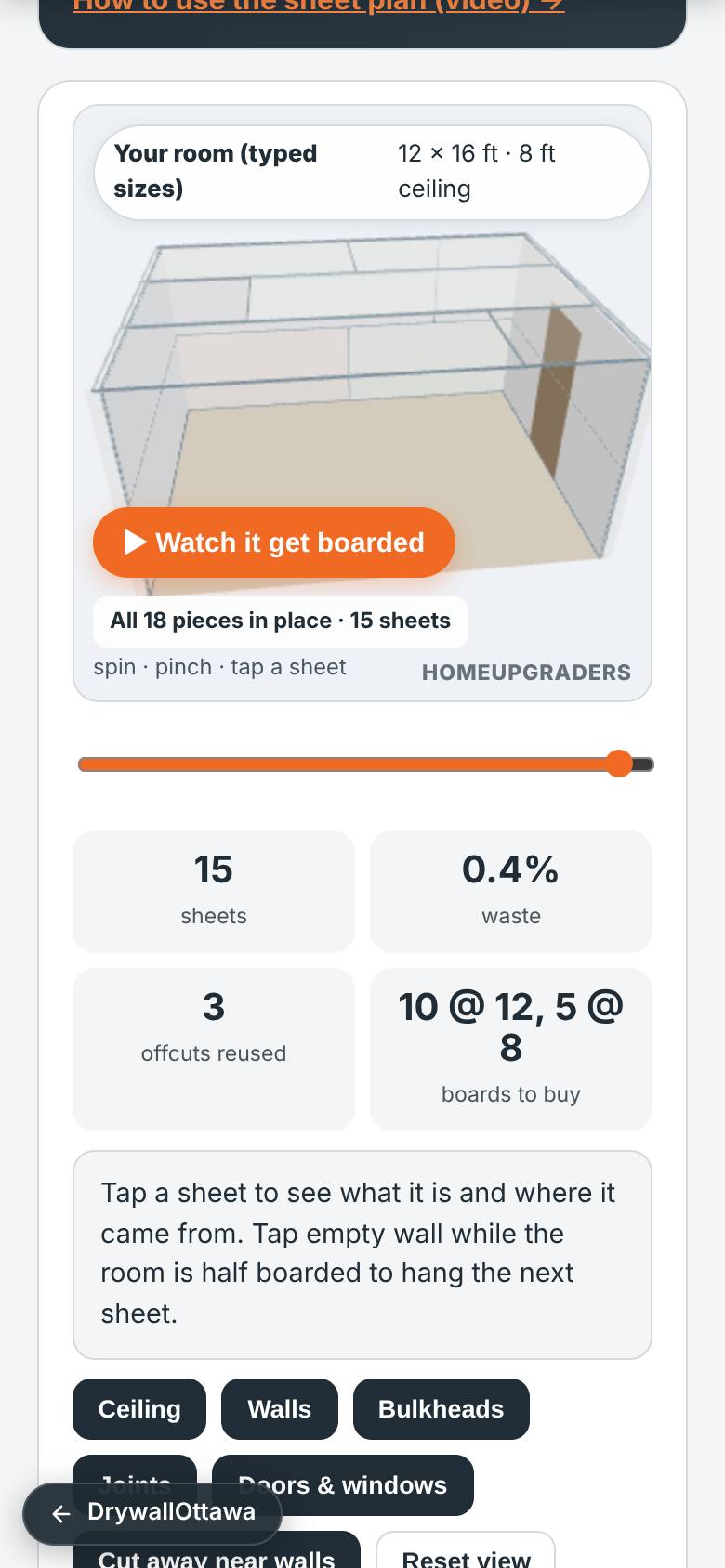
The ceiling you measured
Tap the measured ceiling height — 8 ft.
Your room is planned: 15 sheets (10 @ 12, 5 @ 8), 3 offcuts reused, 0.4% waste.
- 6
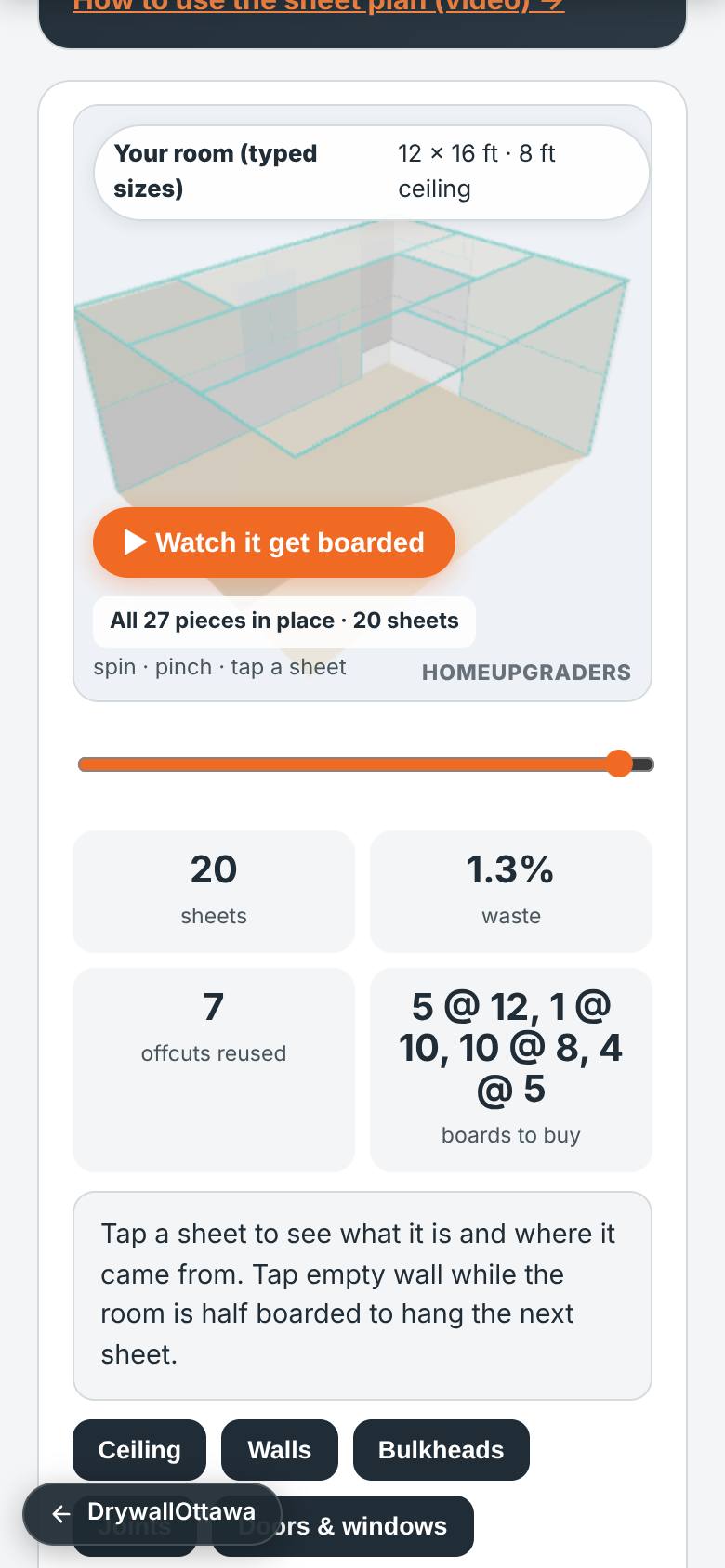
Bathroom with a tub
Tick Bathroom with a shower or tub.
The room turns to the tub: cement board on the wet walls, Humitek around it, and the Schluter waterproofing lines join the order.
- 7
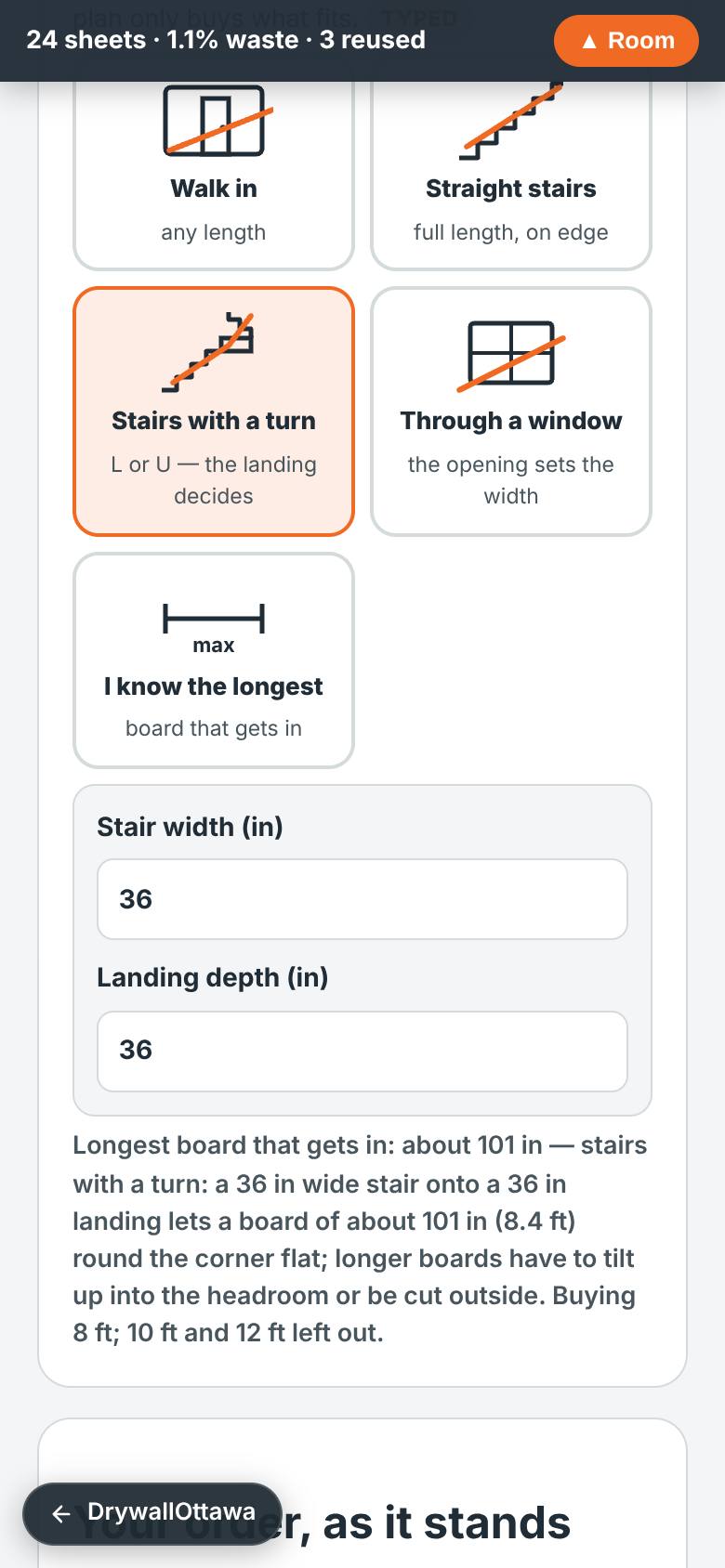
How the boards get in
Tap the way the boards get to the room: Stairs with a turn, 36 in wide, a 36 in landing.
Only 8 ft boards get round the corner, so the plan re-does itself with 8 ft sheets.
- 8
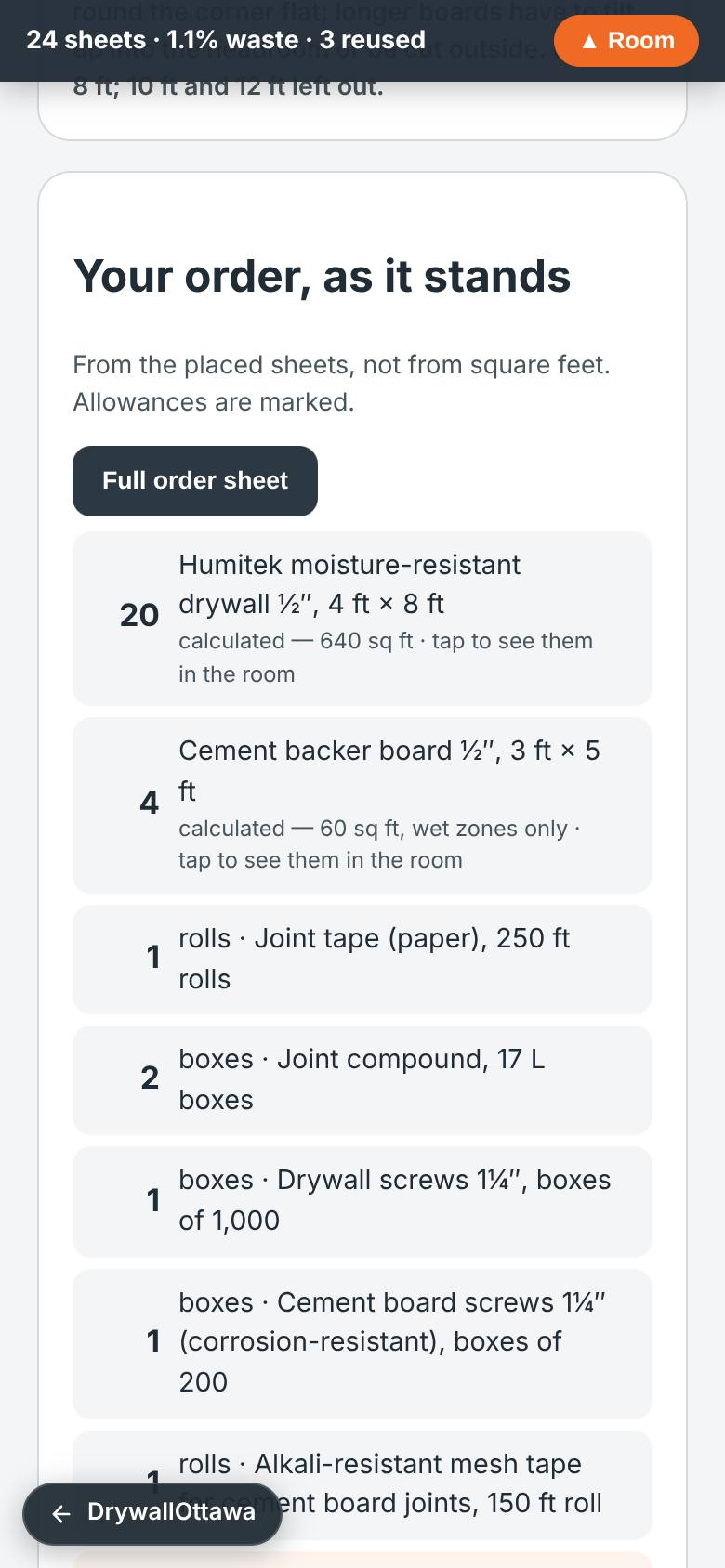
Your order
Scroll to Your order, as it stands.
Boards by size, tape, compound, screws, the Schluter allowances; the planning range under it.
- 9
Hang the wall yourself
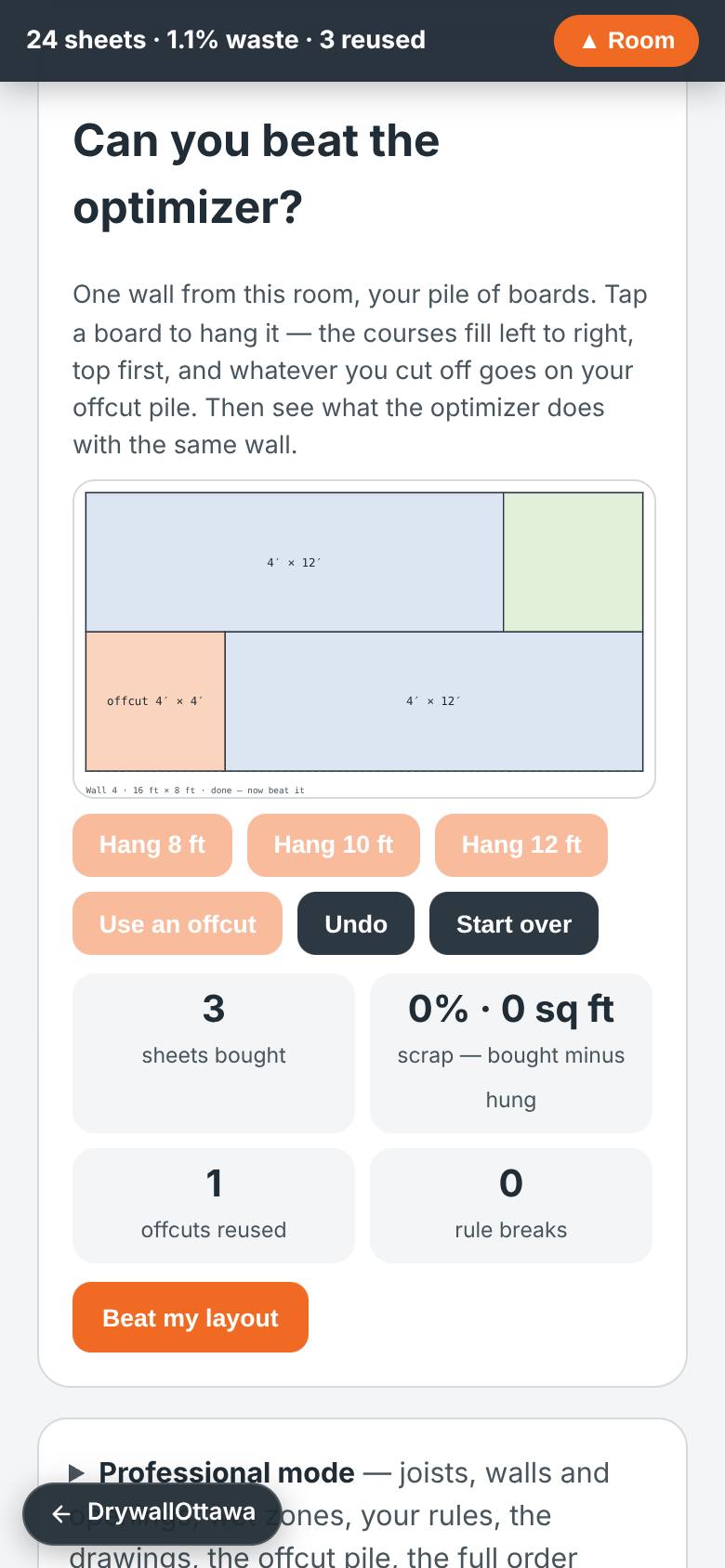
Tap Hang 12 ft, then Hang 8 ft — the 4 ft you cut off goes on your pile. On the lower course tap Use an offcut, then Hang 12 ft.
The wall is covered with 3 sheets, no scrap, the joints staggered.
- 10
Beat my layout
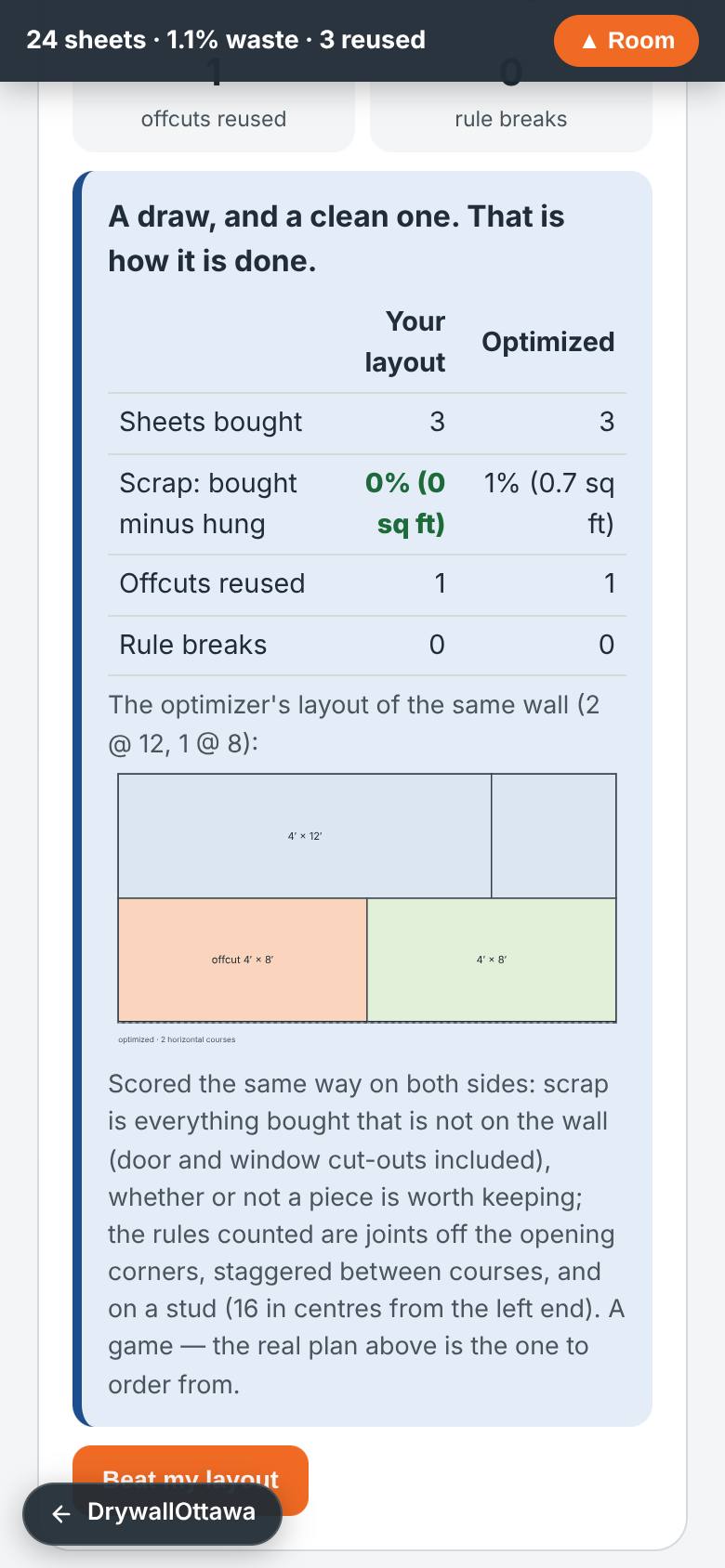
Tap Beat my layout.
The optimizer plans the same wall by the same rules and the two layouts are scored side by side.
- 11
Professional mode
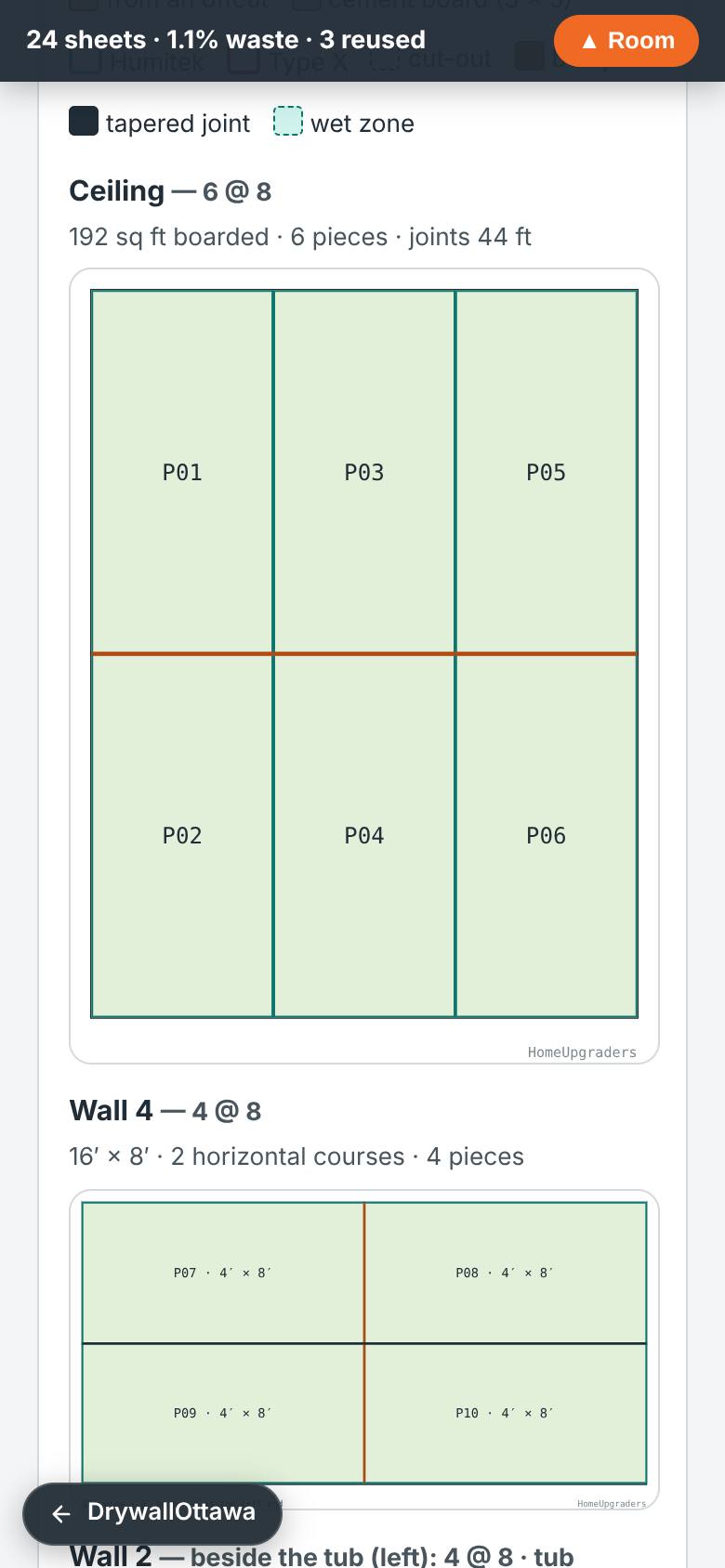
Tap Professional mode.
Joists, a card for every wall with its openings and wet zone, your rules, every wall drawn with its joints, the offcut pile, the install sequence.
- 12
Keep it
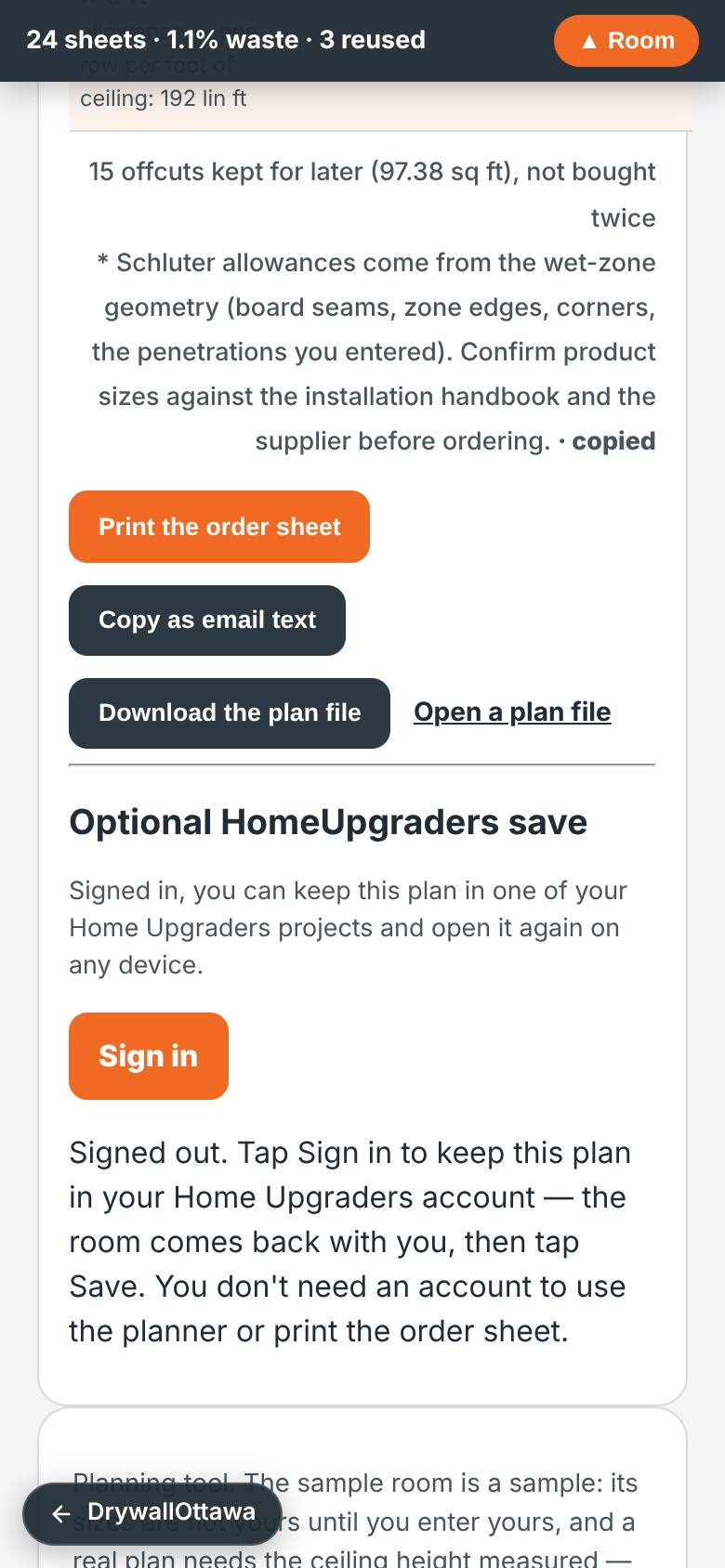
At the bottom: Copy as email text for the yard, Download the plan file, and, signed in, Save to your project.
The order is on your clipboard and the plan file is on your phone; nothing is sent unless you choose to.
What result should I expect?
A boarded 3D room you can play, spin and tap; the sheet count, waste and offcuts reused; the boards that fit through your stairs; an order sheet with your prices; and the drawings, offcut pile and install sequence under Professional mode.
How do I save, share or get help?
Nothing is sent unless you choose to. Copy as email text puts the order on your clipboard for the yard, Download the plan file keeps everything on your phone, Print the order sheet makes a paper copy, and signed in, Save keeps the plan in one of your Home Upgraders projects.
Every screenshot here was taken while doing these exact steps on the app's current build (c4488b0), on a phone-sized screen, signed out, on 2026-10-23. Steps that need an account are marked. Nothing was submitted or bought.
All How-To guides Return to Drywall Sheet Plan