Plan a drywall job room by room
The detailed planner in our drywall section measures each room's walls and ceiling, counts the sheets with 10% extra, tape and compound, prices the job from the same table as the instant price, flags conditions that need a site review, and saves a private Project File.
Guide revision: 2026-10-11
7-step walkthrough with voiceover, recorded from the same checked steps.
Voiceover: Kokoro text-to-speech (Apache 2.0).
How do I start?
Open our drywall section and, under Next steps, tap Scope & range planner. No account needed; have each room's length, width and height ready.
What do I do next?
- 1
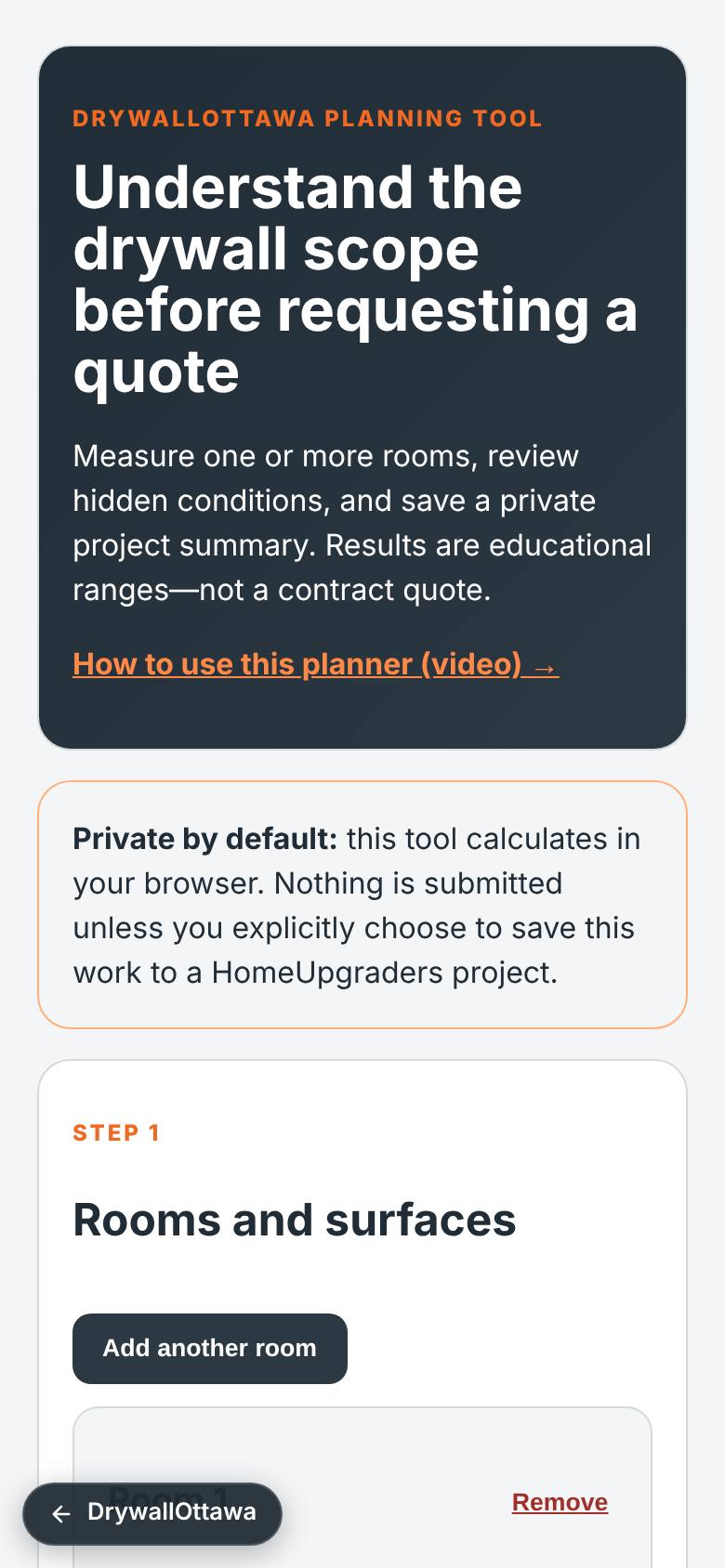
Open the detailed planner
In our drywall section, under Next steps, tap Scope & range planner.
Rooms, scope, review, summary and save.
- 2
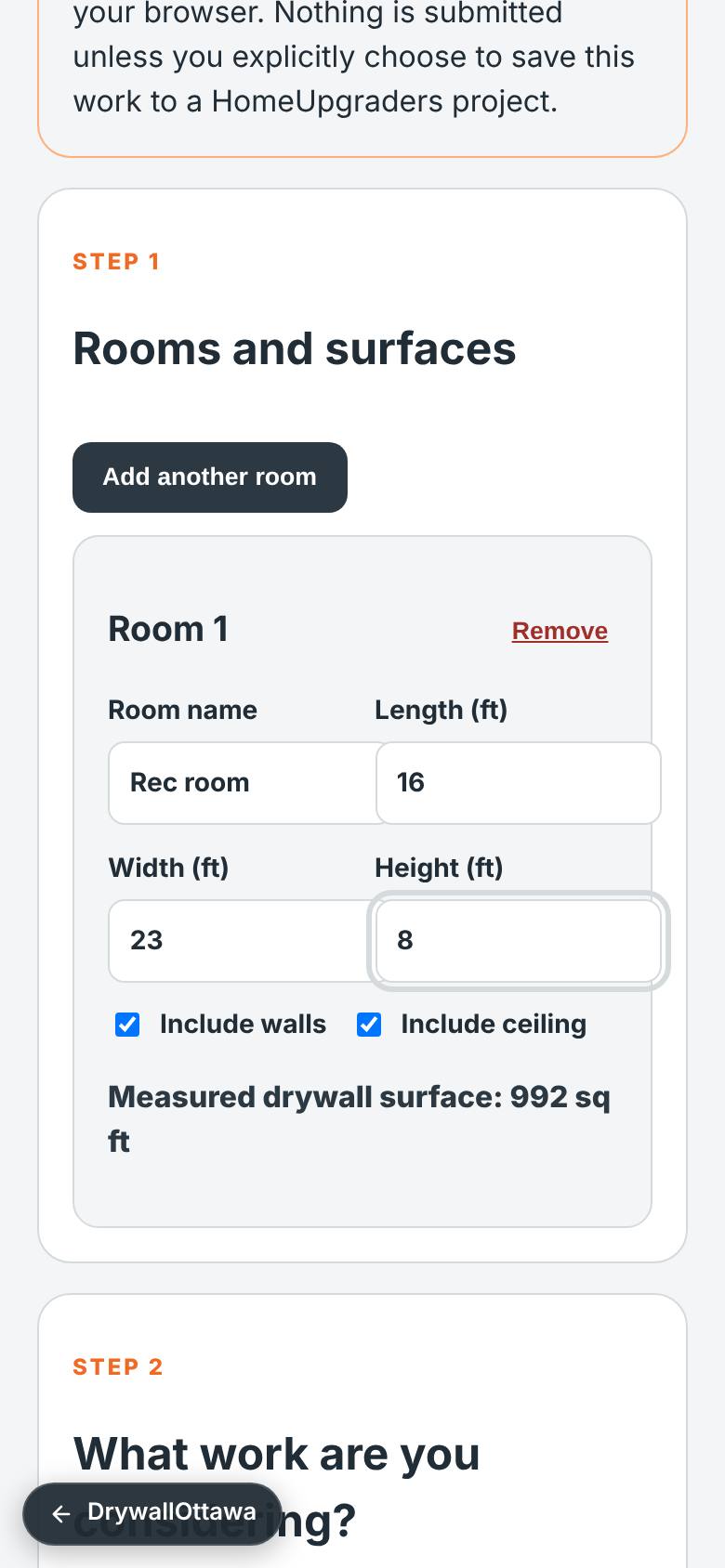
Enter the first room
Type the room name, length, width and height. Doors and windows are not taken off; the 10% waste covers the cut-outs.
The room total updates.
- 3
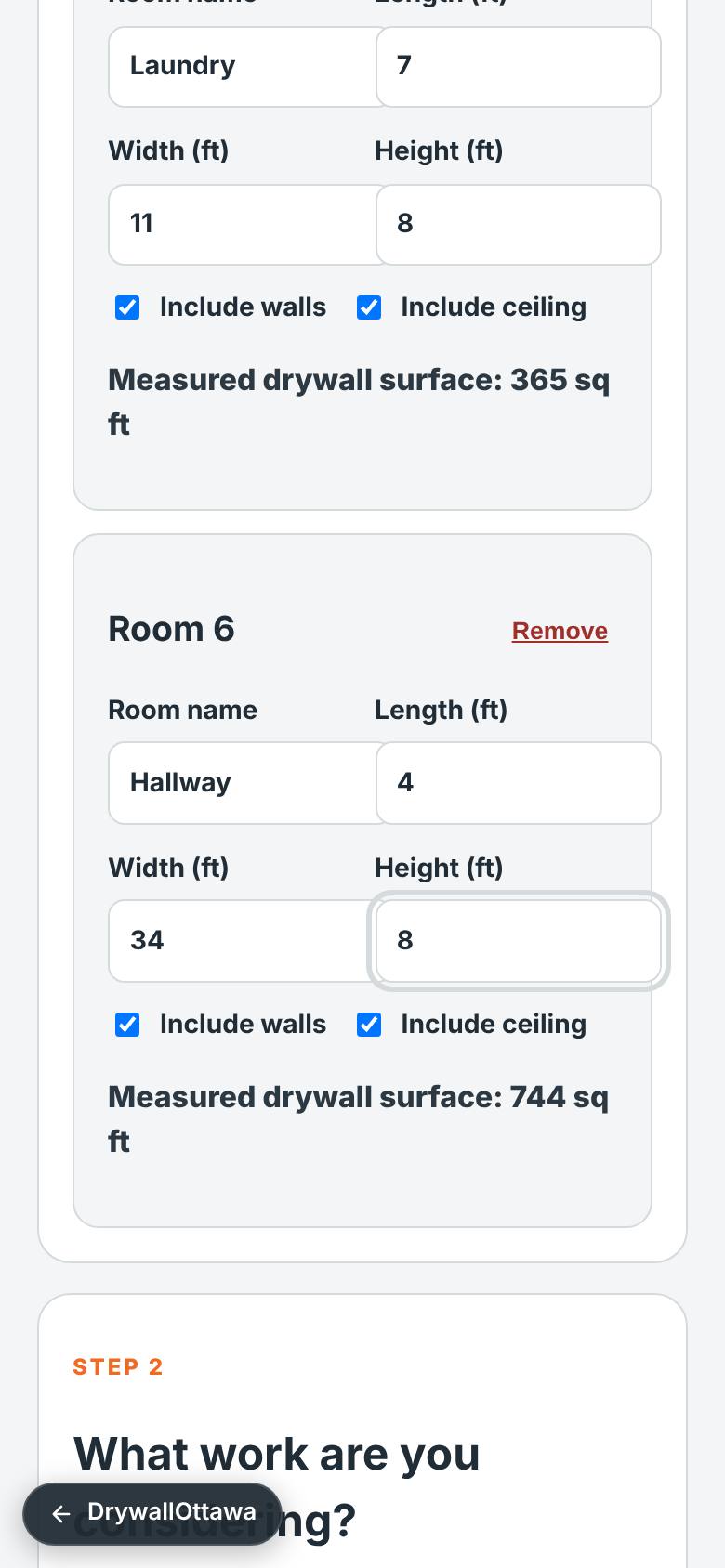
Add every room
Tap Add another room for each space and fill it in.
Six rooms are in.
- 4
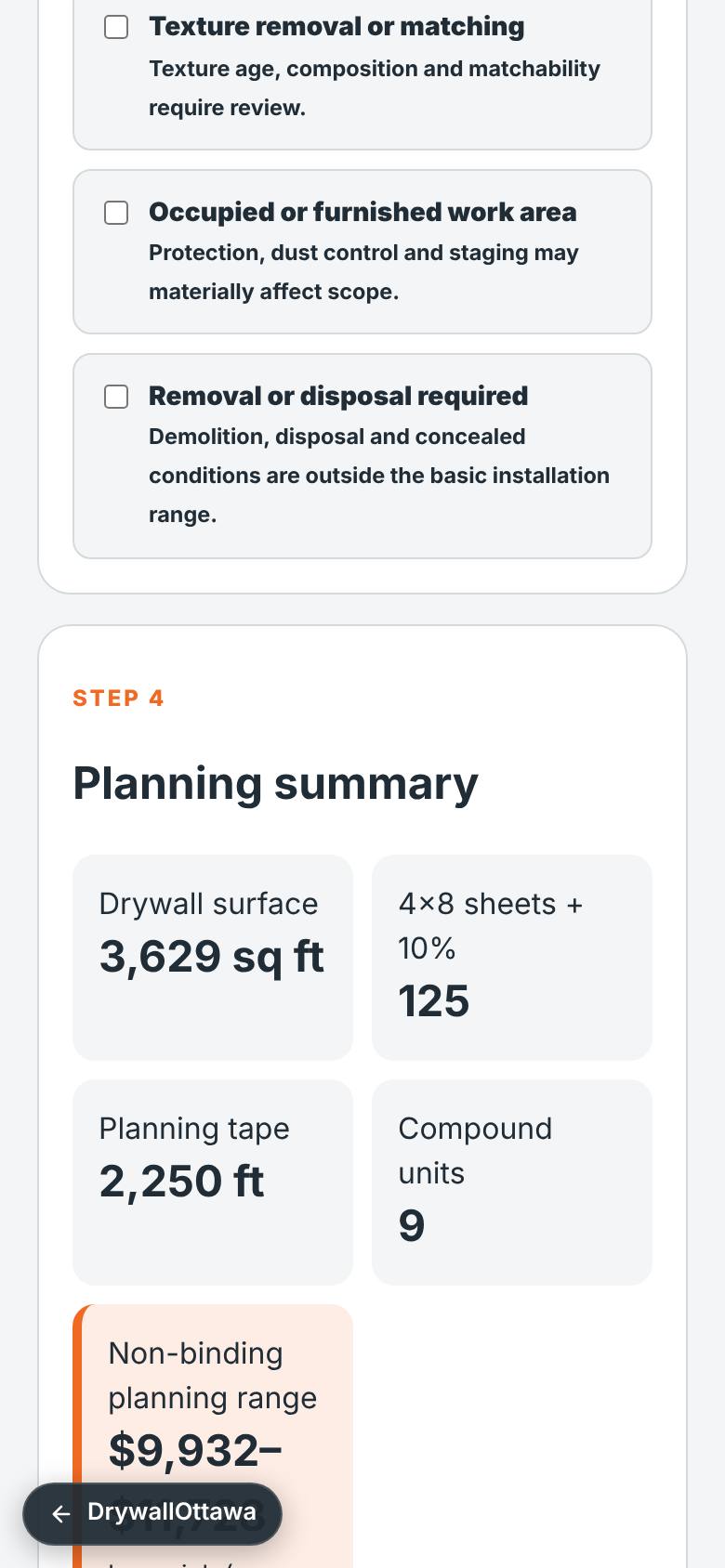
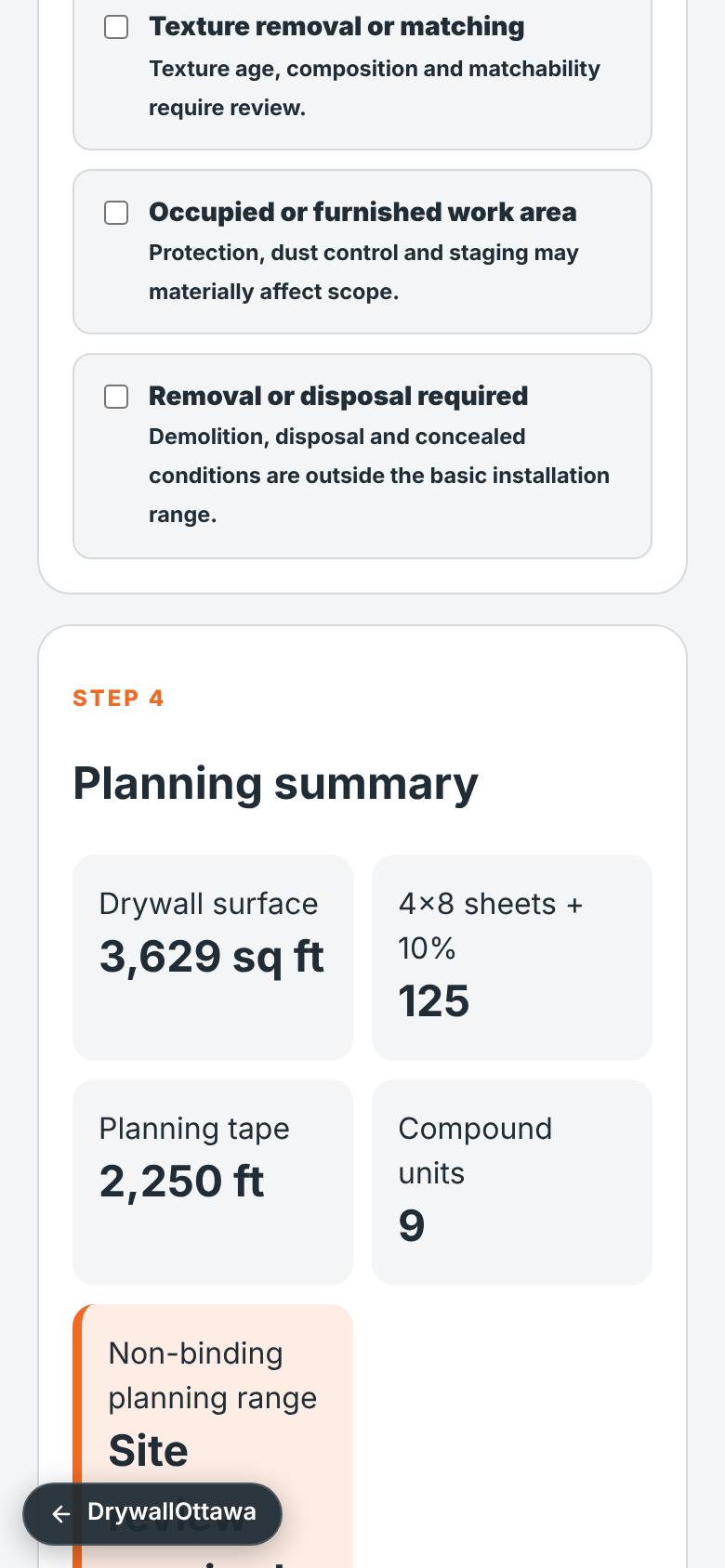
Read the planning summary
Scroll to Planning summary.
Surface, sheets, tape, compound and the planning range.
- 5
Fire-rated assembly
In Conditions requiring review, tick Garage separation, furnace room or fire-rated assembly.
The price is replaced by Site review required.
- 6
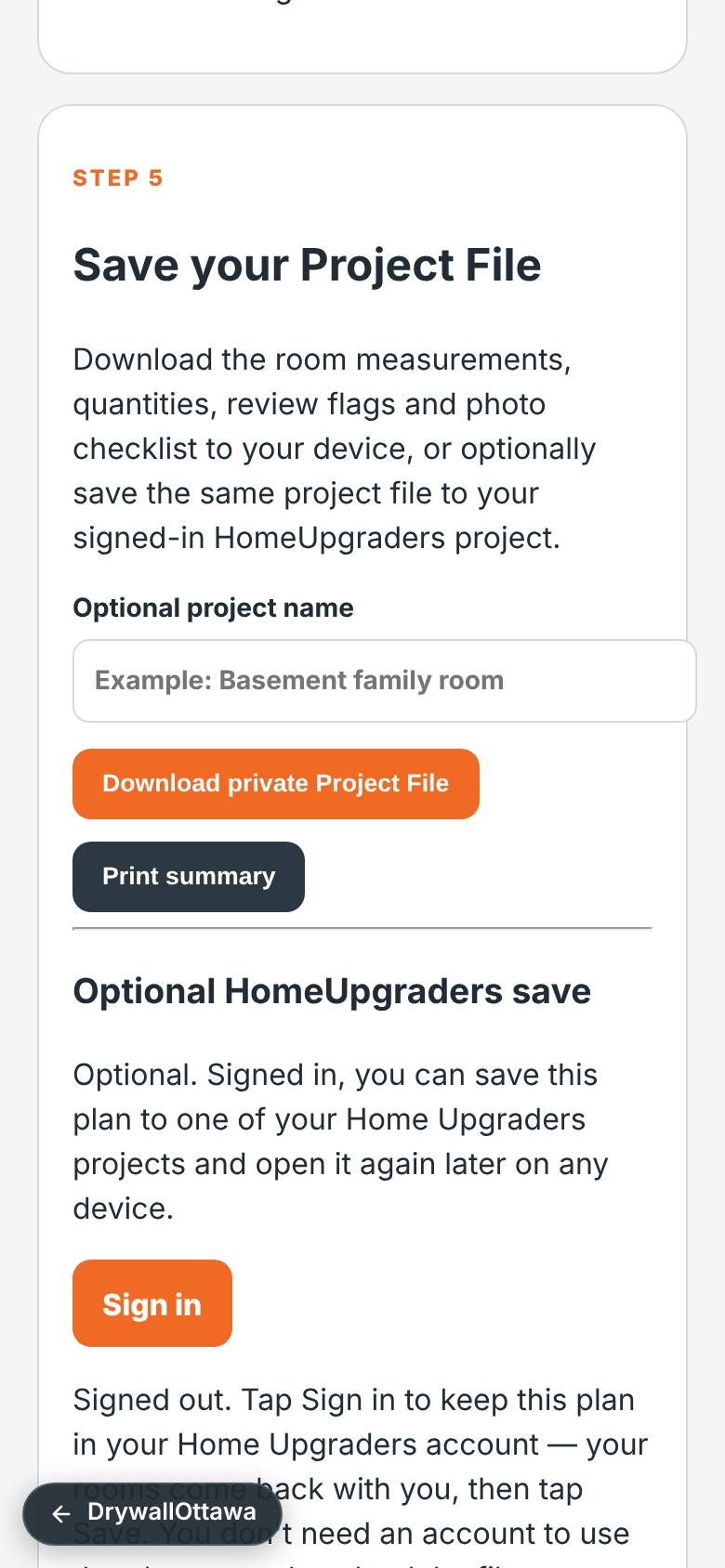
Download your Project File
Tap Download private Project File.
A file downloads to your phone; nothing is sent.
- 7
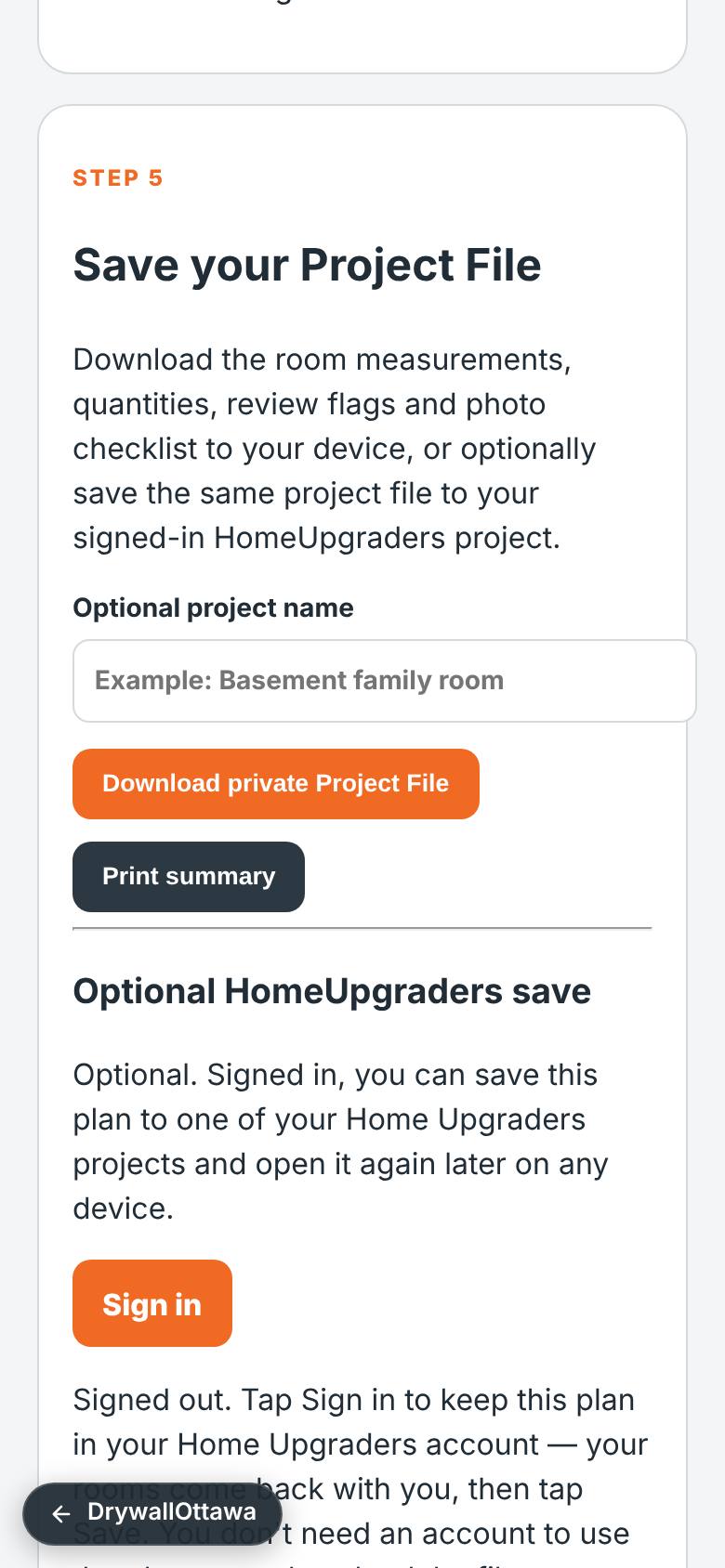
Keep it in your account
Signed out, tap Sign in; your rooms come back with you, then tap Save.
One Sign in button; saving is optional.
What result should I expect?
Your measured drywall surface, sheets, tape and compound, a planning range (or Site review required), and a Project File on your phone.
How do I save, share or get help?
Nothing is sent unless you choose to. In the detailed planner, Download private Project File keeps everything on your phone and Print summary makes a paper copy; signed in, Save keeps it in one of your Home Upgraders projects. Ask DrywallOttawa (the chat button) answers drywall questions, and "I just want help from a real human" reaches a person.
Every screenshot here was taken while doing these exact steps on the app's current build (f0c9e51), on a phone-sized screen, signed out, on 2026-10-11. Steps that need an account are marked. Nothing was submitted or bought.
All How-To guides Return to Drywall